|
Field |
Data type |
Description |
|---|---|---|
| current | String | The currently used theme style name, such as `Default`. |
| presets | Object | The configuration collection of theme styles. Custom styles can be added. |
| presets.\{name} | Object | The configuration data of a theme style. |
| presets.\{name}.theme | Object | The theme global configuration data, such as colors and fonts. |
| presets.\{name}.sections | Object | The fixed section configurations. Refer to [JSON templates](https://developer.shopline.com/docs/online-store-3-0-themes/theme-structure/templates.md#YWmjr) for specific configuration specifications. |
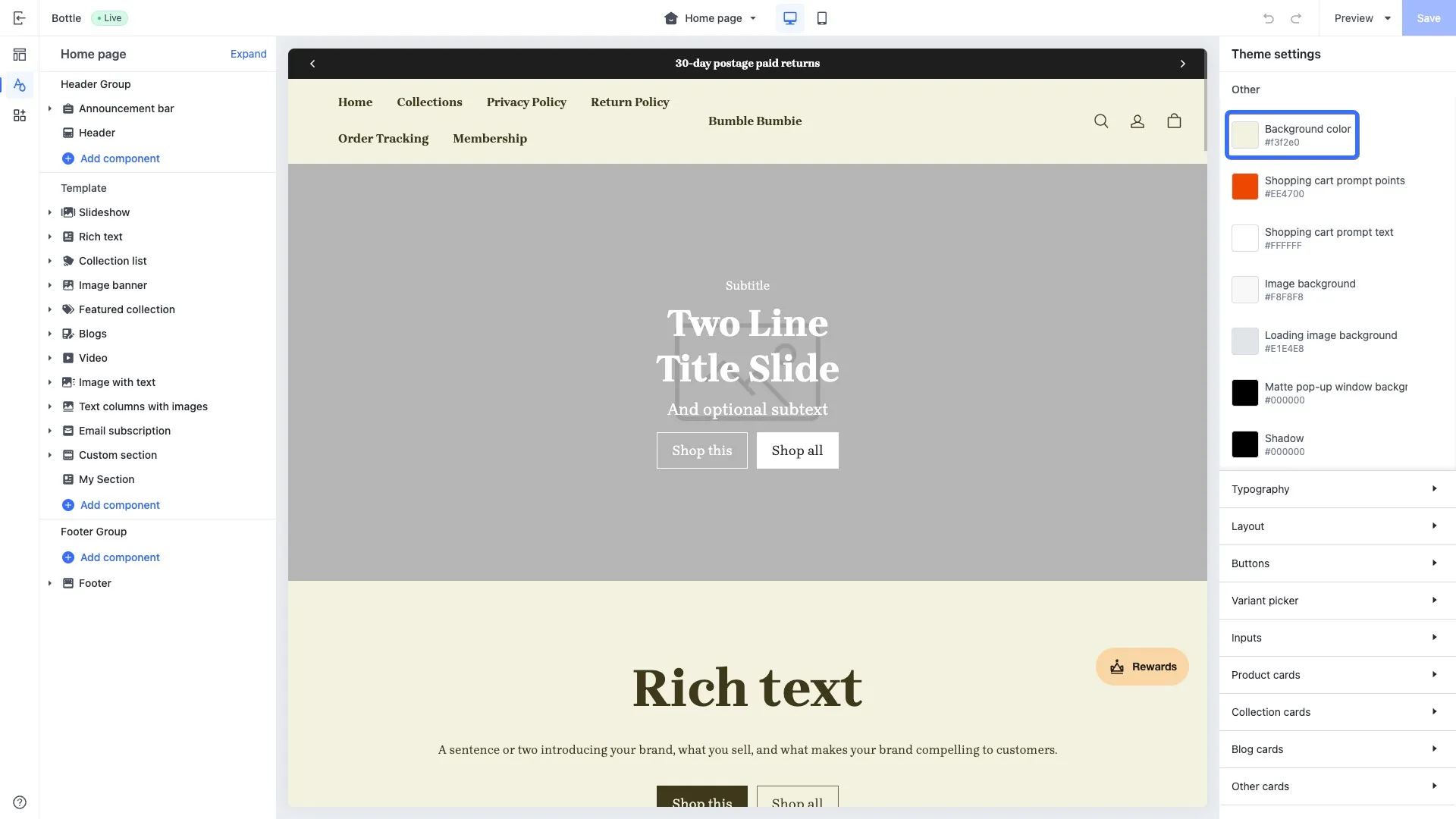 2. Change the global background color to `#E0F1F3`.
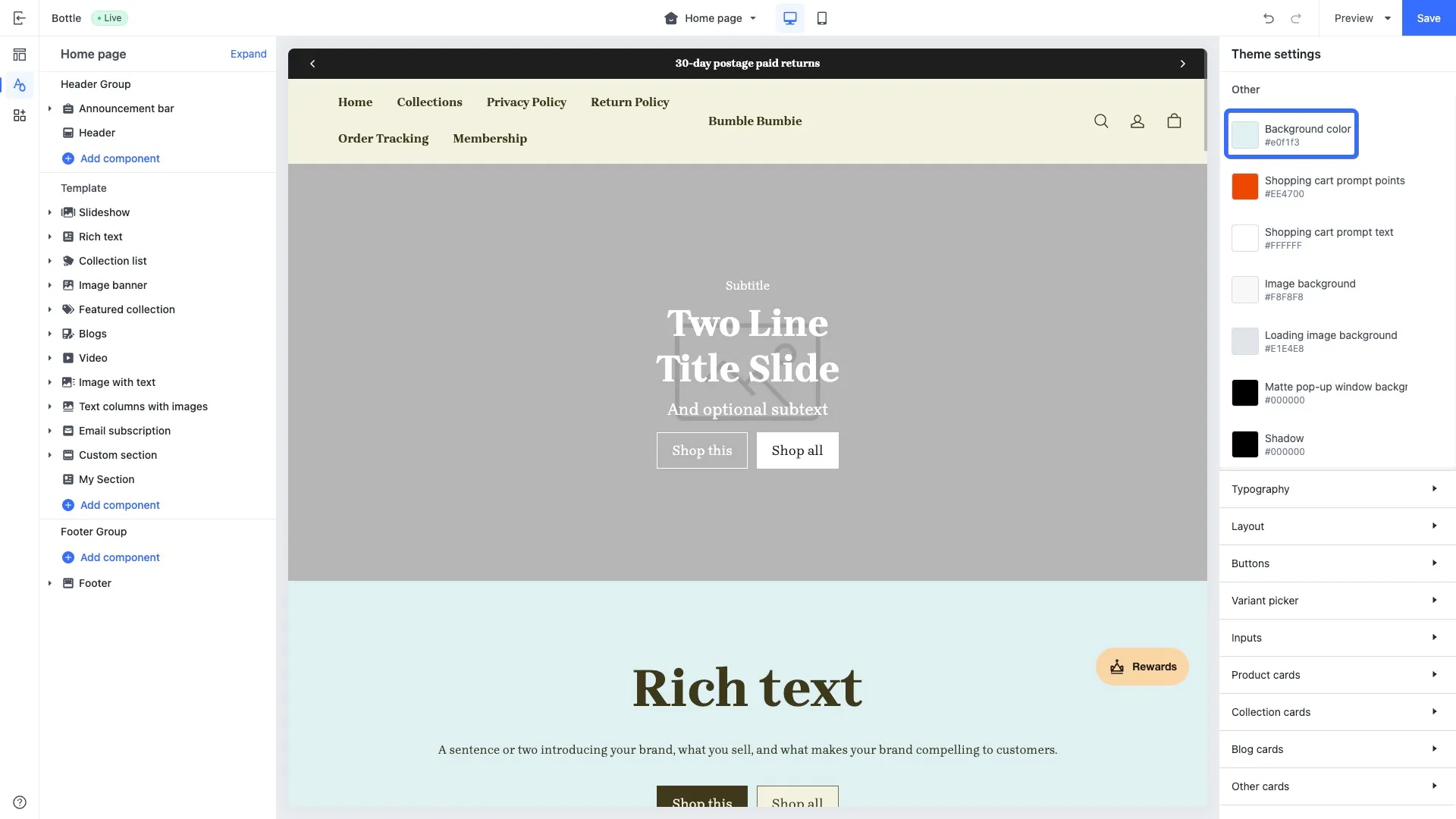 3. Confirm the changes in the `theme.config.json` configuration file via the theme code editor. The updated global page background color is stored in the file's `presets.{name}.theme.color_page_background`. The key name of `color_page_background` is configured in the [Global configuration definitions](https://developer.shopline.com/docs/online-store-3-0-themes/theme-structure/theme-schema-json.md#UtT0k). The following example snippet shows the page color setting in the global configuration.
```json
{
"current": "Default",
"presets": {
"Default": {
"theme": {
...
"color_page_background": "#e0f1f3", // The updated global configuration data
...
},
"sections": {}
}
}
}
```
* * *
## Multi-style configuration{#MQTyI}
You can add multiple styles for a theme for merchants to choose from in the theme shop.
### Add a new style{#Zz6Zq}
To add a new style for a theme, insert a style configuration under `presets` in the JSON file.
```json
// theme.config.json
{
"current": "Default",
"presets": {
"Default": { // The default style
"theme": {
"color_schemes": {
"scheme-1": {
"settings": {
"color_background": "#F3F2E0", // Background color:color scheme 1
...
}
}
}
}
},
"Dark": { // The dark style
"theme": {
"color_schemes": {
"scheme-1": {
"settings": {
"color_background": "#000000", // Background color:color scheme 2
...
}
}
}
}
}
}
}
```
### Switch styles{#jHsgE}
You can switch to the dart theme style by modifying the value of `current` to `Dark`.
```json
// theme.config.json
{
"current": "Dark", // Switch to the dark style
"presets": {
"Default": { // Default style
...
},
"Dark": { // Dark style
...
}
}
}
```
* * *
## Fixed section configuration{#GKjrk}
You can set data for [fixed sections](https://developer.shopline.com/docs/online-store-3-0-themes/theme-structure/sections.md#WgpOI) through the theme editor. The configured data is saved in the `presets.{name}.sections` field within the `theme.config.json` file.
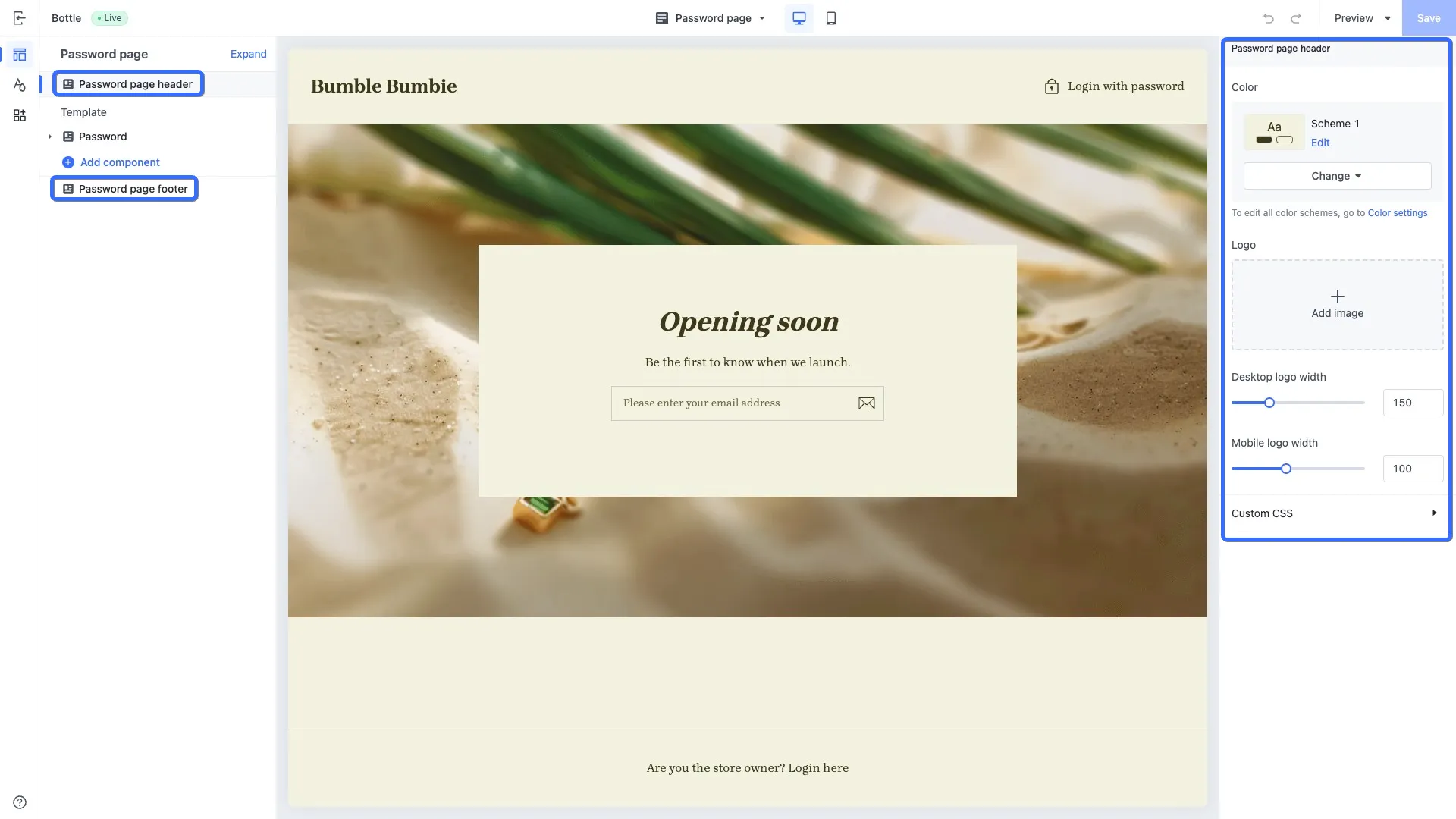
The following image shows the password protection page, which includes fixed sections **Password page header** and **Password page footer**. You can edit the configurations of these sections in the theme editor.
3. Confirm the changes in the `theme.config.json` configuration file via the theme code editor. The updated global page background color is stored in the file's `presets.{name}.theme.color_page_background`. The key name of `color_page_background` is configured in the [Global configuration definitions](https://developer.shopline.com/docs/online-store-3-0-themes/theme-structure/theme-schema-json.md#UtT0k). The following example snippet shows the page color setting in the global configuration.
```json
{
"current": "Default",
"presets": {
"Default": {
"theme": {
...
"color_page_background": "#e0f1f3", // The updated global configuration data
...
},
"sections": {}
}
}
}
```
* * *
## Multi-style configuration{#MQTyI}
You can add multiple styles for a theme for merchants to choose from in the theme shop.
### Add a new style{#Zz6Zq}
To add a new style for a theme, insert a style configuration under `presets` in the JSON file.
```json
// theme.config.json
{
"current": "Default",
"presets": {
"Default": { // The default style
"theme": {
"color_schemes": {
"scheme-1": {
"settings": {
"color_background": "#F3F2E0", // Background color:color scheme 1
...
}
}
}
}
},
"Dark": { // The dark style
"theme": {
"color_schemes": {
"scheme-1": {
"settings": {
"color_background": "#000000", // Background color:color scheme 2
...
}
}
}
}
}
}
}
```
### Switch styles{#jHsgE}
You can switch to the dart theme style by modifying the value of `current` to `Dark`.
```json
// theme.config.json
{
"current": "Dark", // Switch to the dark style
"presets": {
"Default": { // Default style
...
},
"Dark": { // Dark style
...
}
}
}
```
* * *
## Fixed section configuration{#GKjrk}
You can set data for [fixed sections](https://developer.shopline.com/docs/online-store-3-0-themes/theme-structure/sections.md#WgpOI) through the theme editor. The configured data is saved in the `presets.{name}.sections` field within the `theme.config.json` file.
The following image shows the password protection page, which includes fixed sections **Password page header** and **Password page footer**. You can edit the configurations of these sections in the theme editor.