Configuration file
When you create a Checkout UI Customizer using the SHOPLINE CLI, the shopline.ui.extension.toml file is automatically generated in the root directory. The file contains the extension's name, the extension points, capabilities, and the extension settings.
How it works
When you launch an extension using the SHOPLINE CLI, the configuration file is parsed. This parsed data then dictates where the extension is rendered on the page.
When you publish the extension to SHOPLINE, the configuration file and your extension code are pushed together.
type = "checkout_ui_customizer"
name = "customizer-name"
extension_points = ['Checkout::Dynamic::Render']
[capabilities]
block_progress = true
# [settings]
# ....
Configuration properties
| Property | Required or not | Description |
|---|---|---|
type | Yes | The type of the extension. For Checkout UI Customizers, the value is fixed as checkout_ui_customizer. |
name | Yes | The name of the Checkout UI Customizer. |
extension_points | Yes | The extension point where the extension will be rendered. This value must be identical to extensionPoint specified in the render(extensionPoint, App) function within your code. For example, if the extension code uses the function call render('Checkout::Dynamic::Render', (props) => { return <Text/>; }), then the Checkout::Dynamic::Render extension point must be included in this extension_points property. |
capabilities | No | Indicates the capability of the Checkout UI Customizer. Supported capabilities are:
|
settings | No | Indicates the configuration items that merchants can set in the checkout editor. |
Merchant configuration items
The settings property in the configuration file defines a set of configuration options that merchants can set in their checkout editors.
For example, the following code sets up two configuration items. name of the first configuration item is Title, which will be displayed to merchants. Its type is a single-line text field (single_line_text_field). For more data types, refer to Supported data types.
Merchants can input characters in this field in the checkout editor, and you can validate the entered data. The input content will eventually be passed into the extension. In the extension, you can access this value using settings.{key}.
[settings]
  [[settings.fields]]
  key = "title"
  type = "single_line_text_field"
  name = "Title"
  description = "Title description"
  [[settings.fields]]
  key = "title2"
  type = "single_line_text_field"
  name = "Title 2"
  description = "Title description 2"
| Property | Required or not | Description | Example |
|---|---|---|---|
key | Yes | The key used to identify the setting. | "title" |
type | Yes | The data type of the setting. Refer to Supported data types for specific data types. | "single_line_text_field" |
name | Yes | The name of the setting, which is shown to merchants. | "Title" |
description | No | The description of the setting, which is shown to merchants. | "Title description" |
validations | No | The validation rules for setting values. Refer to Data validation options for specific verification rules. | |
Supported data types
| Data type | Description | Example |
|---|---|---|
boolean | Valid values are true and false. | true |
date | The date in the ISO 8601 format. | 1997-01-01 |
date_time | The date and time in the ISO 8601 format. | 1997-01-01T00:00:00 |
single_line_text_field | A field that allows merchants to enter a single line of text. | Title |
multi_line_text_field | A field that allows merchants to enter multiple lines of text. | |
number_integer | An integer. | 10 |
number_decimal | A number with decimal places. | 10.4 |
Data validation options
| Option | Description | Supported data types | Example |
|---|---|---|---|
| Minimum length | The minimum length of text |
| [[settings.fields.validations]] name = "min" value = "1" |
| Maximum length | The maximum length of text |
| [[settings.fields.validations]] name = "max" value = "20" |
| Regular expression | A regular expression |
| [[settings.fields.validations]] name = "regex" value = "^[0-9]*$" |
| Choices | A list of predefined options, used to limit the values of the configuration item |
| [[settings.fields.validations]] name = "choices" value = "["yellow", "green", "red"]" |
| Minimum date | The minimum date in the ISO 8601 format |
| [[settings.fields.validations]] name = "min" value = "1997-01-01" |
| Maximum date | The maximum date in the ISO 8601 format |
| [[settings.fields.validations]] name = "max" value = "1997-03-03" |
| Minimum datetime | The minimum date and time, in the ISO 8601 format |
| [[settings.fields.validations]] name = "min" value = "1997-03-03T00:30:00" |
| Maximum datetime | The maximum date and time, in the ISO 8601 format |
| [[settings.fields.validations]] name = "max" value = "1997-03-03T17:30:00" |
| Minimum integer | The minimum integer number |
| [[settings.fields.validations]] name = "min" value = "10" |
| Maximum integer | The maximum integer number |
| [[settings.fields.validations]] name = "max" value = "20" |
| Minimum decimal | The minimum decimal number |
| [[settings.fields.validations]] name = "min" value = "0.4" |
| Maximum decimal | The maximum decimal number |
| [[settings.fields.validations]] name = "max" value = "2.99" |
| Maximum precision | The maximum number of decimal places |
| [[settings.fields.validations]] name = "max_precision" value = "3" |
Block progress
When and how to block progress
If the checkout process requires buyers to provide specific information or complete certain interactions, their checkout must be blocked until all necessary information is provided. You can return { success: false } through Interceptor to block the process, and the configuration file must include the block_progress capability.
For example, to ensure that buyers agree to certain terms before checking out, you can require them to click a checkbox. Set the capabilities property to block_progress = true as shown in the following:
[capabilities]
block_progress = true
Enable or disable progress blocking
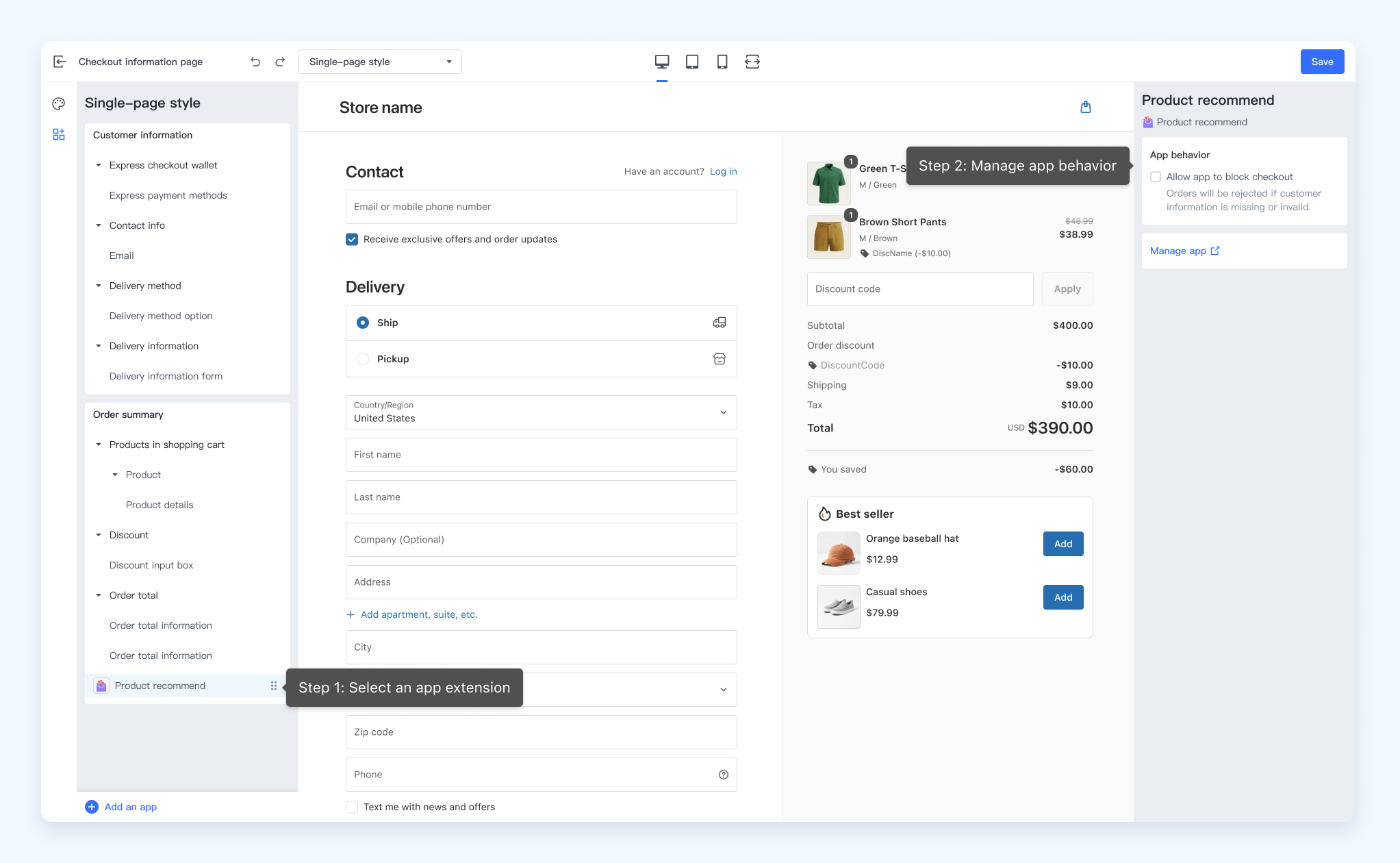
The progress blocking feature is not automatically activated by only enabling the block_progress setting. Merchants must manually enable or disable this feature by checking or unchecking the Allow Application to block the checkout checkbox under Application behaviors in the checkout editor.

'%3e%3crect%20x='6'%20y='7.13049'%20width='13'%20height='10'%20rx='1'%20fill='black'/%3e%3cpath%20d='M12.4998%2012.936L-3.65042%200.604835L28.65%200.604838L12.4998%2012.936Z'%20stroke='white'%20stroke-linejoin='round'/%3e%3c/g%3e%3cdefs%3e%3cclipPath%20id='clip0_716_14611'%3e%3crect%20x='6'%20y='7.13049'%20width='13'%20height='10'%20rx='1'%20fill='white'/%3e%3c/clipPath%3e%3c/defs%3e%3c/svg%3e)

'%3e%3crect%20x='5.63086'%20y='7.26086'%20width='13'%20height='10'%20rx='1'%20fill='white'/%3e%3cpath%20d='M12.1306%2013.0664L-4.01956%200.735206L28.2809%200.735209L12.1306%2013.0664Z'%20stroke='%231A2C42'%20stroke-linejoin='round'/%3e%3c/g%3e%3cdefs%3e%3cclipPath%20id='clip0_716_14599'%3e%3crect%20x='5.63086'%20y='7.26086'%20width='13'%20height='10'%20rx='1'%20fill='white'/%3e%3c/clipPath%3e%3c/defs%3e%3c/svg%3e)