Shipping workflow
This article introduces the shipping workflow in a fulfillment app. It begins with explaining the core concepts of fulfillment and the rules governing transitions in fulfillment order status.
Fulfillment concepts
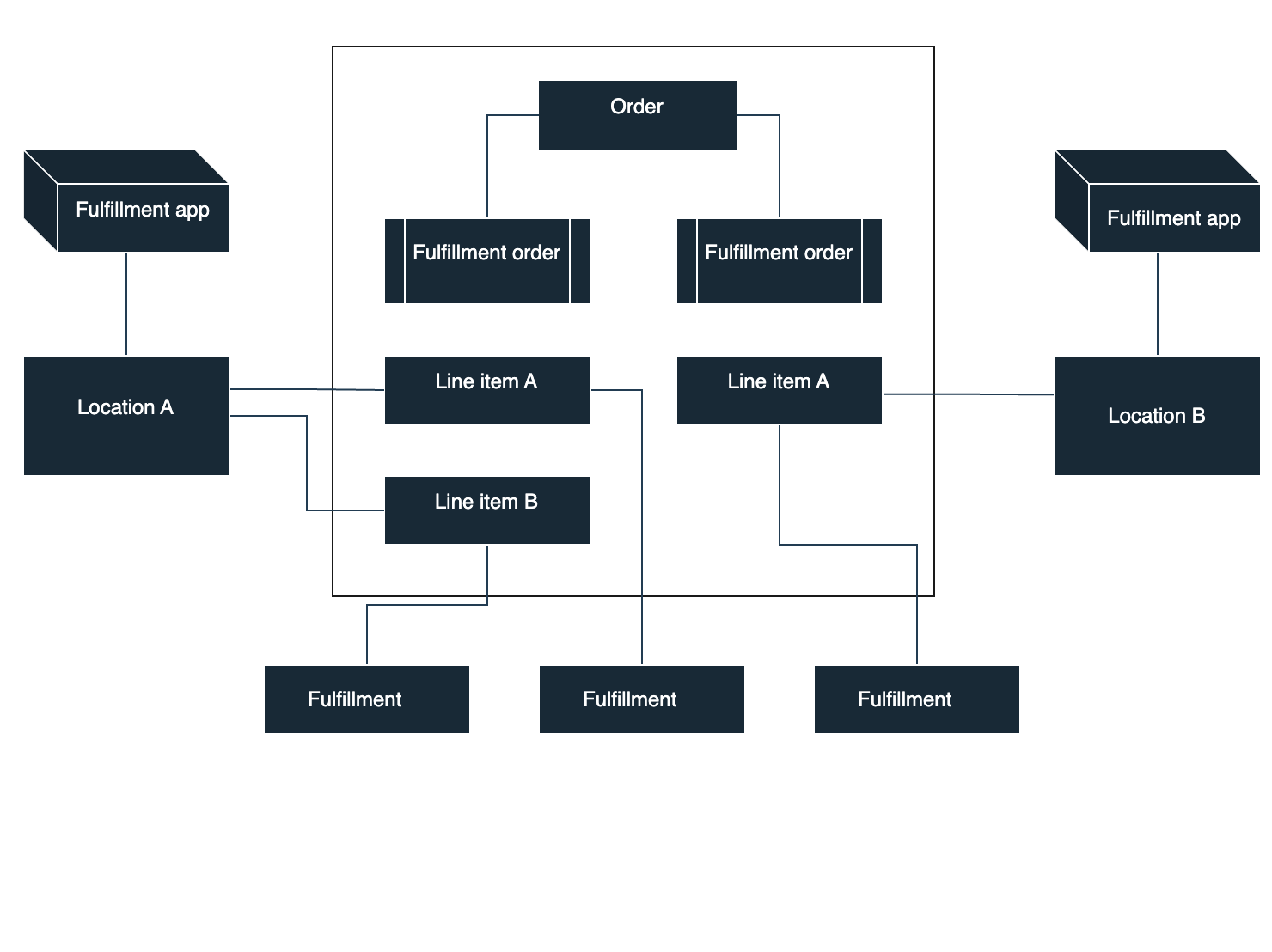
The core concepts of order fulfillment include order, fulfillment order, and fulfillment, as described below:
- Order: A transaction record generated after a customer confirms the purchase. It contains all purchasing information, including product items, discounts, shipping fees, and customer details.
- Fulfillment order: A set of fulfillment instructions generated based on the details in an order, such as whether the items require shipping, whether they are gift cards, their shipping fees, and their fulfillment locations. A single order may contain multiple fulfillment orders.
- Fulfillment: A shipping record generated when items are shipped, containing logistics tracking information. Items in a fulfillment order can be shipped in multiple batches, meaning a single fulfillment order may result in multiple fulfillments.
The diagram below illustrates the relationship between orders, fulfillment orders, and fulfillment apps in SHOPLINE. For any given order, the system generates one or more fulfillment orders based on specific details in that order. If the assigned location of a fulfillment order is a fulfillment location, the shipping will be processed by the corresponding fulfillment service provider.
Fulfillment order status
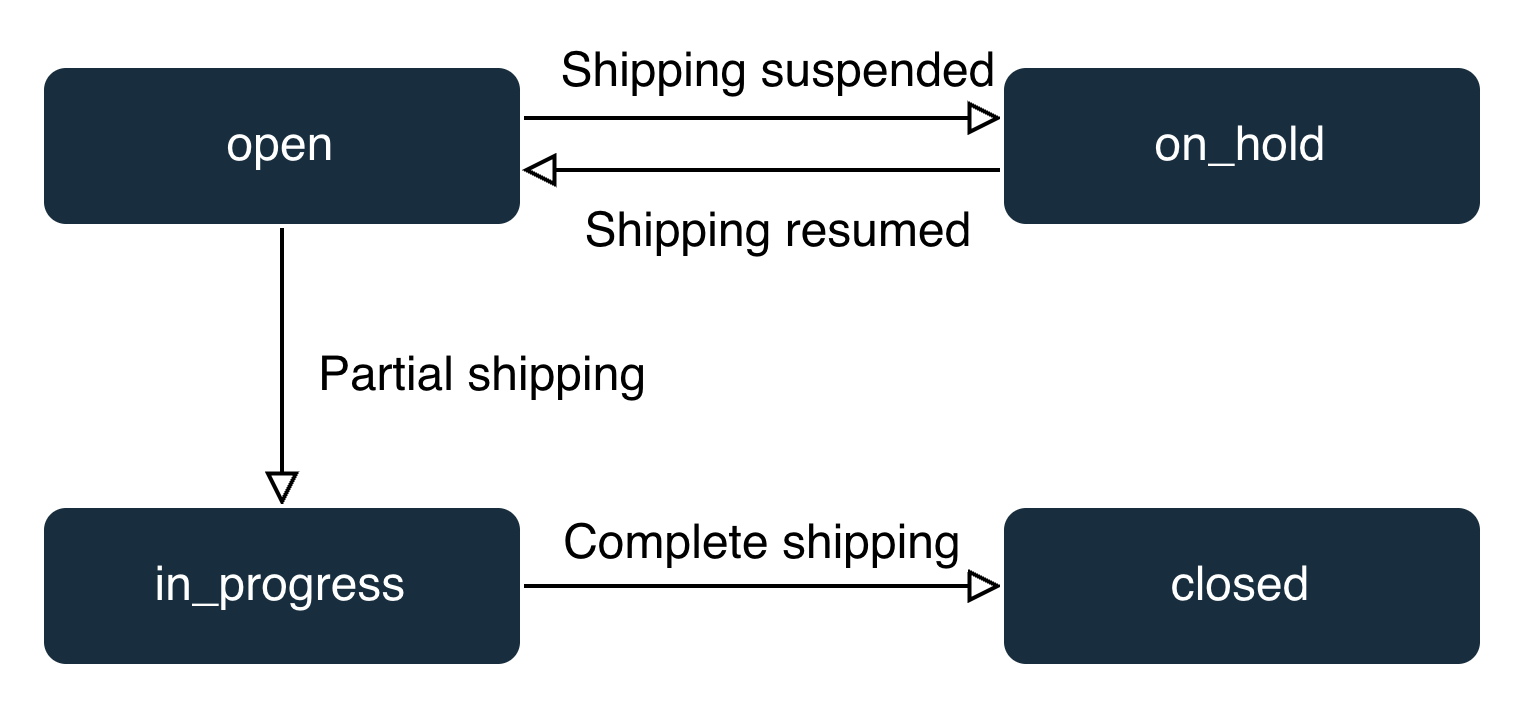
Status transition diagram
| Status | Description |
|---|---|
| open | The items in the fulfillment order have not been shipped. |
| on_hold | Shipping is suspended. |
| in_progress | Some items in the fulfillment order have been shipped. |
| closed | All items in the fulfillment order have been shipped. |
Transitions in fulfillment order status
A fulfillment app must monitor and track the status of its fulfillment orders. Based on this status, it calls the relevant APIs to accept or reject shipping requests, as well as accept or reject cancellations, as shown below:
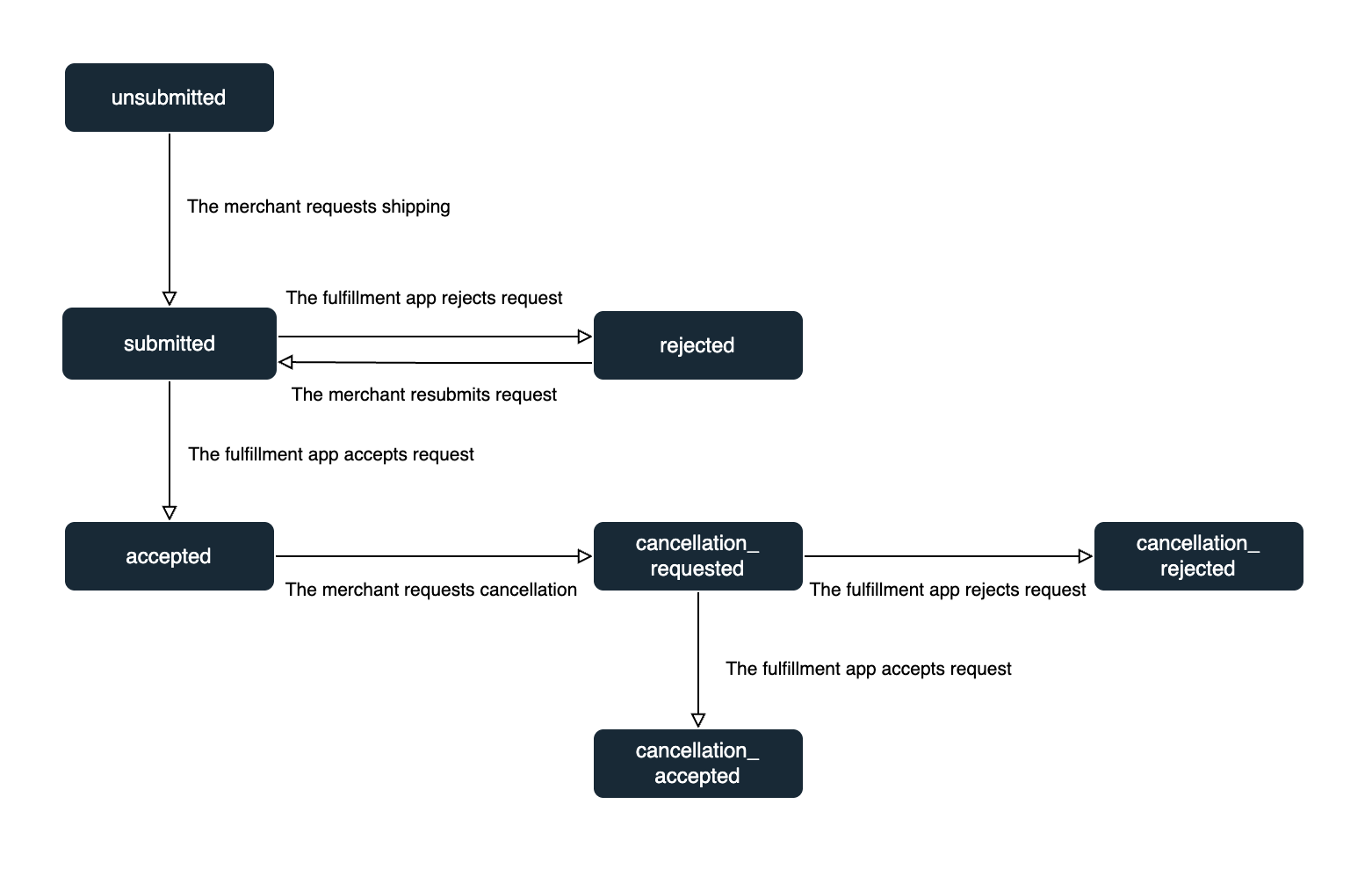
Shipping workflow in a fulfillment app
Prerequisites
Subscribe to required webhook events
The fulfillment app must subscribe to the following webhook events: Shipping request submitted, Shipping cancellation request submitted, and Fulfillment order updated. This ensures the app receives real-time notifications when a merchant triggers fulfillment actions, cancellations, or fulfillment order updates in the SHOPLINE Admin.
Create a fulfillment service
The fulfillment app must create a fulfillment service by calling the Create a fulfillment service API.
An app can create only one fulfillment service.
Create a fulfillment location
After assuming the FSP role, the fulfillment app must create its dedicated location by calling the Create a fulfillment location API. This allows merchants to seamlessly manage inventory and fulfill orders through the app.
Processing shipping requests
Step 1: Receive notifications for submitted shipping requests
After a merchant clicks Shipment request in the SHOPLINE Admin, the fulfillment app receives a notification for the Shipping request submitted webhook event.
Example:
{
  "fulfillment_order_merchant_request": {
    "message": "ship this order",
    "notify_customer": true
  },
  "original_fulfillment_order": {
    "id": "21062824515206062204123195_4006282451539732368282",
    "requestStatus": "unsubmitted",
    "status": "open"
  },
  "submitted_fulfillment_order": {
    "id": "21062824515206062204123195_4006282451539732368282",
    "request_status": "submitted",
    "status": "open"
  }
}
Step 2: Retrieve fulfillment order details
Using the payload from the Shipping request submitted webhook event, the fulfillment app calls the Get a specified fulfillment order REST API to retrieve the complete details of the fulfillment order.
Example:
- GET:
https://{handle}.myshopline.com/admin/openapi/v20260301/fulfillment_orders/:order_id/:fulfillment_order_id.json - Response body:
{
  "fulfillment_order": {
    "assigned_location": {
      "address1": "Chestnut Street 92",
      "address2": "Chestnut Street 92",
      "city": "Louisville",
      "country_code": "US",
      "location_id": "5327026538935748524",
      "name": "Apple Api Shipwire",
      "phone": "+1 123-***-7890",
      "province": "Kentucky",
      "zip": "40202"
    },
    "assigned_location_id": "5327026538935748524",
    "destination": {
      "address1": "Chestnut Street 92",
      "address2": "Chestnut Street 92",
      "city": "Louisville",
      "company": "Apple inc",
      "country": "United States",
      "email": "*********@example.com",
      "first_name": "T*****",
      "last_name": "Norman",
      "phone": "+1 123-***-7890",
      "province": "Kentucky",
      "zip": "40202"
    },
    "id": "4005740193290131085320",
    "line_items": [
      {
        "fulfillable_quantity": 1,
        "fulfillment_order_id": "4005740193290131085320",
        "id": "1039283",
        "line_item_id": "518995019",
        "quantity": 1,
        "shop_id": "1644828244663",
        "variant_id": "18055128824718541486811487"
      }
    ],
    "order_id": "21057401932826316666967110",
    "request_status": "submitted",
    "shop_id": "1644828244663",
    "status": "open",
    "supported_actions": [
      "create_fulfillment"
    ]
  }
}
Step 3: Accept or reject a shipping request
The fulfillment app evaluates whether to fulfill the order based on business criteria in the fulfillment order, such as the shipping destination (destination), line item details (line_items), and item quantity (quantity).
The fulfillment app accepts a request by calling the Accept a shipping request REST API.
Example:
- POST:
https://{handle}.myshopline.com/admin/openapi/v20260301/fulfillments/:order_id/:fulfillment_id/request_accept.json - Request body:
{
  "message": "shipping at 8pm"
}
The fulfillment app rejects a shipping request by calling the Reject a shipping request REST API. Once a request is rejected, the merchant can resubmit a new shipping request.
Example:
- POST:
https://{handle}.myshopline.com/admin/openapi/v20260301/fulfillments/:order_id/:fulfillment_id/request_reject.json - Request body:
{
  "reason": "incorrect_address",
  "message": "cannot ship to this address"
}
Step 4: Create a fulfillment
After accepting a shipping request, the fulfillment app will call the Create a fulfillment REST API to process the shipping of the items in the fulfillment order.
The app must fulfill all items (but not some items) specified in a fulfillment order.
Shipping prerequisites:
- The
statusof the fulfillment order must beopenorin_progress. - The
fulfillable_quantityof the line items must be greater than 0.
For orders paid via SHOPLINE Payments, the tracking number and shipping carrier information should be provided through the tracking_info_list.tracking_number and tracking_info_list.tracking_company parameters for customs purposes.
Example:
- POST:
https://{handle}.myshopline.com/admin/openapi/v20260301/fulfillments/fulfillments.json - Request body:
{
  "fulfillment": {
    "line_items_by_fulfillment_order": [
      {
        "fulfillment_order_id": "1046000807"
      }
    ],
    "message": "the package was shipped this morning.",
    "notify_customer": true,
    "tracking_info_list": [
      {
        "tracking_company": "my-company",
        "tracking_number": "UG15439033",
        "tracking_url": "http://www.my-url.com"
      }
    ]
  },
  "order_id": "21057116277667827637773776"
}
- Response body:
{
  "fulfillment": {
    "created_at": "2022-10-21T08:56:20-04:00",
    "id": "4005740193290131085320",
    "line_items": [
      {
        "fulfillable_quantity": 1,
        "fulfillment_quantity": 1,
        "fulfillment_status": "open",
        "grams": 10.5,
        "id": "466157049",
        "name": "Trade name",
        "price": "100.00",
        "price_set": {
          "presentment_money": {
            "amount": "100.00",
            "currency_code": "USD"
          },
          "shop_money": {
            "amount": "100.00",
            "currency_code": "USD"
          }
        },
        "product_id": "343342675",
        "properties": [
          {
            "additional": " add-on information ",
            "name": " picture ",
            "type": "picture",
            "urls": [
              "https://www.myshopline.com"
            ],
            "value": "value"
          }
        ],
        "quantity": 1,
        "requires_shipping": true,
        "sku": "183423409238904944",
        "tax_lines": [
          {
            "name": " item tax ",
            "price": "10.00",
            "price_set": {
              "presentment_money": {
                "amount": "10.00",
                "currency_code": "USD"
              },
              "shop_money": {
                "amount": "10.00",
                "currency_code": "USD"
              }
            },
            "rate": "1.00",
            "title": " Product tax "
          }
        ],
        "taxable": true,
        "title": "Draft",
        "total_discount": "0.00",
        "total_discount_set": {
          "presentment_money": {
            "amount": "0.00",
            "currency_code": "USD"
          },
          "shop_money": {
            "amount": "0.00",
            "currency_code": "USD"
          }
        },
        "variant_id": "183423409238904944",
        "variant_title": "Black / Bracelet / Bracelet",
        "vendor": "",
        "version": "1"
      }
    ],
    "location_id": "54039222210",
    "name": "#21057116277667827637773776.1",
    "order_id": "21057116277667827637773776",
    "shipment_status": "success",
    "status": "success",
    "tracking_company": "Other",
    "tracking_number": "UG198768340YP",
    "tracking_numbers": [
      "UG198768340YP"
    ],
    "tracking_url": "https://tools.usps.com/go/TrackConfirmAction_input?qtc_tLabels1=1Z2345",
    "tracking_urls": [
      "https://tools.usps.com/go/TrackConfirmAction_input?qtc_tLabels1=1Z2345"
    ],
    "updated_at": "2022-10-21T08:56:20-04:00"
  }
}
Step 5 (optional): Update fulfillment tracking information
The fulfillment app can call the Create a fulfillment tracking event API to push the latest tracking updates to the fulfillment. Upon receiving the updates, SHOPLINE automatically triggers a shipping update email to the customer.
Example:
- POST:
https://{handle}.myshopline.com/admin/openapi/v20260301/fulfillments/:order_id/:fulfillment_id/events/create.json - Request body:
{
  "address": "126 York Street",
  "city": "Ottawa",
  "country": "Canada",
  "estimated_delivery_at": "2021-08-16T08:27:57+00:00",
  "happened_at": "2021-08-16T08:27:57+00:00",
  "latitude": "23.32947",
  "longitude": "113.301255",
  "message": "nothing",
  "province": "Ontario",
  "status": "label_printed",
  "zip": "A1B 2C3"
}
- Response body:
{
  "fulfillment_event": {
    "address": "126 York Street",
    "city": "Ottawa",
    "country": "Canada",
    "create_at": "2021-08-16T08:27:57+00:00",
    "estimated_delivery_at": "2021-08-16T08:27:57+00:00",
    "fulfillment_id": "22060720884441337538627925",
    "happened_at": "2021-08-16T08:27:57+00:00",
    "id": "4206234611998187371524",
    "latitude": "23.32947",
    "longitude": "113.301255",
    "message": "nothing",
    "order_id": "21056024607602932623437925",
    "province": "Ontario",
    "shop_id": "2331445",
    "status": "label_printed",
    "update_at": "2021-08-16T08:27:57+00:00",
    "zip": "A1B 2C3"
  }
}
Processing shipping cancellation requests
Step 1: Receive a shipping cancellation event
When a merchant clicks Cancel request in the SHOPLINE Admin, the fulfillment app receives a notification for the Shipping cancellation request submitted webhook event.
Example:
{
  "fulfillment_order": {
    "fulfillment_order_merchant_request": {
      "message": "customer wanna cancel"
    },
    "id": "21062824515206062204123195_4006282455672296213439",
    "request_status": "cancellation_requested",
    "status": "in_progress"
  }
}
Step 2: Retrieve fulfillment order details
Upon receiving a Shipping cancellation request submitted webhook event, the fulfillment app calls the Get a specified fulfillment order REST API to retrieve details of the fulfillment order.
Step 3: Accept or reject a shipping cancellation request
The fulfillment app evaluates whether to approve the cancellation based on business criteria in the fulfillment order, such as the shipping destination (destination), line item details (line_items), and item quantity (quantity). It calls the Accept a shipping cancellation request REST API to accept a shipping cancellation request. Following this, the order system closes the current fulfillment order and generates a new one.
Example:
- POST:
https://{handle}.myshopline.com/admin/openapi/v20260301/fulfillments/:order_id/:fulfillment_id/cancellation_request_accept.json - Request body:
{
  "message": "ok"
}
The fulfillment app calls the Reject a shipping cancellation request REST API to reject a shipping cancellation request. After the request is rejected, the merchant may submit a new request if necessary.
Example:
- POST:
https://{handle}.myshopline.com/admin/openapi/v20260301/fulfillments/:order_id/:fulfillment_id/cancellation_request_reject.json - Request body:
{
  "message": "The order was already shipped"
}
If a merchant cancels a shipping request before the fulfillment app accepts or rejects it, the fulfillment app receives a Fulfillment order updated webhook event. In this case, the system has already closed the fulfillment order, so the fulfillment service provider does not need to proceed with fulfillment.
Example:
{
  "fulfillment_order": {
    "assigned_location": {
      "address1": "Yulong road",
      "address2": "",
      "city": "",
      "country_code": "US",
      "location_id": "5759241455475889066",
      "name": "Tom",
      "phone": "136****5580",
      "province": "New York",
      "zip": "9900"
    },
    "assigned_location_id": "5759241455475889066",
    "delivery_method": {
      "method_type": "none"
    },
    "destination": {
      "email": "xxxxxxxx@example.com"
    },
    "fulfillment_holds": [],
    "id": "4006280934539751235751",
    "line_items": [
      {
        "fulfillable_quantity": "0",
        "fulfillment_order_id": "4006280934539751235751",
        "id": "7691",
        "line_item_id": "7127",
        "quantity": 1,
        "shop_id": "1000067",
        "variant_id": "18062809312326262549272210"
      }
    ],
    "merchant_requests": [],
    "order_id": "21062809345336442050725071",
    "request_status": "unsubmitted",
    "shop_id": "1000067",
    "status": "closed",
    "supported_actions": []
  }
}

'%3e%3crect%20x='6'%20y='7.13049'%20width='13'%20height='10'%20rx='1'%20fill='black'/%3e%3cpath%20d='M12.4998%2012.936L-3.65042%200.604835L28.65%200.604838L12.4998%2012.936Z'%20stroke='white'%20stroke-linejoin='round'/%3e%3c/g%3e%3cdefs%3e%3cclipPath%20id='clip0_716_14611'%3e%3crect%20x='6'%20y='7.13049'%20width='13'%20height='10'%20rx='1'%20fill='white'/%3e%3c/clipPath%3e%3c/defs%3e%3c/svg%3e)

'%3e%3crect%20x='5.63086'%20y='7.26086'%20width='13'%20height='10'%20rx='1'%20fill='white'/%3e%3cpath%20d='M12.1306%2013.0664L-4.01956%200.735206L28.2809%200.735209L12.1306%2013.0664Z'%20stroke='%231A2C42'%20stroke-linejoin='round'/%3e%3c/g%3e%3cdefs%3e%3cclipPath%20id='clip0_716_14599'%3e%3crect%20x='5.63086'%20y='7.26086'%20width='13'%20height='10'%20rx='1'%20fill='white'/%3e%3c/clipPath%3e%3c/defs%3e%3c/svg%3e)