Permanent Cart Links
A permanent cart link is a channel that allows you to pre-add products to the shopping cart and take customers directly to the checkout page. You can select products, checkout options, and discounts to apply.
When customers click on the link, they will be redirected to the checkout page that contains the corresponding product, checkout options, and discount information, allowing them to proceed directly to the checkout.
As the name suggests, permanent cart links are persistent, and remain effective once generated.
You can insert the link into emails or use it in various marketing campaigns, providing flexibility and convenience while driving higher store conversions.
This article covers the following:
- Creating permanent cart links
- Customizing permanent cart links
- Examples of permanent cart links
Creating
To create a permanent cart link, you can manually construct it by appending the shopping cart page link of your store with one or more product sku_ids.
To see the complete examples check the examples section below.
Customizing
You can customize the link with product, checkout, and discount information:
Product information
- When using permanent cart links, it is essential to ensure that the links include product information.
- Add product information to your cart link using this format:
http://{handle}.myshopline.com/cart/{sku1_id}:{quantity},{sku2_id}:{quantity},...
The product sku_id can be obtained from the corresponding product detail page URL.
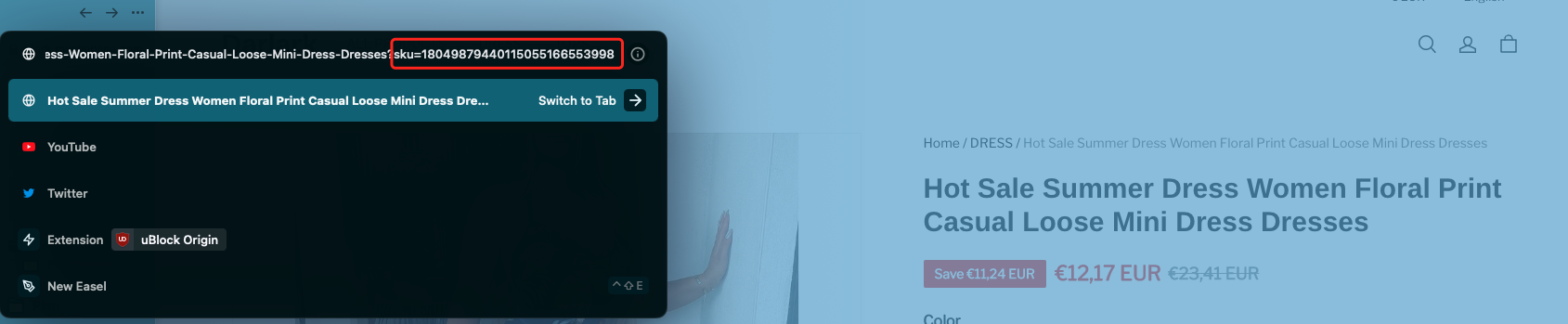
- You can optionally add Properties, also known as custom line item properties, to products for scenarios such as engraving, notes, and gift wrapping. Add Properties using the
properties[n]query parameter.nis the product position index in the link, starting from 0:properties[0]applies to the first product in the link.properties[1]applies to the second product in the link.- And so on.
- Each
properties[n]value must be a Base64 URL encoded JSON array. The supported property fields are:
| Field | Type | Description |
|---|---|---|
| name | String | The property name. |
| value | String | The property value. |
| type | String | The property value type. Valid values:
|
| show | Boolean | Whether the property is visible.
|
| extInfo | String | Extension fields of the property. |
| additional | String | Fields about additional information on the property. For example, if this property defines information on text, you can add fields for font size, style, and color here. Example: Additional fields |
| urls | String[] | A list of URLs, available only when type is picture or link.
["https://www.url.com"] |
| roleVisibility | String | To whom the property is visible. Valid values:
|
Checkout information
- You can optionally add desired checkout information to the link, following this format, where multiple checkout information needs to be concatenated using the
&symbol:http://{handle}.myshopline.com/cart/{sku1_id}:{quantity},{sku2_id}:{quantity}?checkout[email]=example@example.com&checkout[shipping_address][city]=NewYork - All supported checkout fields are listed in the table below:
| Format for adding | Corresponding checkout page fields | Field description |
|---|---|---|
| checkout[email] | The email attached to this checkout. | |
| checkout[phone] | phone | The customer's phone number, in the E.164 format. Example: +16135551111. |
| checkout[shipping_address][name] | name | The full name of the customer. |
| checkout[shipping_address][first_name] | firstName | The first name of the customer. |
| checkout[shipping_address][last_name] | lastName | The last name of the customer. |
| checkout[shipping_address][address1] | address1 | The address line 1, which typically contains the street address or the P.O. Box number. |
| checkout[shipping_address][address2] | address2 | The address line 2, which typically contains the apartment, suite, or unit number. |
| checkout[shipping_address][district] | receiverArea | The region of the address. |
| checkout[shipping_address][city] | city | The city, county, town, or village. |
| checkout[shipping_address][province] | province | The province, state, or district. |
| checkout[shipping_address][country] | country | The country or region. |
| checkout[shipping_address][zip] | zip | The shipping address where the line items will be shipped. |
Discount information
- You can optionally add discount codes to your cart URL by appending them after the product information. If you have multiple discount codes, separate them with commas. Here's an example format:
http://{handle}.myshopline.com/cart/{sku1_id}:{quantity},{sku2_id}:{quantity}?discount={discount_code1},{discount_code2}
Examples of permanent cart links
| Field | Required | Scenario | Example |
|---|---|---|---|
| Product Information | Required | Adding SKU and quantity | http://{handle}.myshopline.com/cart/{sku1_id}:{quantity},{sku2_id}:{quantity},... |
| Properties | Optional | Adding custom line item properties | http://{handle}.myshopline.com/cart/{sku1_id}:{quantity}?properties[0]=W3sibmFtZSI6ImVuZ3JhdmluZyIsInZhbHVlIjoiSGVsbG8gd29ybGQiLCJ0eXBlIjoidGV4dCIsInNob3ciOiJ0cnVlIiwiZXh0SW5mbyI6IiJ9XQ |
| Checkout Information | Optional | Adding checkout information | http://{handle}.myshopline.com/cart/{sku1_id}:{quantity},{sku2_id}:{quantity}?checkout[email]=example@example.com&checkout[shipping_address][city]=NewYork |
| Discount Information | Optional | Adding discount code information | http://{handle}.myshopline.com/cart/{sku1_id}:{quantity},{sku2_id}:{quantity}?discount={discount_code1},{discount_code2} |
- Spaces are not supported in the links.
- For checkout information, if there is a mismatch in the standard address data (for example, the
cityfield should beSydney, but it is mistakenly set asMelbournein the link), that data will not be processed. - All supported symbols in the link should be in half-width format.

'%3e%3crect%20x='6'%20y='7.13049'%20width='13'%20height='10'%20rx='1'%20fill='black'/%3e%3cpath%20d='M12.4998%2012.936L-3.65042%200.604835L28.65%200.604838L12.4998%2012.936Z'%20stroke='white'%20stroke-linejoin='round'/%3e%3c/g%3e%3cdefs%3e%3cclipPath%20id='clip0_716_14611'%3e%3crect%20x='6'%20y='7.13049'%20width='13'%20height='10'%20rx='1'%20fill='white'/%3e%3c/clipPath%3e%3c/defs%3e%3c/svg%3e)

'%3e%3crect%20x='5.63086'%20y='7.26086'%20width='13'%20height='10'%20rx='1'%20fill='white'/%3e%3cpath%20d='M12.1306%2013.0664L-4.01956%200.735206L28.2809%200.735209L12.1306%2013.0664Z'%20stroke='%231A2C42'%20stroke-linejoin='round'/%3e%3c/g%3e%3cdefs%3e%3cclipPath%20id='clip0_716_14599'%3e%3crect%20x='5.63086'%20y='7.26086'%20width='13'%20height='10'%20rx='1'%20fill='white'/%3e%3c/clipPath%3e%3c/defs%3e%3c/svg%3e)