Add fonts to a theme
You can add fonts to a theme in the following two ways:
Tip: Fonts are standalone resource files. The browser prioritizes downloading these files when a page is accessed, which can block the rendering of other page content. Therefore, choose fonts carefully and ensure that the font file sizes are suitable for your website.
Add Google Fonts to a theme
SHOPLINE themes use the Google Fonts library by default, offering a wide range of fonts in various styles that can adapt to different design aesthetics, thus providing users with an attractive and comfortable visual experience.
The following shows two ways of adding Google Fonts to a theme.
Add via the visual editor
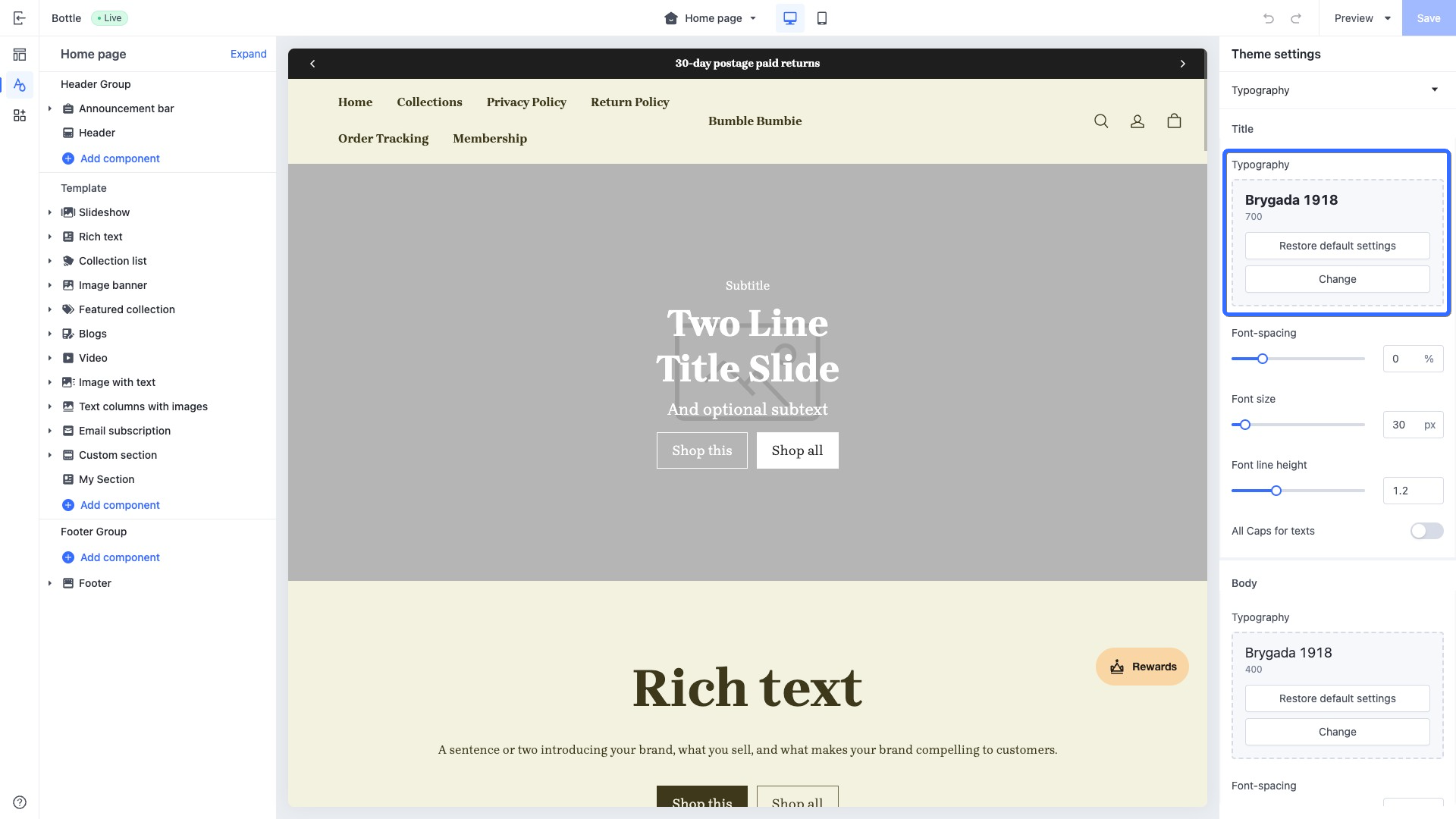
- In the global settings of the theme editor, find the Typography setting and click Change.
- Select the name of the desired font, and click Done.
Add via embed code
To add fonts using embed code, follow these steps:
Step 1: Get the Google Fonts embed code
- Go to the Google Fonts website. Search for and select the font you want.
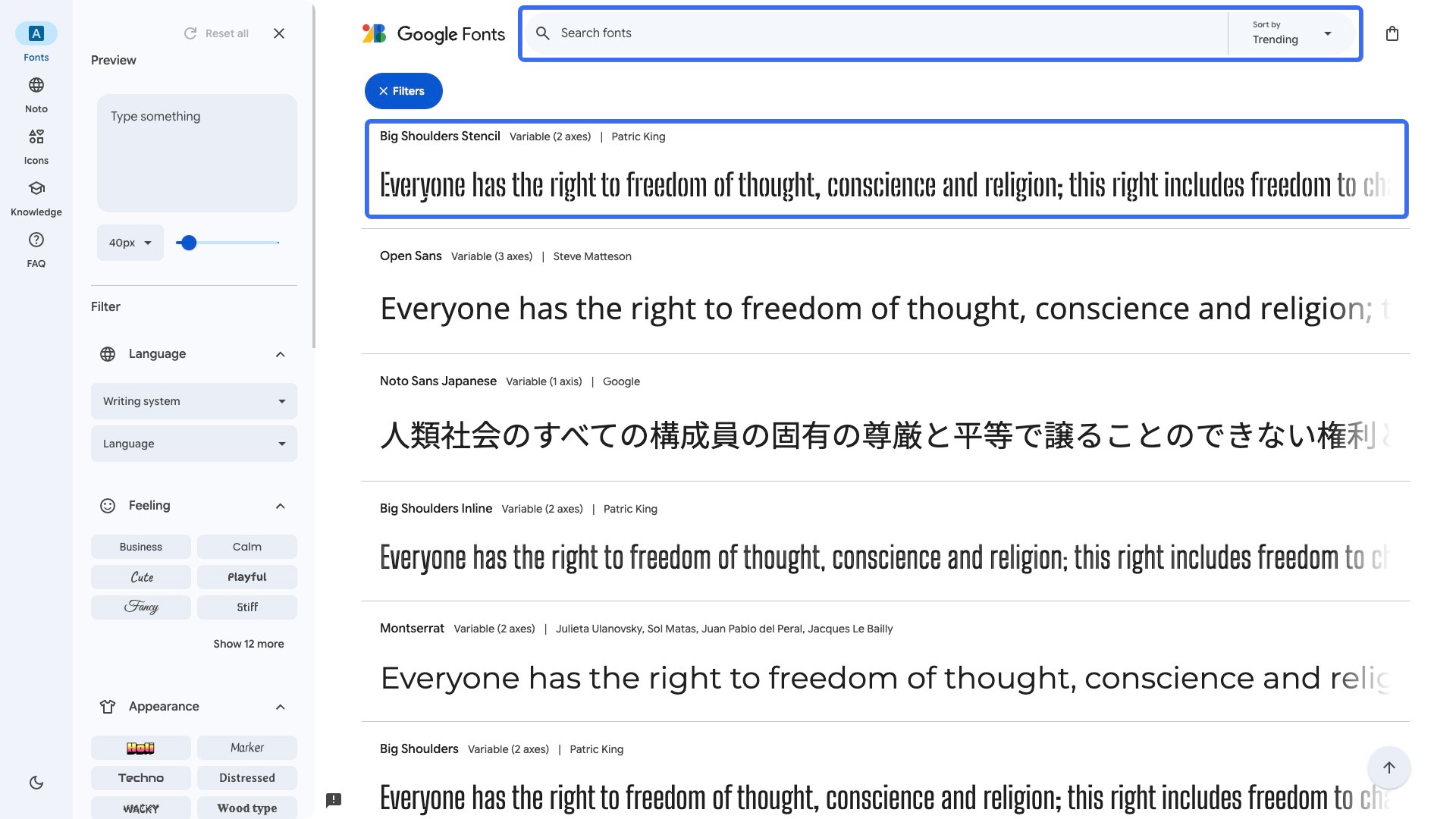
- Click the Get Font button.
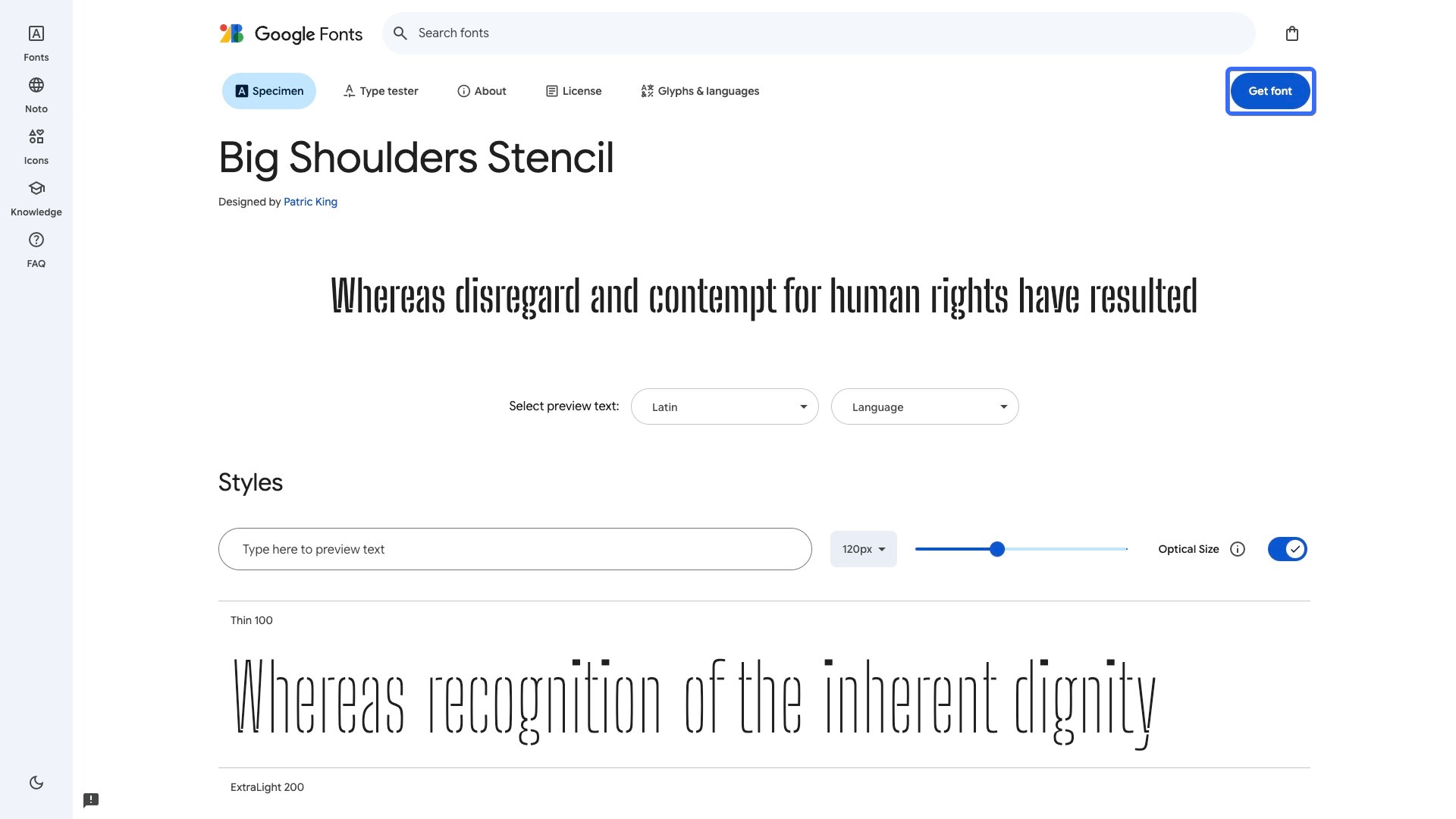
- Click the Get embed code button.
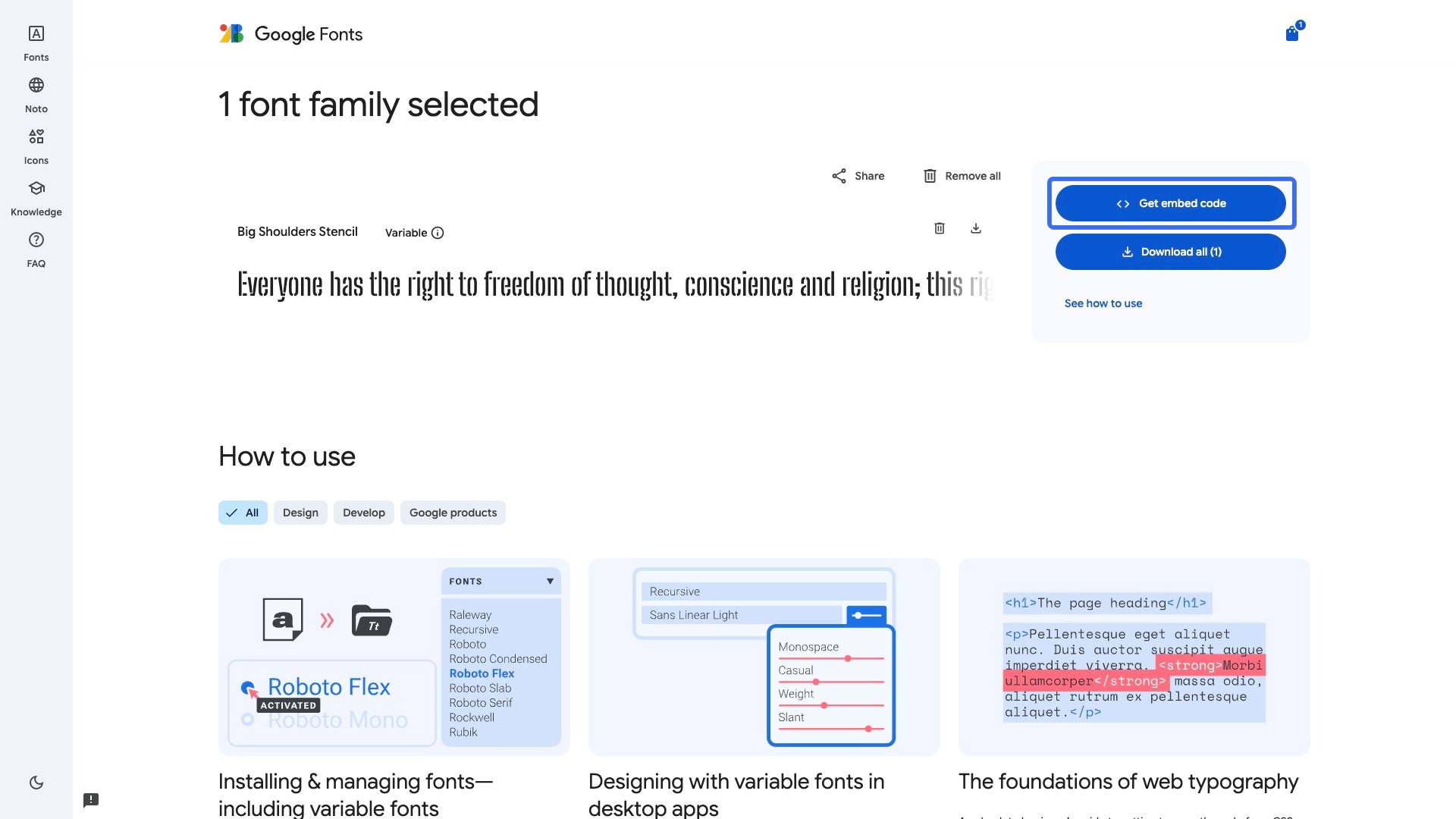
- Copy the embed code block.
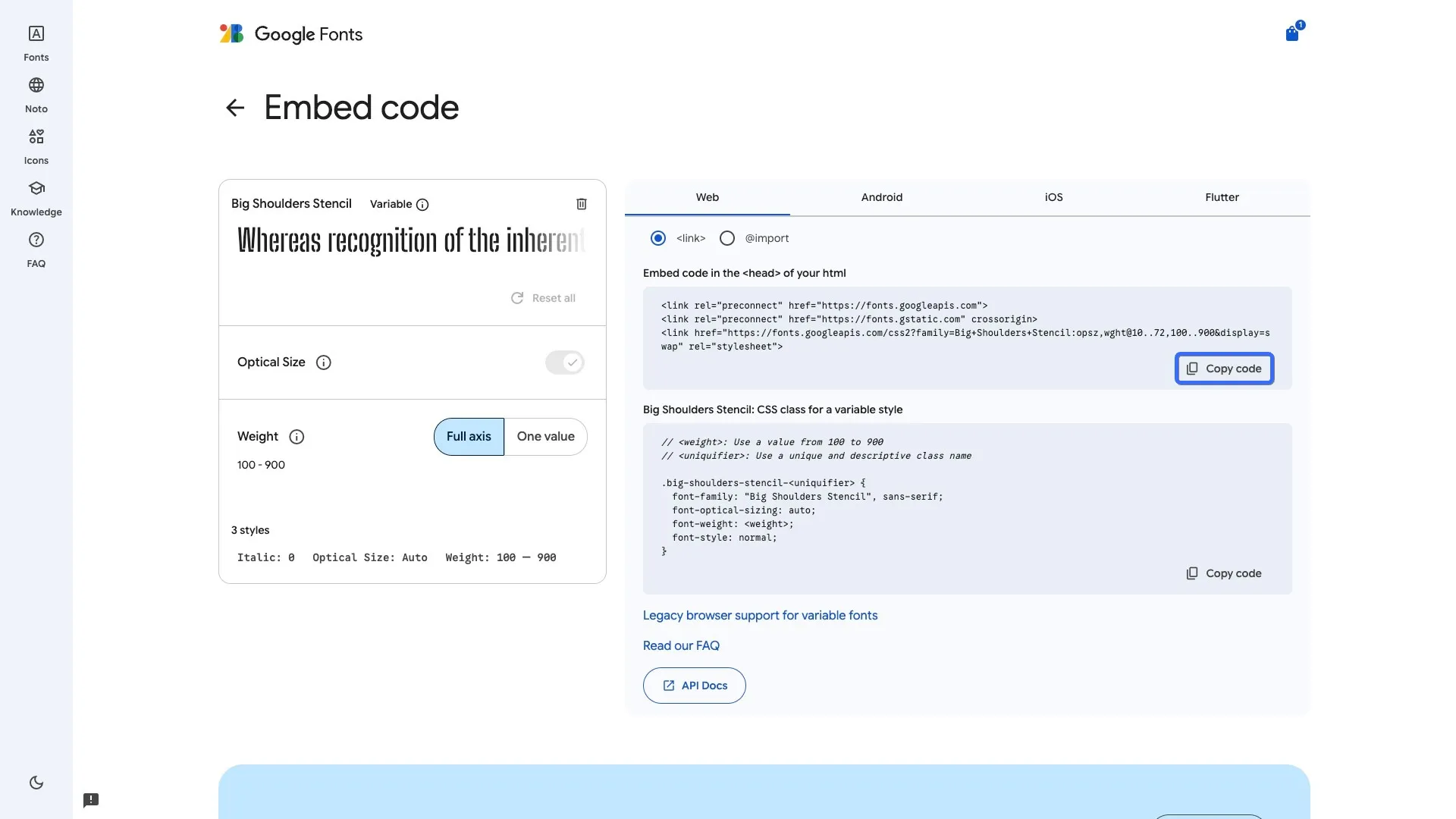
Step 2: Add the embed code to the theme
- Insert the code block in the
<head>tag of the theme layout filelayout/theme.html, as shown in the following:
<!DOCTYPE html>
<html>
  <head>
    ...
    {{#content "header" /}}
    <!-- New font code block -->
    <link rel="preconnect" href="https://fonts.googleapis.com">
    <link rel="preconnect" href="https://fonts.gstatic.com" crossorigin>
    <link href="https://fonts.googleapis.com/css2?family=Big+Shoulders+Stencil:opsz,wght@10..72,100..900&display=swap" rel="stylesheet">
  </head>
  <body>
    ...
  </body>
</html>
- Use the font in your theme code. The following is an example of applying the
Big Shoulders Stencilfont to anh2heading in a custom HTML section.
/* sections/custom-html/custom-html.css */
.custom-html {
  background-color: rgb(var(--color-background));
}
/* Font reference */
.custom-html h2 {
  font-family: "Big Shoulders Stencil", sans-serif;
}
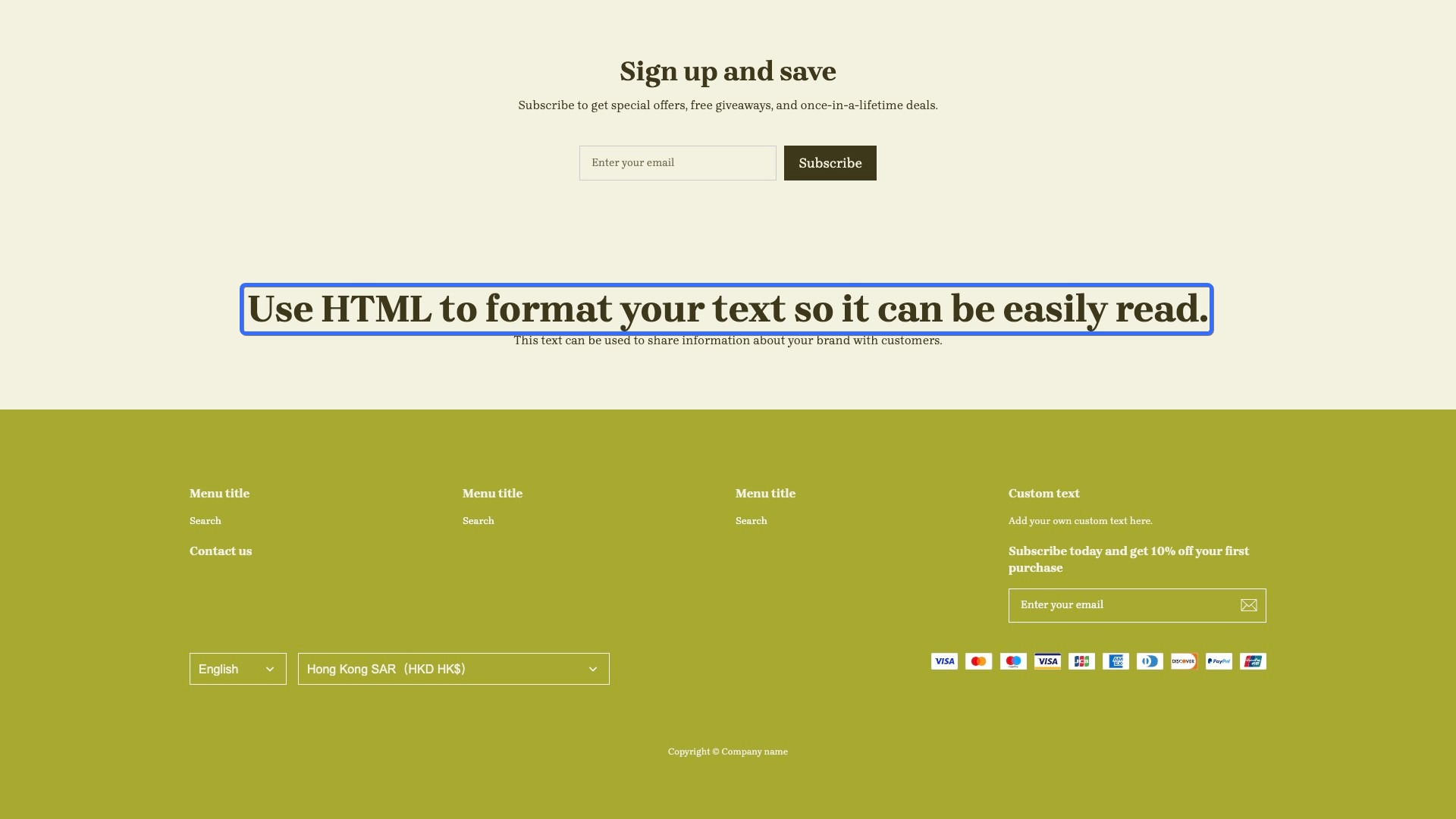
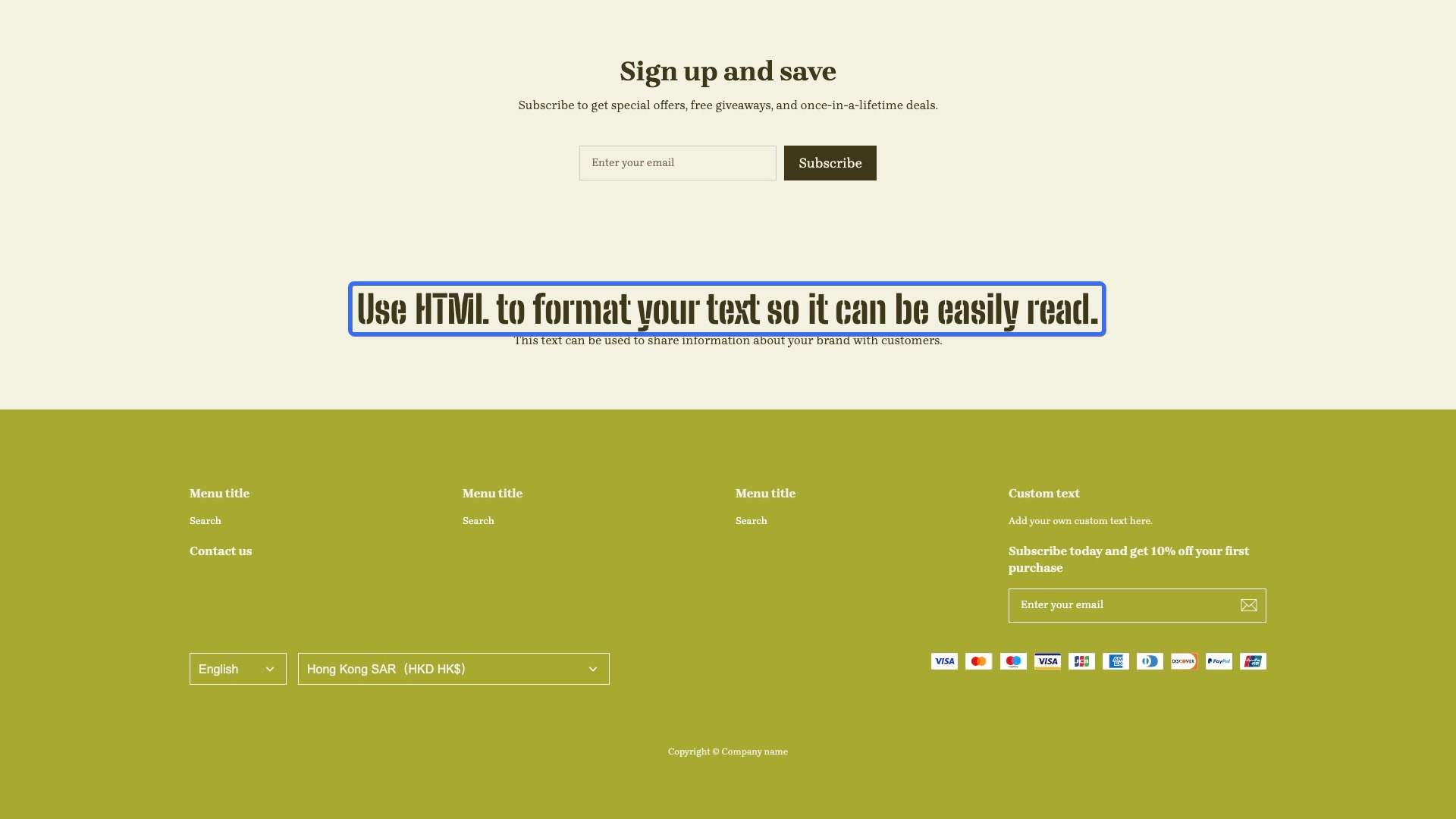
Step 3: Check the font effect
The effect before applying the Big Shoulders Stencil font:
The effect after applying the Big Shoulders Stencil font:
Tip: Refer to the official website for more detailed information on using Google Fonts.
Add custom fonts to a theme
Integrating custom fonts into your design can contribute to building a strong brand image, enhancing visual appeal, and improving user experience. These elements collectively help distinguish your product in a competitive market.
The following are two methods to incorporate custom fonts.
Reference font files from a third-party hosting platform
Typically, if your font files are hosted on a third-party platform, they provide a font reference code block to easily add to your theme. The following is an example of referencing font files in a theme layout file:
<!-- layout/theme.html -->
<!DOCTYPE html>
<html>
  <head>
    ...
    {{#content "header" /}}
    <!--
      Code block provided by the third-party hosting platform
      {{<font-url}}: URL of the remote font file
    -->
    <link href="{{font-url}}" rel="stylesheet">
  </head>
  <body>
    ...
  </body>
</html>
Upload font files to the theme's public directory
You can upload your font files to the theme's static resource directory (public) through the following methods:
- Upload the theme zip package via the SHOPLINE Admin.
- Push the theme to your store using the SHOPLINE CLI.
- Upload the font files via the theme code editor.
Suppose you have a font file named my-font.woff, uploaded to the theme in a directory structure like this:
public
└── fonts
    └── my-font.woff
Then, create an @font-face rule for this font to use it anywhere in the theme:
<!-- layout/theme.html -->
<!DOCTYPE html>
<html>
  <head>
    ...
    {{#content "header" /}}
    <!-- New @font-face rule -->
    <style>
      @font-face {
        font-family: 'My Font';
        src: url("{{`fonts/my-font.woff` | asset_url()}}") format('woff');
      }
    </style>
  </head>
  <body>
    ...
  </body>
</html>
Note: Use the asset_url filter to reference the font file, which returns the remote URL of the font file.

'%3e%3crect%20x='6'%20y='7.13049'%20width='13'%20height='10'%20rx='1'%20fill='black'/%3e%3cpath%20d='M12.4998%2012.936L-3.65042%200.604835L28.65%200.604838L12.4998%2012.936Z'%20stroke='white'%20stroke-linejoin='round'/%3e%3c/g%3e%3cdefs%3e%3cclipPath%20id='clip0_716_14611'%3e%3crect%20x='6'%20y='7.13049'%20width='13'%20height='10'%20rx='1'%20fill='white'/%3e%3c/clipPath%3e%3c/defs%3e%3c/svg%3e)

'%3e%3crect%20x='5.63086'%20y='7.26086'%20width='13'%20height='10'%20rx='1'%20fill='white'/%3e%3cpath%20d='M12.1306%2013.0664L-4.01956%200.735206L28.2809%200.735209L12.1306%2013.0664Z'%20stroke='%231A2C42'%20stroke-linejoin='round'/%3e%3c/g%3e%3cdefs%3e%3cclipPath%20id='clip0_716_14599'%3e%3crect%20x='5.63086'%20y='7.26086'%20width='13'%20height='10'%20rx='1'%20fill='white'/%3e%3c/clipPath%3e%3c/defs%3e%3c/svg%3e)