templates
The templates directory contains template files for different theme pages. These template files define the page layout and content display. Two file extensions are supported:
.html: suitable for static pages, with fixed content that does not rely on dynamic data..json: suitable for dynamic pages, allowing flexible page structure construction through sections.
Directory structure
The default page template structure of a standard theme is as follows:
templates
├── customers	            			# Folder of customer-related pages
│   ├── account.json						# Account page
│   ├── activate_account.json		# Account activation page
│   ├── addresses.json    			# Address management page
│   ├── company.json      			# Company registration page
│   ├── forgot_password.json 		# Forgot password page
│   ├── login.json        			# Login page
│   ├── order.json        			# Order details page
│   ├── orders.json       			# Order list page
│   └── register.json     			# Registration page
├── 404.json              			# 404 error page
├── article.json          			# Blog details page
├── blog.json             			# Blog list page
├── cart.json             			# Cart page
├── collection.json       			# Product collection overview page
├── collections_all.json  			# Product collection details page
├── gift_card.html        			# Gift card page (static HTML)
├── index.json            			# Home page
├── page.contact.json     			# Contact us page
├── page.json             			# Custom page
├── page.order_tracking.json 		# Order tracking page
├── password.json         			# Password protection page
├── policy.html           			# Policy page (static HTML)
├── product.json          			# Product details page
├── proofing.html         			# Store closing page (static HTML)
└── search.json           			# Search results page
Template types
Every template file corresponds to a template type, and each template has one or more access paths.
| Template type | Access path | File path | Description |
|---|---|---|---|
| index | / | templates/index.json | The store home page |
| password | /password | templates/password.json | The store password protection page, showing the password input form |
| proofing | /proofing | templates/proofing.html | The store closing page. |
| 404 | /404 | templates/404.json | The 404 error page, showing when the URL is invalid |
| cart | /cart | templates/cart.json | The cart page, showing the cart product list |
| search | /search | templates/search.json | The search result page, showing the result list after searching |
| product | /products/{productHandle} | templates/product.json | The product details page, showing the product SKU, discounts, an adding button, and other related information |
| collections_all | /collections-all | templates/collections_all.json | The product collection overview page, showing all the product collections |
| collection | /collections/{collectionHandle} | templates/collection.json | The product collection details page, showing all products under a product collection |
| gift_card | /gift_cards/{storeId}/{handle} | templates/gift_card.html | The gift card page, showing the gift card information |
| blog | /blogs/{blogHandle} | templates/blog.json | The blog list page, showing all blogs |
| article | /blogs/{blogHandle}/{articleHandle} | templates/article.json | The blog details page |
| page | /pages/{handle} | templates/page.json | The custom page, showing the custom information |
| policy | /policies/{handle} | templates/policy.json | The policy page, showing the policy information |
| login | /user/signIn | templates/customers/login.json | The customer login page, showing the customer login form |
| register | /register | templates/customers/register.json | The customer registration page, showing the customer registration form |
| company | /user/company | templates/customers/company.json | The company registration page, showing the company registration form |
| activate_account | /user/activate | templates/customers/activate_account.json | The account activation page, showing the account activation form |
| forgot_password | /user/passwordNew | templates/customers/forgot_password.json | The forgot password page, showing the password reset form |
| account | /user/center | templates/customers/account.json | The account page, showing the account information |
| addresses | /user/address/new | templates/customers/addresses.json | The address management page, showing the address list and address creation form |
| /user/address/{addressSeq}/edit | |||
| orders | /user/orders | templates/customers/orders.json | The order list page, showing all orders |
| order | /user/orders/{id} | templates/customers/order.json | The order details page |
HTML templates
HTML templates are suitable for static pages with fixed content, such as policy pages or store closing pages. The template file extension is .html. You can directly write HTML, CSS, Javascript, and Sline template syntax in these files.
Merchants cannot edit the page content in the theme editor.
JSON templates
JSON templates are suitable for dynamic page templates. The template file extension is .json. These templates adhere to a specific data structure specification to render dynamic section data.
Fields
A JSON template includes the following fields:
| Field | Data type | Required or not | Description |
|---|---|---|---|
| layout | string | No | Used to specify the layout file, such as theme.html. |
| sections | object | Yes | Stores the page section configuration data. |
| order | array | Yes | Stores the section rendering order. |
Structure
The structure of a JSON template is as follows:
{
  layout: <LayoutName>,
  sections: {
    <SectionID>: {
      "type": <SectionType>,
      "disabled": <SectionDisabled>,
      "settings": {
        <SettingID>: <SettingValue>
      },
      "blocks": {
        <BlockID>: {
          "type": <BlockType>,
          "settings": {
            <SettingID>: <SettingValue>
          },
          "blocks": {
            <BlockID>: {
              "type": <BlockType>,
              "settings": {
                <SettingID>: <SettingValue>
              }
            }
          }
        }
      },
      "block_order": <BlockOrder>
    }
  },
  "order": <SectionOrder>
}
Field description
| Field | Data type | Description |
|---|---|---|
| <LayoutName> | String | The layout file. The default value is layout.theme.html. |
| <SectionID> | String | The global unique hash string to identify a section, generated randomly. |
| <SectionType> | String | The section file name. |
| <SectionDisabled> | Boolean | Whether to show or hide the section. • true: hide • false: show Default value: false |
| <BlockID> | String | The global unique hash string to identify a block, generated randomly. |
| <BlockType> | String | The block file name. |
| <BlockOrder> | String[] | The list of <BlockID>, to determine the rendering order of blocks. |
| <SectionOrder> | String[] | The list of <SectionID>, to determine the rendering order of sections. |
| <SettingID> | String | The setting ID, defined in schema. |
| <SettingValue> | String | The setting value, customized by the merchant. |
Structure example
The following shows a JSON template example of a password page:
{
  "layout": "password",
  "sections": {
    "main-password": {
      "type": "main-password",
      "settings": {...},
      "blocks": {
        "content": {
          "type": "$content-group",
          "settings": {...},
          "blocks": {
            "heading": {
              "type": "heading",
              "settings": {
                "text": "Opening soon"
              }
            }
          }
        }
      },
      "block_order": ["content"]
    }
  },
  "order": ["main-password"]
}
Multiple template supported
To improve the flexibility of page rendering, you can create different template files for the same page type. For example, you can create different template styles for a product details page.
The following parts show some basic steps of creating and applying a new template.
1. Duplicate the template file
Under the templates directory, copy the product.json file and rename the duplicate as product.shoes.json. The file content is as follows:
{
  "sections": {
    "main-product-info": { ... },
    "recommended-product": { ... }
  },
  "order": ["main-product-info", "recommended-product"]
}
- Only JSON templates are supported for creating multiple template styles for the same page type.
- The template file naming must follow the
{template type}.{template name}.jsonformat.
2. Reorder the sections (optional)
Modify the order field in product.shoes.json to adjust the display order of sections.
{
  "sections": {
    "main-product-info": { ... },
    "recommended-product": { ... }
  },
  "order": ["recommended-product", "main-product-info"]
}
3. Assign templates
Select the Shoes template for specified products in the SHOPLINE Admin.
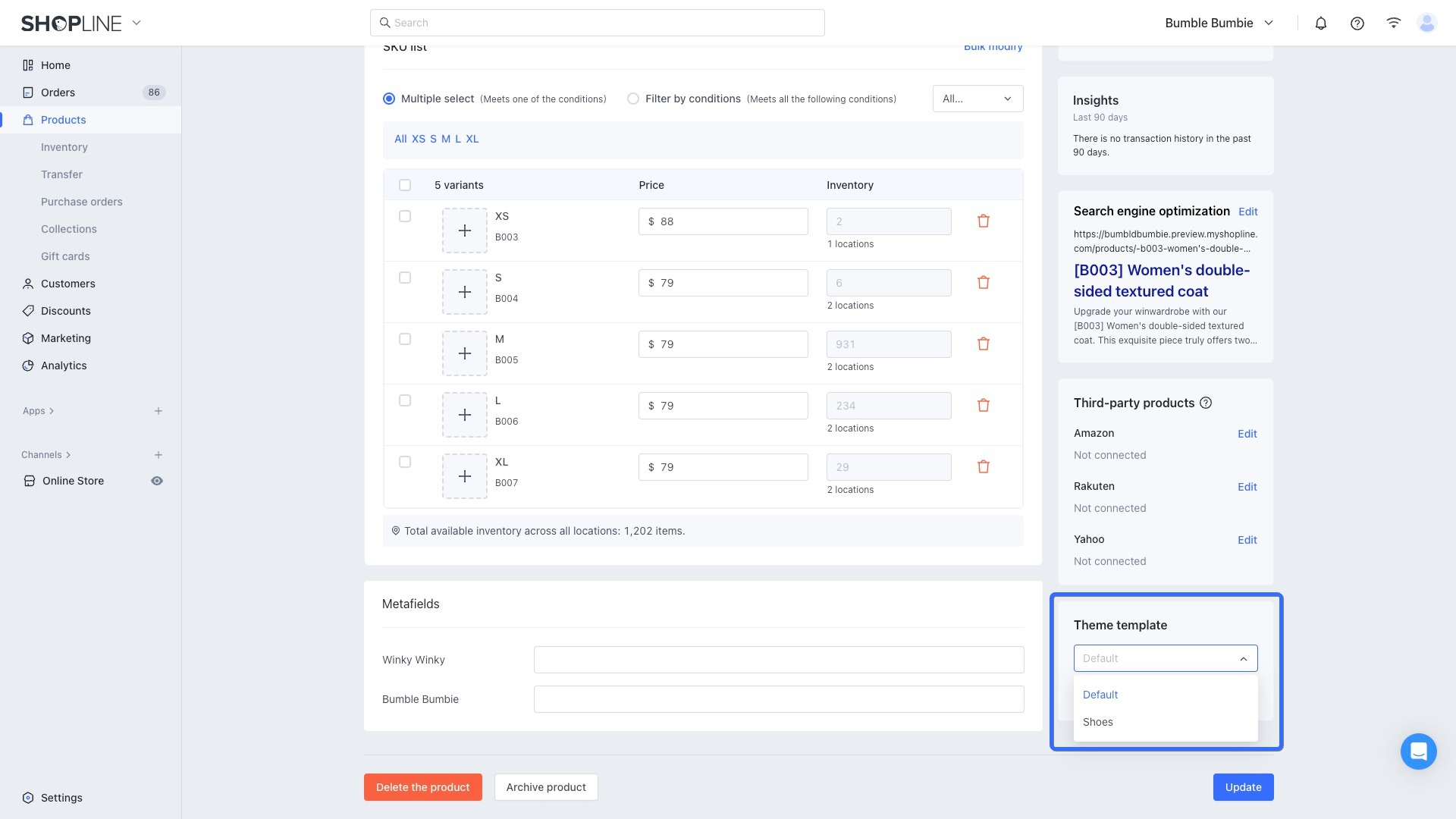
4. Verify the update
Go to the product details page to confirm whether the section order has been updated as expected.

'%3e%3crect%20x='6'%20y='7.13049'%20width='13'%20height='10'%20rx='1'%20fill='black'/%3e%3cpath%20d='M12.4998%2012.936L-3.65042%200.604835L28.65%200.604838L12.4998%2012.936Z'%20stroke='white'%20stroke-linejoin='round'/%3e%3c/g%3e%3cdefs%3e%3cclipPath%20id='clip0_716_14611'%3e%3crect%20x='6'%20y='7.13049'%20width='13'%20height='10'%20rx='1'%20fill='white'/%3e%3c/clipPath%3e%3c/defs%3e%3c/svg%3e)

'%3e%3crect%20x='5.63086'%20y='7.26086'%20width='13'%20height='10'%20rx='1'%20fill='white'/%3e%3cpath%20d='M12.1306%2013.0664L-4.01956%200.735206L28.2809%200.735209L12.1306%2013.0664Z'%20stroke='%231A2C42'%20stroke-linejoin='round'/%3e%3c/g%3e%3cdefs%3e%3cclipPath%20id='clip0_716_14599'%3e%3crect%20x='5.63086'%20y='7.26086'%20width='13'%20height='10'%20rx='1'%20fill='white'/%3e%3c/clipPath%3e%3c/defs%3e%3c/svg%3e)