vscode theme development plugin
Introduction
shopline-theme-plugin Vscode plugin is to provide our themes with more convenient development tools, theme syntax checking, syntax highlighting, code folding, section,theme,helper variable association hints, code block completion, file path jumping and other functions. This is to improve the efficiency and quality of code for our developers.
Installation
Search for shopline-theme-plugin in the vscode app market and click install.
(Note: vscode version must be greater than 1.61.0.)
Uninstallation
Search for shopline-theme-plugin in the vscode app market and click on uninstall.
Launch Plugin
If the src/config/settings_data.json file is present in the root of the project file, the shopline-theme-plugin plugin is automatically triggered and files with the html suffix are opened and the Handlebars language is automatically recognised.
Vscode plugin features
Code association tips
Section component property association tips
When developing a section component, the section attribute settings,blocks will be associated when the developer types section. and can be selected.When the developer enters settings. it will associate the id of the component schema with the configuration settings. Properties as shown below: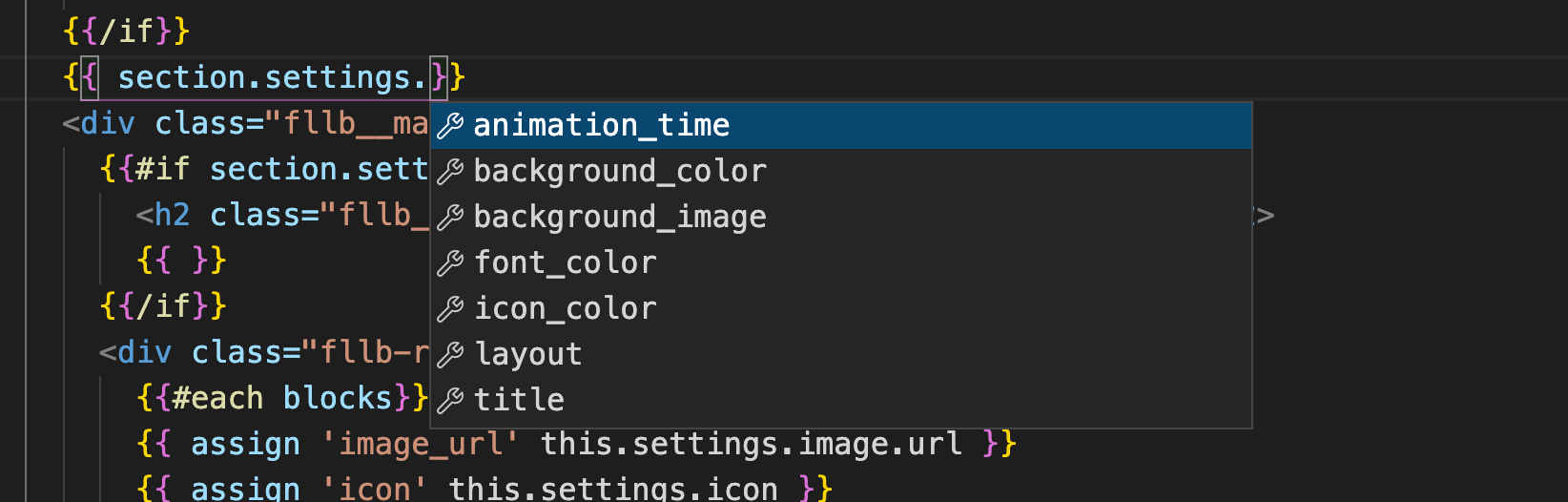
Global configuration of theme properties associative hints
In any development *.html file, when the developer types theme.settings. it will associate the properties inside the global configuration theme with the option to. The theme property of the settings_data.json file is configured as shown below: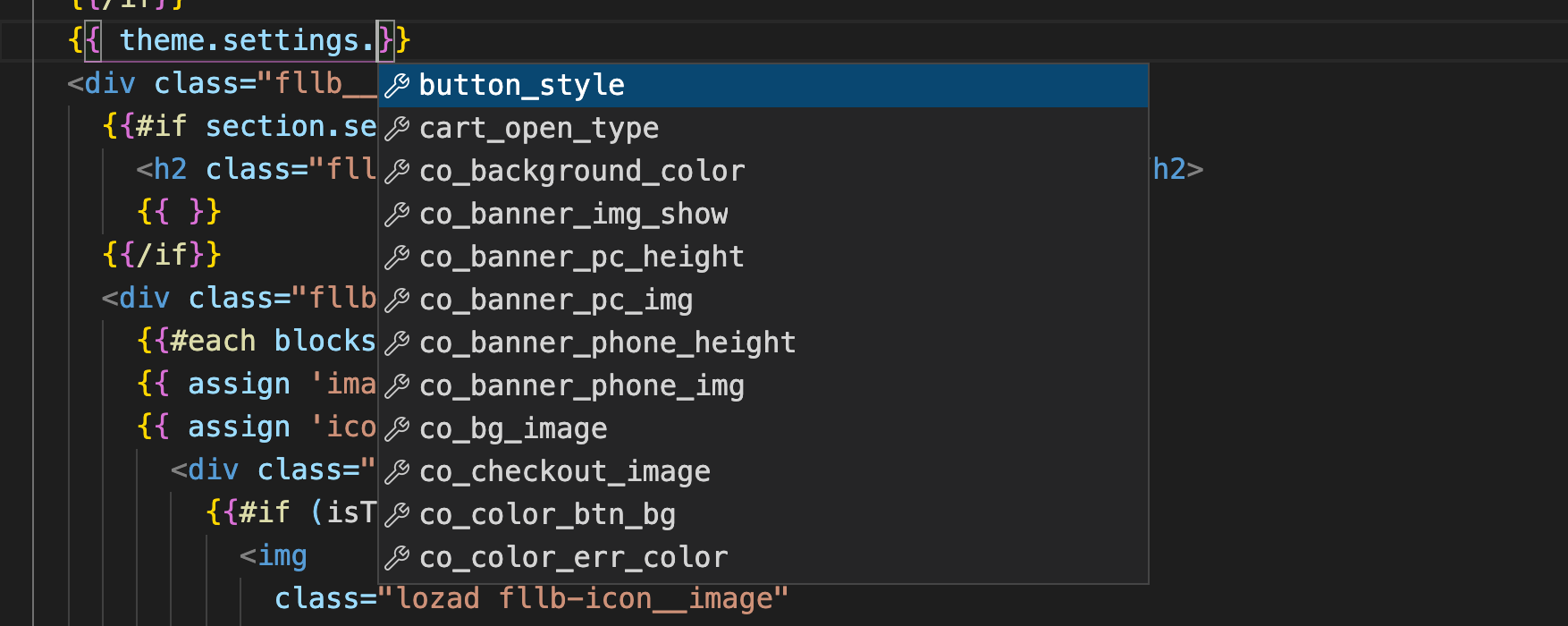
Helper association tips
In the development of any *.html file, when the developer enters code where {{ appears on the current line, any characters entered after it will match the corresponding helper prompt and can be selected. for example, if the developer types {{a it will match the assign,and,append,... helper.
Note: {{ with a space prompts for a helper block, {{ prompts for a helper.
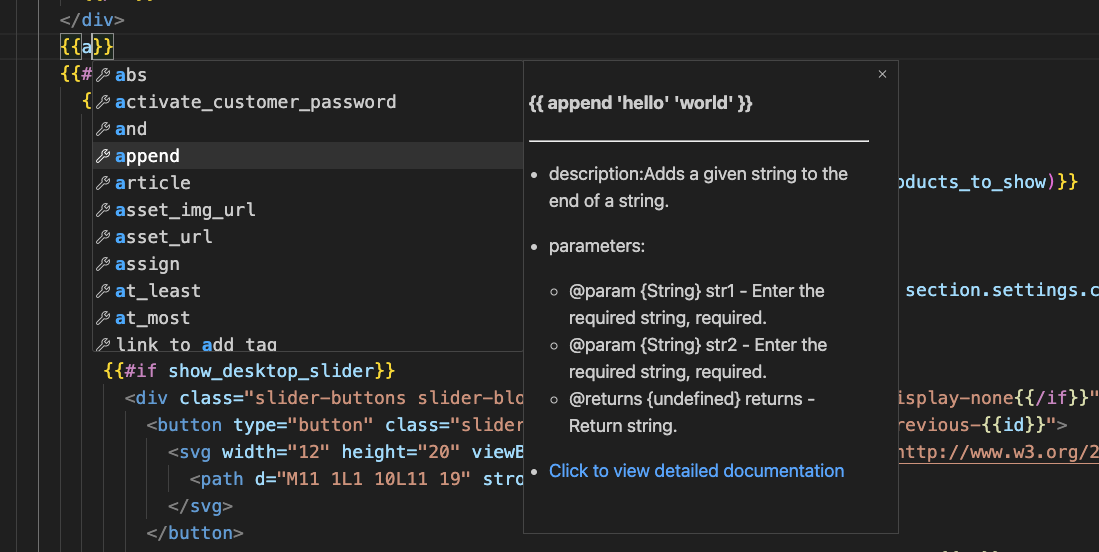
Helper Documentation tips
When developing any *.html file, hovering over the helper will bring up the helper documentation.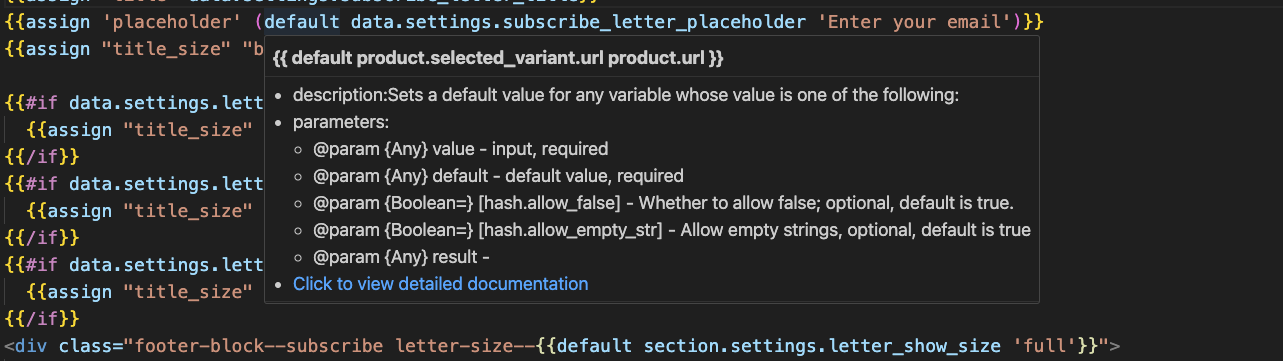
Schema type tips
When developing section components, all B-side control types are prompted when the developer fills in the settings snippet of the schema with the value of the type property.As shown below: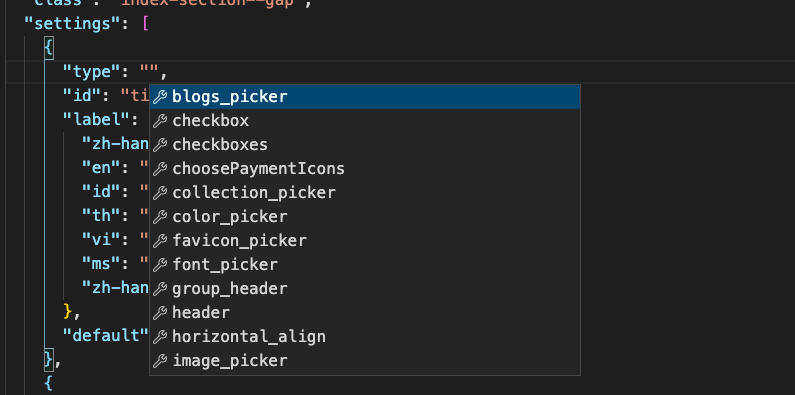
Code Block Completions
Helper code block completions
When developing any *.html file, when the developer enters the code {{ the characters entered after it will match the corresponding helper block prompt with the option to press the enter key for code completion.
Note: {{ prompts for the helper block, {{ adds a space to prompt for the helper
For example, {{if hit enter to complete the code as follows:
{{#if [cursor position]}}
{{else}}
{{/if}}
For example: Type {each and hit the enter key to complete the code as follows
{{#each [cursor position]}}
{{/each}}
Schema code block completions
Develop the section component when the developer enters { in the settings snippet of the schema followed by the type name with a space and a prompt for all B-side control types.
For example: Inputswitch,range,products_num,product_picker,image_picker,select,...
with the option to press the enter key to complete the relevant code block.
For example, enter { sw and select the switch control.The complementary code blocks are as follows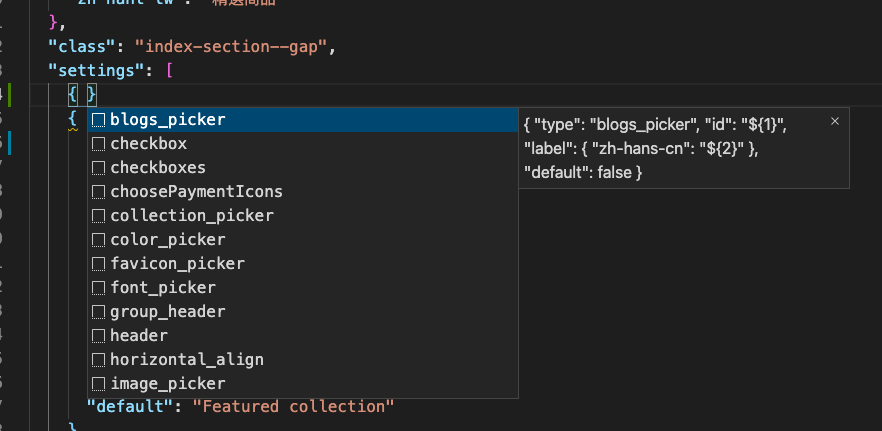
{
  "type": "switch",
  "id": "show_background",
  "label": {
    "zh-hans-cn": "[cursor position]"
  },
  "default": false
}
File path code jump
section/snippet file path jumping
The path to the file is shown below, Press the command key (mac systems) / ctr key (win systems) and click on the file,The relevant file will be opened
Grammar check
Basic grammar check
For example: {{data}} If the ending }} is missing, the file will be marked red with an error.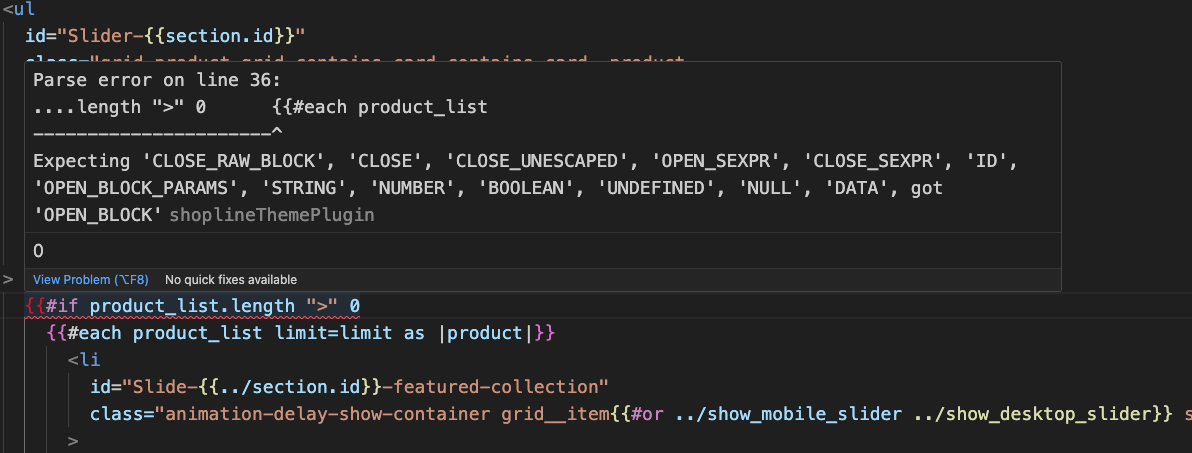
Helper syntax check
The use of a non-existent helper or incorrect parameters will result in a red alert file error.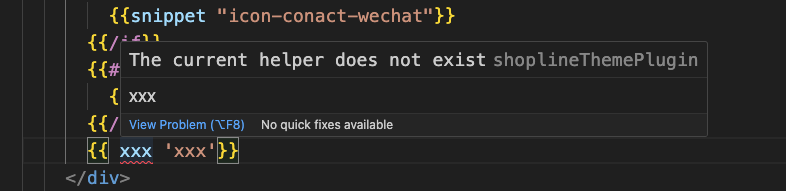
Object grammar check
If you use a non-existent Object object, it will be red flagged with a file error. 
Schema syntax check
schema The configuration must contain the following structure, otherwise the file will be marked red to indicate an error
{
  name:{},
  settings:[{}],
  blocks:[{}],
  max_blocks:1,
  presets:[]
}
settings The configuration must contain the following structure, otherwise the file will be marked red to indicate an error
{
  "type": "text",
  "id": "title",
  "label": "title"
}
Templates json file syntax validation
Basic json syntax error reporting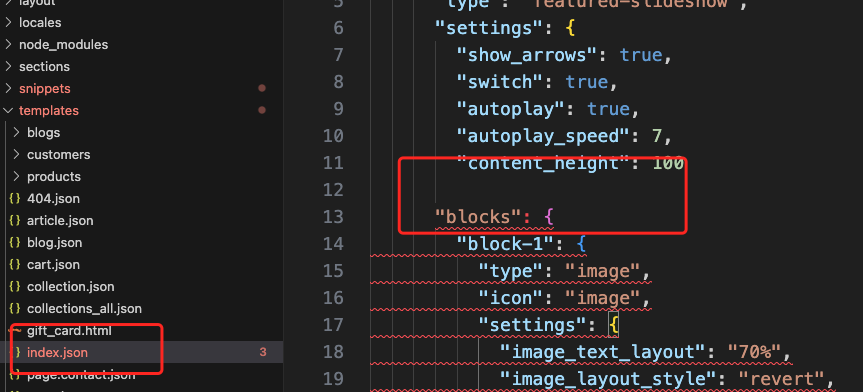
The attribute key of order must be the name of the component in the section folder of the current project, otherwise the file will be marked red with an error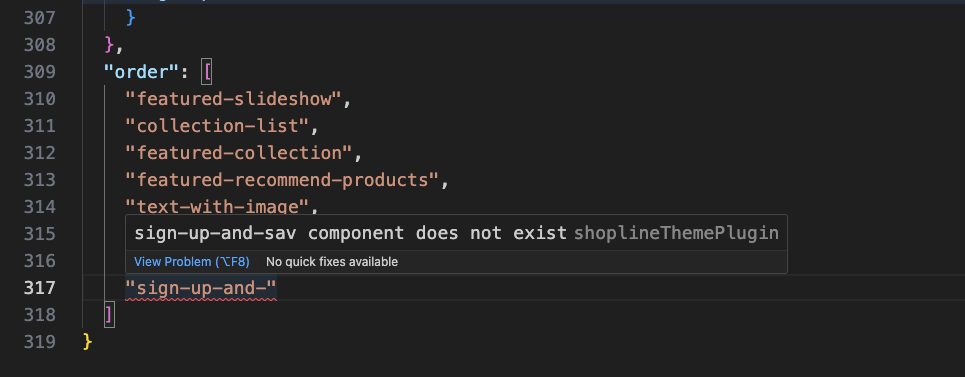
Syntax highlighting
Handlebars syntax highlighting
Documents with the html suffix automatically recognise the handlebars syntax and are highlighted, with the colour style depending on the theme set by the respective editor.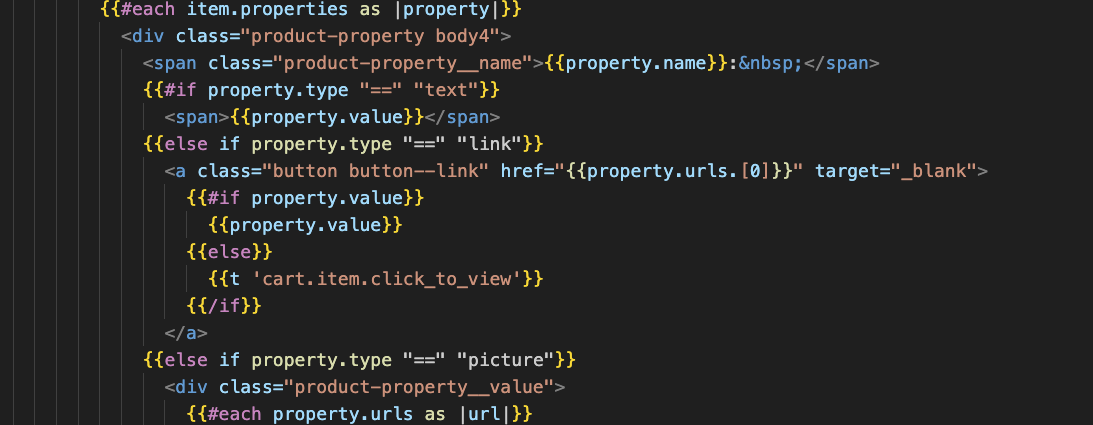
Schema syntax highlighting
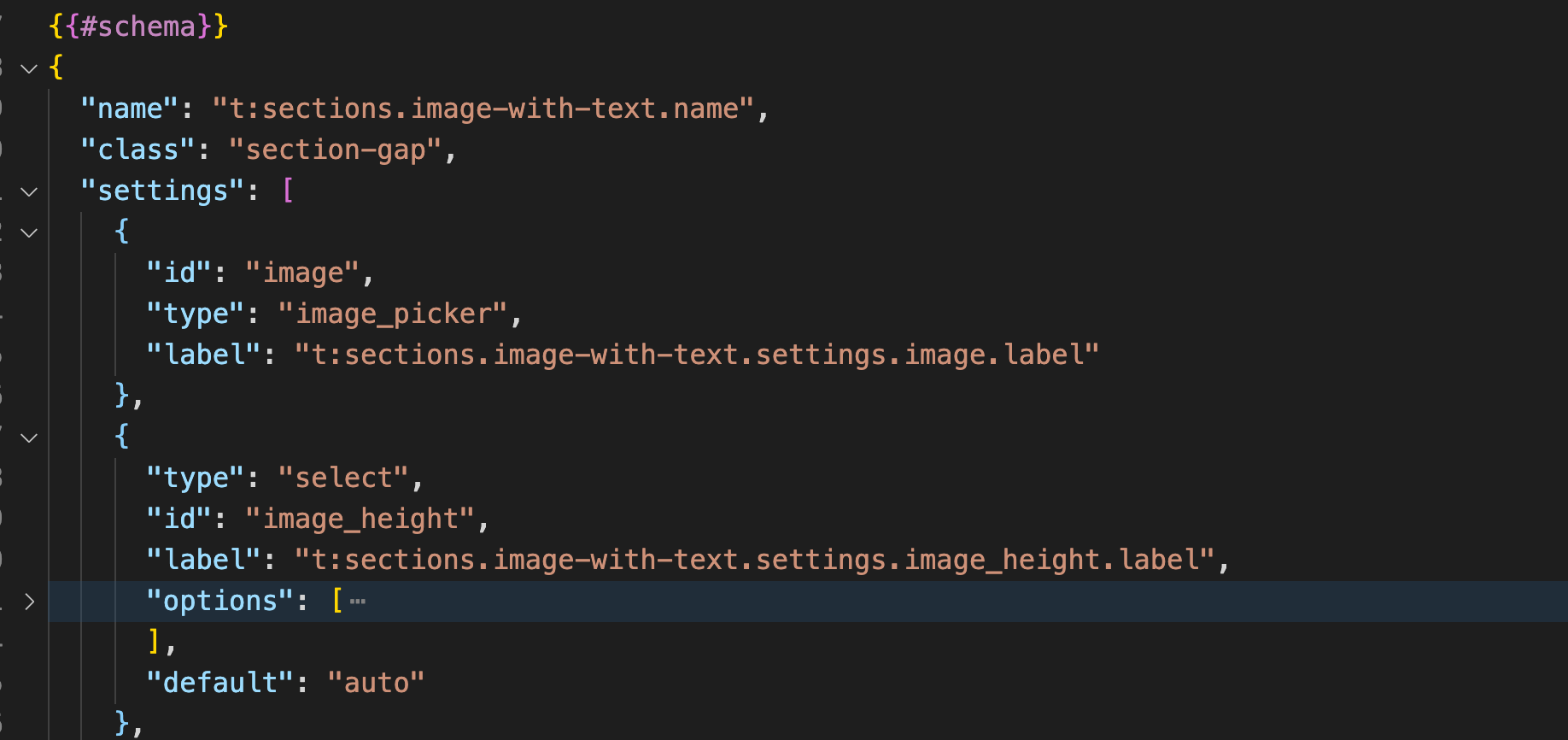
Multilingual translation
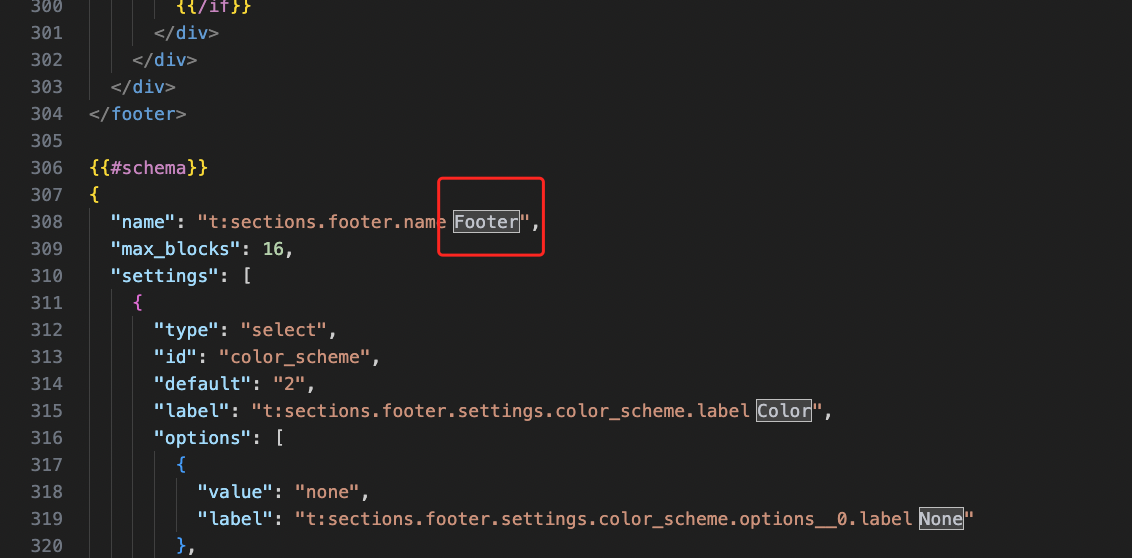
schema multilingual prompt
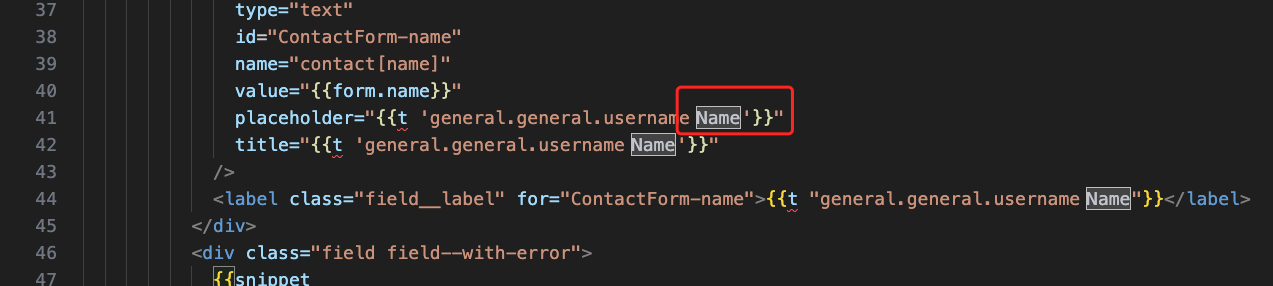
page multilingual prompt
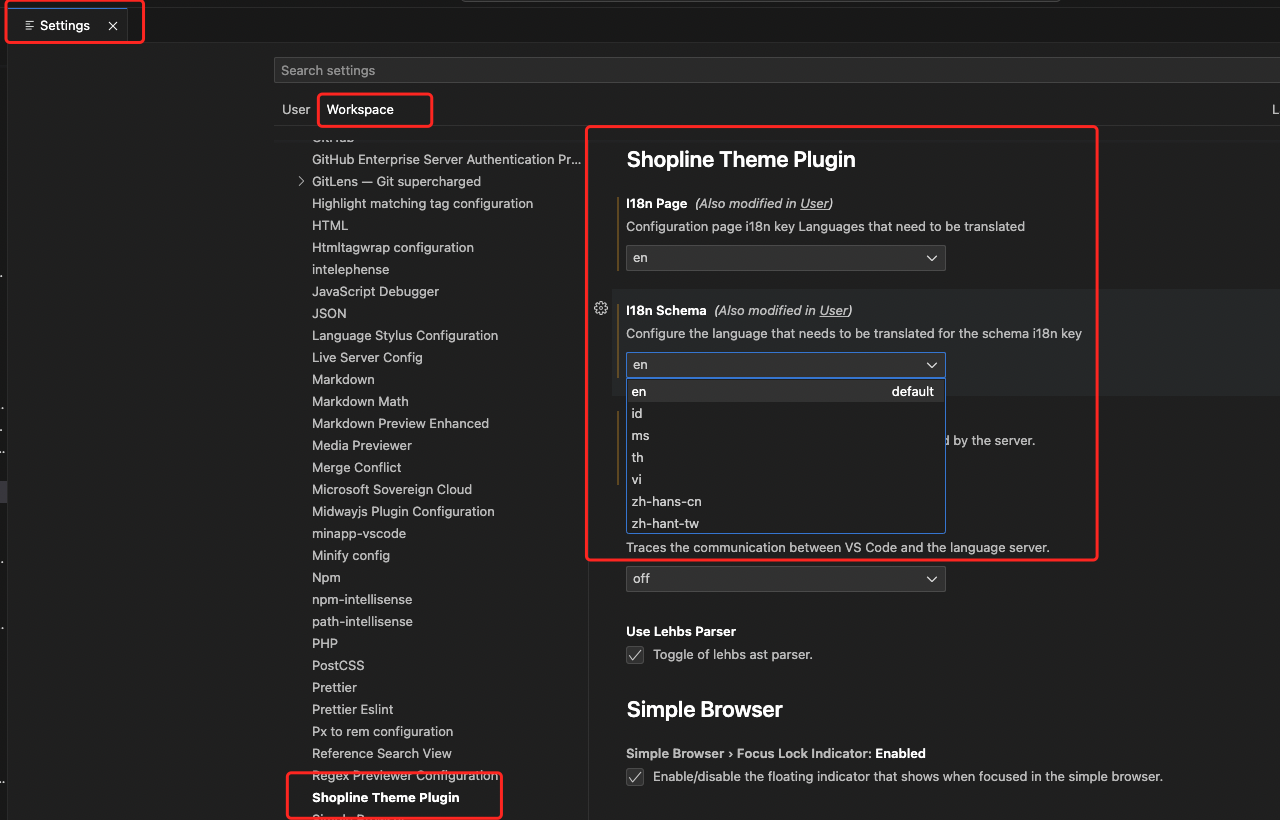
Configure translation language
Theme plugin default translation into English, you can customize the configuration of the translation language operation is as follows:Settings>>Workspace>>Extensions>>Shopline Theme Plugin
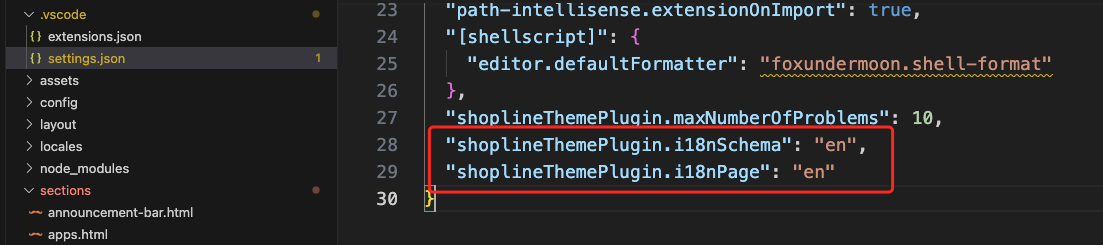
Modify configuration items manually .vscode/settings.json
Code folding
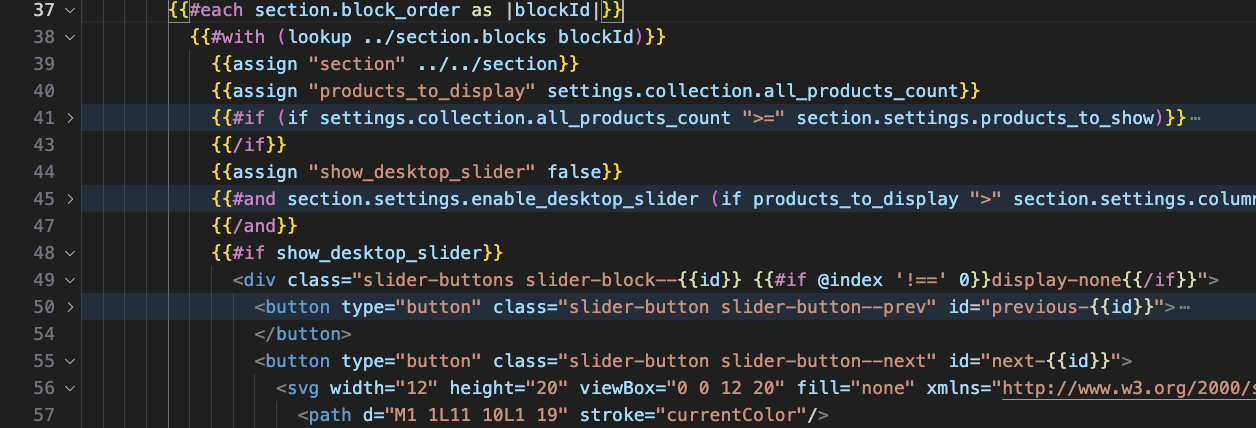
Handlebars code block collapse
Code formatting
Set default code formatting plugin
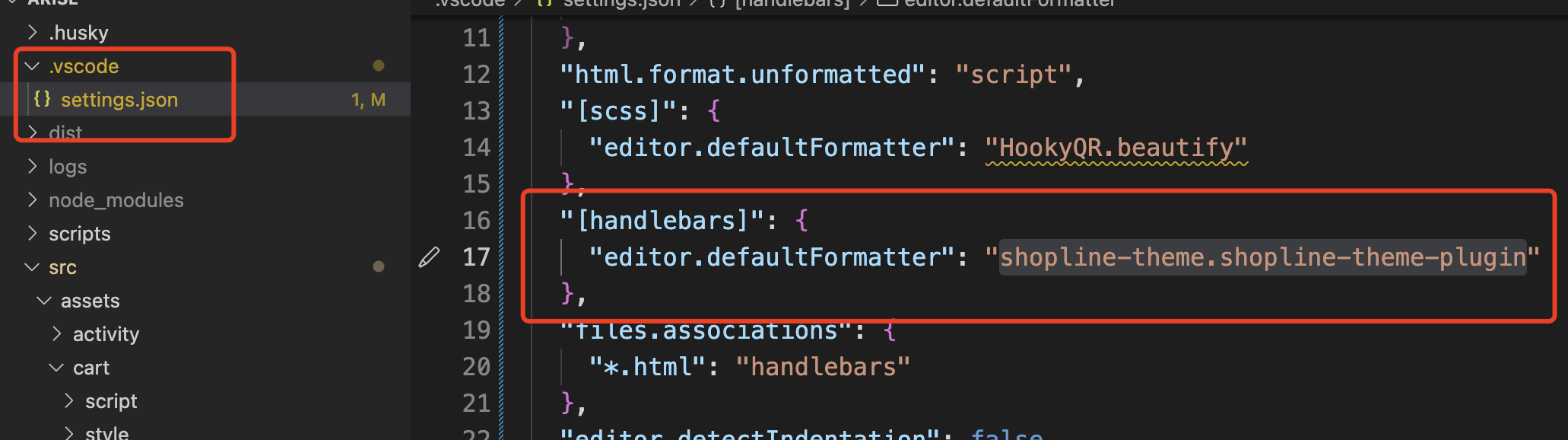
The theme will use shopline-theme-plugin plugin for formatting by default, if you want to change it, please modify the directory .vscode/settings.json file manually.
Formatting document shortcuts
Shortcuts shfit + option + f to format the whole document, various shortcuts such as formatting selected areas of code and saving auto-formatting, the ability to configure the theme directory .vscode/settings.json file according to development habits

Configuring formatting styles
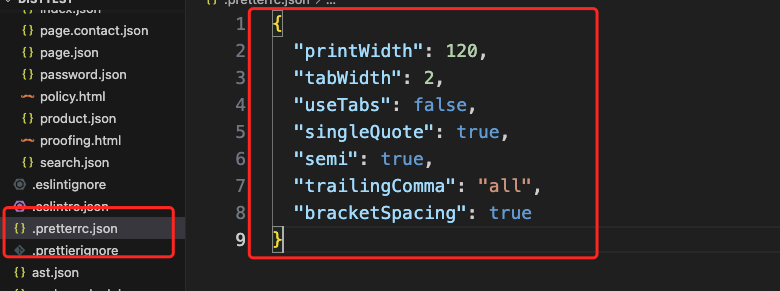
Modify the theme root .prettierrc.js file to configure the code formatting style

'%3e%3crect%20x='6'%20y='7.13049'%20width='13'%20height='10'%20rx='1'%20fill='black'/%3e%3cpath%20d='M12.4998%2012.936L-3.65042%200.604835L28.65%200.604838L12.4998%2012.936Z'%20stroke='white'%20stroke-linejoin='round'/%3e%3c/g%3e%3cdefs%3e%3cclipPath%20id='clip0_716_14611'%3e%3crect%20x='6'%20y='7.13049'%20width='13'%20height='10'%20rx='1'%20fill='white'/%3e%3c/clipPath%3e%3c/defs%3e%3c/svg%3e)

'%3e%3crect%20x='5.63086'%20y='7.26086'%20width='13'%20height='10'%20rx='1'%20fill='white'/%3e%3cpath%20d='M12.1306%2013.0664L-4.01956%200.735206L28.2809%200.735209L12.1306%2013.0664Z'%20stroke='%231A2C42'%20stroke-linejoin='round'/%3e%3c/g%3e%3cdefs%3e%3cclipPath%20id='clip0_716_14599'%3e%3crect%20x='5.63086'%20y='7.26086'%20width='13'%20height='10'%20rx='1'%20fill='white'/%3e%3c/clipPath%3e%3c/defs%3e%3c/svg%3e)