sections
sections 目录中包含了主题所有的组件。组件是页面模版搭建的核心元素,用于定义页面模块的结构和功能。商家可以在主题编辑器中自由添加、删除、移动、或编辑组件内容。
目录结构
在 sections 目录下,每个组件必须有一个目录,且该目录下有一个与目录名同名的 .html 文件。
组件可以由三种文件类型组成,支持 .html .css 和 .js 文件后缀格式。
- .html(必须):用于定义 section 的 HTML 布局。
- .css(可选):用于定义 section 的样式。
- .js(可选):用于定义 section 的行为交互。
sections
├── announcement-bar
│   ├── announcement-bar.css
│   ├── announcement-bar.js
│   └── announcement-bar.html
├── blog
│   ├── blog.css
│   └── blog.html
创建组件
每个组件的 .html 文件中,通常包含两个部分:
- HTML:用于定义组件的布局。
- schema:用于定义组件的配置,此配置将在主题编辑器中展示为商家可自定义的配置。
如下以精选商品(featured-collection)为例,展示创建一个组件的步骤。
1. 添加组件文件
在 sections 目录下新建一个 featured-collection 的目录,再新建一个同名的 .html 文件。
sections
└── featured-collection
    └── featured-collection.html
2. 定义组件 schema 配置
在 featured-collection.html 文件下添加 schema。
<!-- sections/featured-collection/featured-collection.html -->
{{#schema}}
{
  "name": "featured-collection",
  "settings": [
    {
      "type": "collection",
      "id": "collection",
      "label": "collection"
    }
  ]
}
{{/schema}}
3. 渲染组件 schema 配置
使用组件 schema 配置,需要在 HTML 中通过 section.settings 获取配置。
通过 collection 控件 获取商家选中分类的标题。
获取组件配置的 id 为 collection。
以下例子说明了如何获取商家配置分类的标题:
<!-- sections/featured-collection/featured-collection.html -->
<section>
  title: {{section.settings.collection.title}}
</section>
{{#schema}}
{
  "name": "featured-collection",
  "settings": [
    {
      "type": "collection",
      "id": "collection",
      "label": "collection"
    }
  ]
}
{{/schema}}
输出:
<section>
  title: /collections/foo
</section>
schema 只用于声明组件配置,它不会输出内容。
创建私有区块
在组件中支持使用区块,可以把功能模块拆分成区块,然后在组件进行组装。
更多与区块相关的内容请参阅 blocks。
1. 添加私有区块文件
组件的私有区块必须存放在组件的 blocks 目录下。
在 sections/featured-collection 目录中,创建私有 blocks 目录:
sections
└── featured-collection
    ├── featured-collection.html
    └── blocks
        ├── heading.html          # 标题区块
        └── product-list.html     # 商品列表区块
2. 定义区块 HTML 布局
在 heading.html 内使用 props object 获取在组件传入的 text 字段:
props 下的所有字段都是由区块内部定义的需要外部传入的参数,比如 text 字段,表明使用此区块时,需要传入 text 字段的参数。
<!-- sections/featured-collection/blocks/heading.html -->
<div class="heading">
  <div>{{props.text}}</div>
</div>
在 product-list.html 文件中:
- 使用 props object 获取在组件中传入的
collection字段。 - 使用 get_product_pagination filter 获取商品分页数据。
- 使用 for tag 渲染商品的内容。
<!-- sections/featured-collection/blocks/product-list.html -->
{{#var products_pagination = props.collection | get_product_pagination(4) /}}
{{#var products = products_pagination.list /}}
<ul>
  {{#for product in products}}
    <li>
      <div>{{product.title}}</div>
    </li>
  {{/for}}
</ul>
3. 渲染区块
创建完区块后,即可以在组件中引入使用。
在 HTML 的 div 标签里面使用 blocks tag 和 block tag 渲染区块。
在 schema 字段添加所需要的 blocks 字段:
<div>
  {{#blocks}}
    {{#if forblock.type == "$heading"}}
      <!-- 给 heading block 传入 section.settings.collection.title -->
      {{#block text=section.settings.collection.title /}}
    {{#else if forblock.type == "$product-list" /}}
      <!-- 给 product-list block 传入 section.settings.collection -->
      {{#block collection=section.settings.collection/}}
    {{/if}}
  {{/blocks}}
</div>
{{#schema}}
{
  "name": "featured-collection",
  "settings": [
    {
      "type": "collection",
      "id": "collection",
      "label": "collection"
    }
  ],
  "blocks": [
    {
      "type": "$heading",
      "limit": 1
    },
    {
      "type": "$product-list",
      "limit": 1
    }
  ]
}
{{/schema}}
组件集
组件集是相关组件的集合,用于组合要渲染的组件及其相关配置。组件集由 sections 下的 .json 文件表示,组件集类型文件必须存放在组件的根目录下。目录结构样例如下:
sections
├── header-group.json
└── footer-group.json
以下是一个组件集的 JSON 数据规范:
{
  name: <SectionGroupName>,
  type: <SectionGroupType>,
  sections: {
    <SectionID>: {
      "type": <SectionType>,
      "disabled": <SectionDisabled>,
      "settings": {
        <SettingID>: <SettingValue>
      },
      "blocks": {
        <BlockID>: {
          "type": <BlockType>,
          "settings": {
            <SettingID>: <SettingValue>
          },
          "blocks": {
            <BlockID>: {
              "type": <BlockType>,
              "settings": {
                <SettingID>: <SettingValue>
              }
            }
          }
        }
      },
      "block_order": <BlockOrder>
    }
  },
  "order": <SectionOrder>
}
schema 字段
| 字段 | 数据类型 | 是否必填 | 描述 |
|---|---|---|---|
| <SectionGroupName> | String | 是 | 组件集的名称。 |
| <SectionGroupType> | String | 是 | 组件集的类型,枚举值为: • header:应用在页头的组件集类型。• footer:应用在页脚的组件集类型。 |
| <SectionID> | String | 是 | 用于识别组件的全局唯一随机 hash 字符串。 |
| <SectionType> | String | 是 | 组件文件名。 |
| <SectionDisabled> | Boolean | 否 | 组件显示或隐藏。 • true:隐藏。• false(默认):显示。 |
| <BlockID> | String | 否 | 用于识别区块的全局唯一随机 hash 字符串。 |
| <BlockType> | String | 否 | 区块的 HTML 文件名。 |
| <BlockOrder> | String[] | 否 | <BlockID> 列表,决定区块的渲染顺序。 |
| <SectionOrder> | String[] | 否 | <SectionID> 列表,决定组件的渲染顺序。 |
| <SettingID> | String | 否 | 配置项 ID,其在 schema 中自定义。 |
| <SettingValue> | String | 否 | 配置项值,由商家自定义。 |
以下是一个 header-group.json 的例子:
{
  "name": "Header Group",
  "type": "header",
  "sections": {
    "announcement-bar": {
      "type": "announcement-bar",
      "blocks": {
        "announcement-bar__item1": {
          "type": "$item"
        }
      },
      "block_order": ["announcement-bar__item1"]
    },
    "header": {
      "type": "header"
    }
  },
  "order": ["announcement-bar", "header"]
}
组件集的使用
使用组件集的方式是通过 sections tag 引入,以下是在 layout/theme.html 引入 header-group.json 的例子:
<!DOCTYPE html>
<html lang="{{request.locale.iso_code}}">
  <head>
    ...
  </head>
  <body>
    ...
    {{#sections "header-group" /}}
    ...
  </body>
</html>
在主题编辑器内,可以在此组件集内添加、删除和排序组件。
一般情况下,sections 目录下只有 header-group.json 和 footer-group.json。
header-group.json 表示应用在页头的组件集,footer-group.json 表示应用在页脚的组件集。
固定组件
固定组件,是指不可通过主题编辑器添加、删除、移动,只能修改组件配置的组件。一般适用于固定且不想被商家移除的页面模块,如页头、页脚。必须在 布局文件 中引用固定组件。
固定组件的使用
你可以通过 section tag 引用固定组件,并且该引用代码,必须放在布局文件中。
以下是 Bottle 主题中,店铺密码页使用了固定组件的代码示例:
<!-- layout/password.html -->
<!DOCTYPE html>
<html>
<head>
  {{#content "header" /}}
</head>
<body class="password-page">
  {{#section "main-password-header" /}}	<!-- 引用固定组件 main-password-header -->
  ...
  {{#content "layout" /}}
  ...
  {{#section "main-password-footer" /}}	<!-- 引用固定组件 main-password-footer -->
  {{#content "footer" /}}
</body>
</html>
异步组件渲染
你可以使用异步组件渲染能力,通过 AJAX 请求获取到指定的组件 HTML 片段,然后动态替换页面元素来更新页面内容,而无需加载整个页面。
详情请参阅 异步组件渲染 API。
schema
组件可以通过 schema 配置声明组件的各种属性,例如组件名称。
schema 由以下属性组成:
schema 只用于声明组件配置,不会在页面中输出内容。
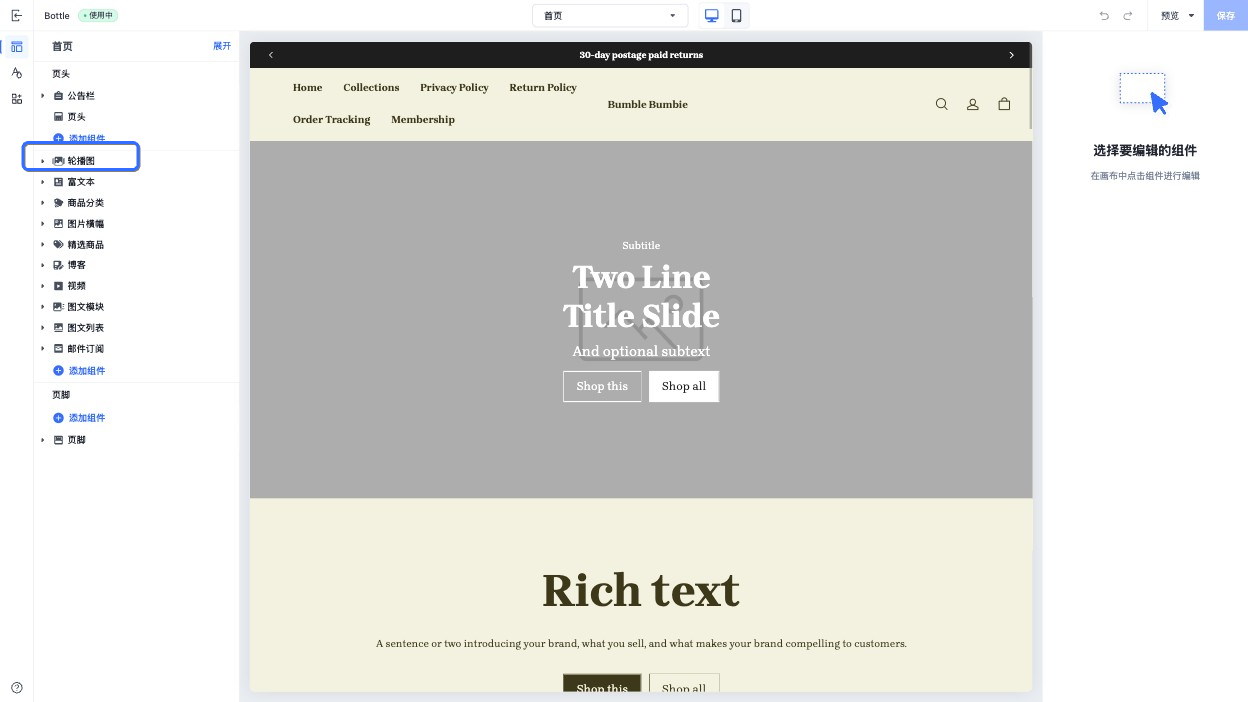
name
name 属性决定了此组件默认在主题编辑器中显示的组件标题。
输入以下的 schema:
{{#schema}}
{
  "name": "轮播图"
}
{{/schema}}
在主题编辑器中呈现组件名:
class
在主题页面渲染一个组件时,组件会被包裹在一个 HTML 元素中,并且带有 shopline-section 的 class 属性,你可以使用 class 属性追加定义这个 HTML 元素的 class 值,例如:
{{#schema}}
{
  "name": "Slideshow",
  "class": "slideshow"
}
{{/schema}}
输出以下 HTML:
<section id="shopline-section-[id]" class="shopline-section slideshow">
  // ...
</section>
tag
在主题页面渲染一个组件时,组件会被包裹在一个 HTML 元素中,默认的 HTML 元素是 div。你可以使用 tag 属性改变这个 HTML 元素,例如:
{{#schema}}
{
  "name": "Slideshow",
  "tag": "section"
}
{{/schema}}
输出以下 HTML:
<section id="shopline-section-[id]" class="shopline-section slideshow">
  // ...
</section>
在区块的 schema 中,把 tag 值设置为空字符串,则可以取消包裹层。此时必须手动添加 {{{shopline_attributes }}} 属性,来为主题编辑器的检查器功能提供具体位置。若保留包裹层,则会自动添加此属性,无需手动处理。例如:
{{#schema}}
{
  "name": "Slideshow-item-block",
  "tag": ""
}
{{/schema}}
settings
settings 的内容请参阅 控件配置。
你可以创建组件的特定配置项来允许商家在主题编辑器自定义组件:
每个 settings 中的 id 必须在当前组件内唯一。
{{#schema}}
{
  "name": "富文本",
  "settings": [
    {
      "type": "richtext",
      "id": "title",
      "label": "标题",
      "default": "请输入内容"
    }
  ]
}
{{/schema}}
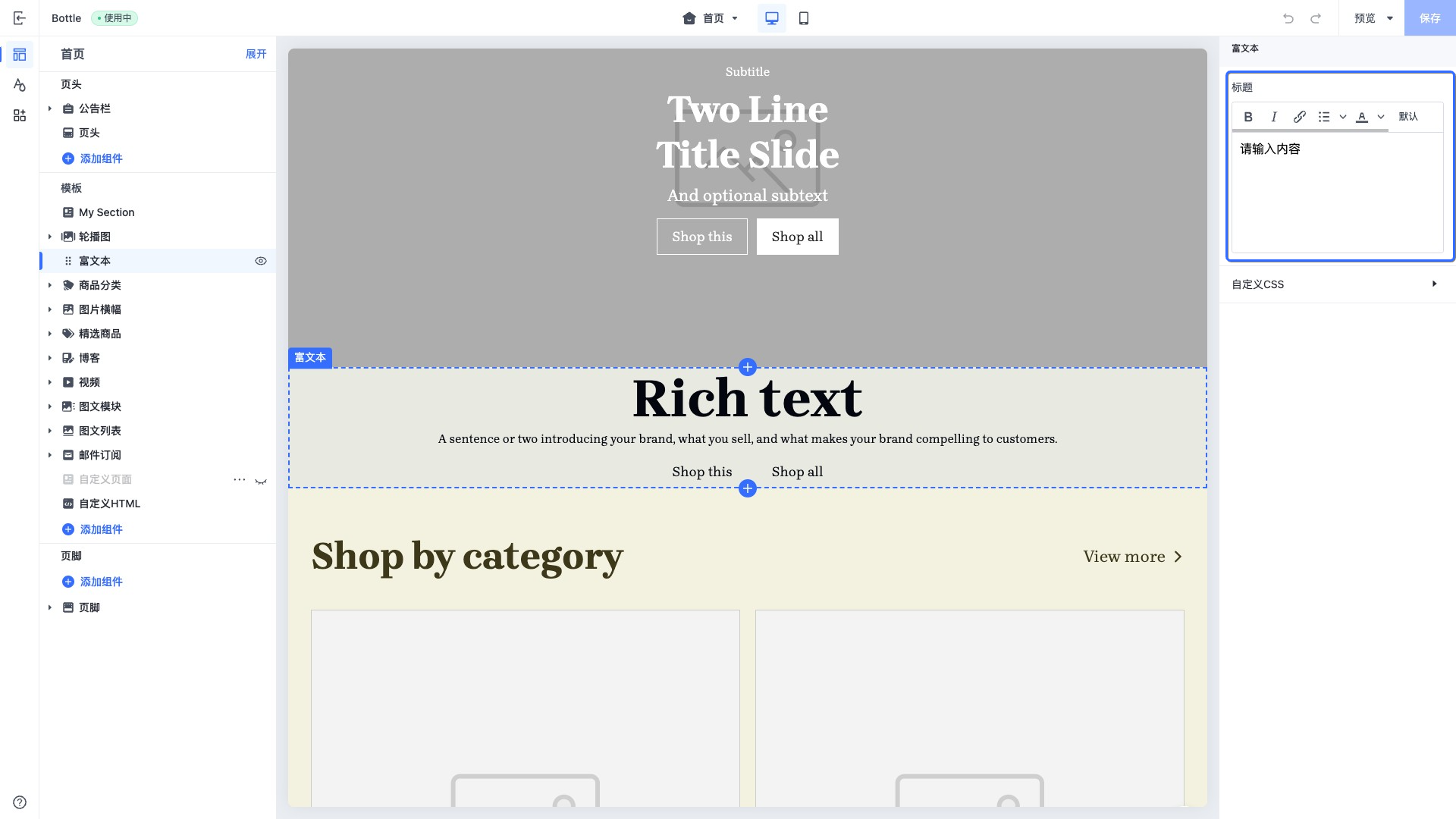
访问组件的配置
组件的配置可以通过 section.settings 访问:
<div>{{ section.settings.title }}</div>
{{#schema}}
{
  "name": "Slideshow",
  "settings": [
    {
      "type": "richtext",
      "id": "title",
      "label": "Title",
      "default": "Rich text"
    }
  ]
}
{{/schema}}
blocks
你可以为一个组件创建可复用的区块,区块可以在一个组件内添加、删除和排序。
blocks 字段具有以下属性:
| 属性 | 值类型 | 是否必填 | 描述 |
|---|---|---|---|
| type | string | 是 | 区块的类型。根据区块的不同,该值有如下区别: • 公有区块:区块对应的 HTML 文件名。例如,公有区块的文件名为 blocks/heading.html,那么 type 的值为 heading。• 私有区块:区块对应的 HTML 文件名,以 $符号开始。例如,私有区块的文件名为 sections/blog/blocks/articles.html,那么 type 的值为 $articles。• App Block:值固定为 @app,表示是可以添加 App Block 的区块。 |
| limit | number | 否 | 可以使用该类型的区块的数量。 |
{{#schema}}
{
  "name": "Slideshow",
  "blocks": [
    {
      "type": "heading-with-link/heading-with-link",
      "limit": 1
    },
    {
      "type": "product-list/list",
      "limit": 1
    }
  ]
}
{{/schema}}
max_blocks
max_blocks 属性表示此组件可以在主题编辑器中添加区块的最大数量。例如:
{{#schema}}
{
  "name": "Slideshow",
	"max_blocks": 5
}
{{/schema}}
limit
limit 属性用于限制同一类型组件或区块的可添加数量。当 limit 配置在组件 schema 中时,表示该组件在同一个页面模板中最多可添加的数量。例如:
{{#schema}}
{
  "name": "描述",
  "limit": 1
}
{{/schema}}
以上配置表示:该组件在同一个页面模板中最多只能添加 1 个。 同样地,limit 也可以配置在 blocks 中,用于限制某一种区块在当前组件内最多可添加的数量。例如:
{{#schema}}
{
  "name": "内容容器",
  "blocks": [
    {
      "type": "$heading",
      "limit": 1
    },
    {
      "type": "$subheading",
      "limit": 1
    }
  ]
}
{{/schema}}
以上配置表示:在该组件内,$heading 类型区块最多只能添加 1 个,$subheading 类型区块最多也只能添加 1 个。
presets
presets 属性用于定义在主题编辑器中,点击添加组件时,该组件的预设配置。
该属性是一个数组,数组中的元素数量代表此组件的预设配置数量。每个组件应至少包含一份预设配置。
当商家在主题编辑器中添加组件时,所选中组件的预设配置将会被添加到相应的 JSON Template 中。
如果没有显式声明 presets 属性,则在主题编辑器中添加组件时,无法添加这个组件。
presets 的每项有以下属性:
| 属性 | 描述 | 是否必填 |
|---|---|---|
| name | 预设名称,将显示在主题编辑器的添加组件的名称上。 | 是 |
| settings | 预设的配置,以对象的形式在存储预设值。 | 否 |
| category | 预设的分类,将在主题编辑器添加组件的时候的将该预设分组。 | 否 |
| blocks | 预设的 blocks,用于在主题编辑器添加此组件的时候,默认添加的区块以及其配置。每个区块都拥有两个字段: • type:区块的 HTML 文件名。例如:heading.html• settings:区块的预设配置。与组件的预设配置形式一致 | 否 |
下面是一个组件中包括预设的例子:
{{#schema}}
{
  "name": "Slideshow",
  "settings": [
    {
      "type": "text",
      "id": "title",
      "label": "Title"
    }
  ],
  "presets": [
  	{
      "name": "Image slideshow",
    	"settings": {
      	"title": "Image"
      },
      "blocks": [
        {
          "type": "$image",
          "settings": {
            "text": "image item"
          }
        }
      ]
    }
  ]
}
{{/schema}}
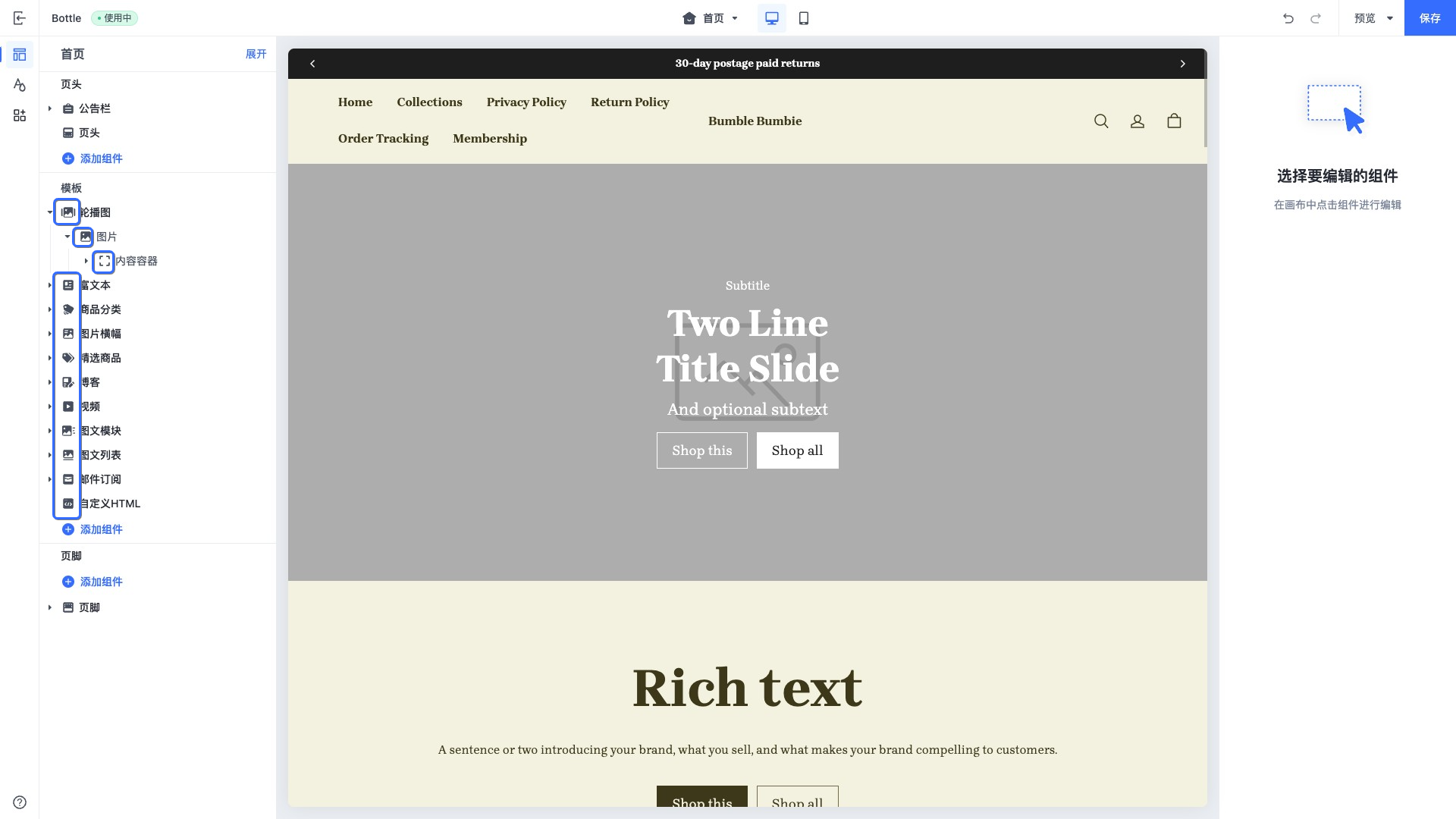
icon
icon 用于展示此组件在主题编辑器中拖拽区展示的图标,以下是可用的枚举值:
| 枚举值 | 展示的图标 |
|---|---|
| footer |  |
| header |  |
| testimonials |  |
| orderPlacement |  |
| products |  |
| collection |  |
| collectionList |  |
| productThumbnail |  |
| filter |  |
| featuredProduct |  |
| productHighlightWithCover |  |
| content |  |
| image |  |
| slideshow |  |
| heroImageWithTextBox |  |
| textWithImage |  |
| textColumnsWithIcons |  |
| video |  |
| logoList |  |
| imageTextGrid |  |
| timeline |  |
| campaignPromotion |  |
| footerPromotion |  |
| announcementBar |  |
| discountBanner |  |
 | |
| navigation |  |
| frequentlyAskedQuestions |  |
| code |  |
| brandList |  |
| sideColumnFilter |  |
| socialMedia |  |
| sideColumn |  |
| inquiryForm |  |
| externalLink |  |
| generalSection |  |
| company |  |
| marketSelector |  |
| cardComponent |  |
| blog |  |
| title |  |
| button |  |
| general |  |
| checkoutPage |  |
| homePage |  |
| additionalPages |  |
| shoppingCart |  |
| loyaltyPoints |  |
| toggleSwitch |  |
| starRating |  |
| date |  |
| measurement |  |
| dataReference |  |
| colorPicker |  |
| fileUpload |  |
| number |  |
| addCustomField |  |
| linkCustomField |  |
| customer |  |
| currency |  |
| productSku |  |
| vector |  |
| addButton |  |
| divider |  |
| socialMedia |  |
| gallery |  |
| discountTag |  |
| orderNotes |  |
| addToCart |  |
| abandonedCart |  |
| favoriteStar |  |
| storeIcon |  |
| groupIcon |  |
| dropdownSelect |  |
| upgradeOption |  |
| cartTotal |  |
| giftCard |  |
| userLevel |  |
图标展示的位置:

'%3e%3crect%20x='6'%20y='7.13049'%20width='13'%20height='10'%20rx='1'%20fill='black'/%3e%3cpath%20d='M12.4998%2012.936L-3.65042%200.604835L28.65%200.604838L12.4998%2012.936Z'%20stroke='white'%20stroke-linejoin='round'/%3e%3c/g%3e%3cdefs%3e%3cclipPath%20id='clip0_716_14611'%3e%3crect%20x='6'%20y='7.13049'%20width='13'%20height='10'%20rx='1'%20fill='white'/%3e%3c/clipPath%3e%3c/defs%3e%3c/svg%3e)

'%3e%3crect%20x='5.63086'%20y='7.26086'%20width='13'%20height='10'%20rx='1'%20fill='white'/%3e%3cpath%20d='M12.1306%2013.0664L-4.01956%200.735206L28.2809%200.735209L12.1306%2013.0664Z'%20stroke='%231A2C42'%20stroke-linejoin='round'/%3e%3c/g%3e%3cdefs%3e%3cclipPath%20id='clip0_716_14599'%3e%3crect%20x='5.63086'%20y='7.26086'%20width='13'%20height='10'%20rx='1'%20fill='white'/%3e%3c/clipPath%3e%3c/defs%3e%3c/svg%3e)