Transaction flow
This article outlines the communication flow between SHOPLINE and payment app servers during the transaction process. It details how these systems interact to provide a seamless, high-quality transaction experience for both merchants and buyers.
Payment
Redirect payment
Select Redirect when creating the payment app. Once this mode is selected, it cannot be modified. In this mode, buyers will be redirected to a third-party payment page to complete the payment.
The following flow illustrates how SHOPLINE and the payment app interact in the redirect payment mode:
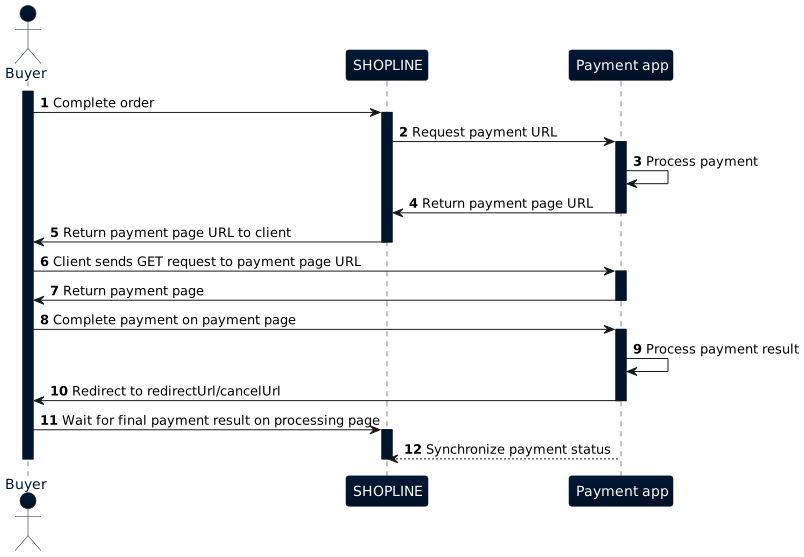
- The buyer clicks the order completion button, triggering a payment request (Step 1).
- SHOPLINE sends a payment request to the payment URL configured in the payment app extension (Step 2). The request includes a redirect URL back to SHOPLINE. After the buyer completes payment on the payment page, the payment app needs to redirect the buyer to this URL.
- The payment app responds successfully and returns a payment page URL (Steps 3-4). If the payment app’s API response does not meet expectations, the payment will be considered failed.
- SHOPLINE redirects the buyer to the payment page URL (Steps 5-7).
- The buyer completes payment on the payment page, and the payment app processes the payment result based on the buyer’s behavior (payment or cancellation) (Steps 8-9).
- The payment app redirects the buyer back to the SHOPLINE store’s processing page to await the final payment result (Steps 10-11).
- The payment app must synchronize the payment status to SHOPLINE (Step 12).
Direct integration
One-time payment
Select Direct Integration (One-Time Payment) when creating the payment app. Once this mode is selected, it cannot be modified. In this mode, buyers complete a one-time payment via credit card directly within the SHOPLINE checkout page.
The following flow illustrates how SHOPLINE and the payment app interact in the direct integration (one-time payment) mode:
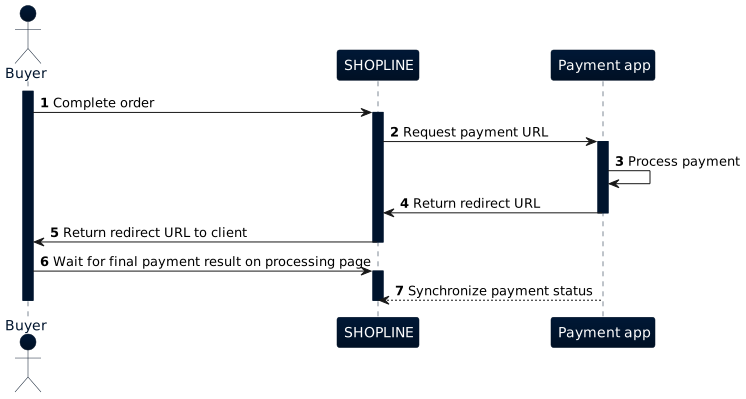
- The buyer enters card information on the checkout page and clicks the order completion button (Step 1).
- SHOPLINE sends a payment request to the payment URL configured in the payment app extension (Step 2).
- The request includes the credit card information entered by the buyer on the checkout page, which the payment app can use to process the payment.
- The request includes a redirect URL back to SHOPLINE. After the buyer completes payment on the payment page, the payment app needs to redirect the buyer to this URL.
- The payment app responds successfully and returns a redirect URL (Steps 3–4).
- If the transaction requires 3D Secure, the payment app needs to return the 3D Secure page URL in the response. SHOPLINE will redirect the buyer to that page to complete the 3D Secure verification. The payment app needs to ensure that after the buyer completes the 3D Secure verification, the buyer is redirected back to SHOPLINE (this flow is similar to redirect payment).
- If the payment app’s API response does not meet expectations, the payment will be considered failed.
- The buyer is redirected to the SHOPLINE store’s processing page to await the final payment result (Steps 5-6).
- Finally, the payment app must synchronize the payment status to SHOPLINE (Step 7).
Recurring payments
Direct integration (recurring payments) allows buyers to authorize their credit cards on the SHOPLINE checkout page and then perform periodic direct debits through the payment instrument. In this mode, the interaction flow takes place within the SHOPLINE checkout page, which is similar to direct integration (one-time payment).
Prerequisites
Select Direct Integration (Recurring Payments) when creating the payment app. Once this mode is selected, it cannot be modified.
Recurring payments consist of two processes: Card-on-file payment and Direct debit:
- Card-on-file payment: When the payment is completed, the payment app needs to generate a payment instrument based on the buyer’s credit card information and return it to SHOPLINE. SHOPLINE will directly use this payment instrument to charge in the subsequent direct debit process.
- Direct debit: SHOPLINE will directly send the payment instrument information for deduction and will not send the buyer’s credit card information again.
Card-on-file payment
This process applies to first-time payment or card replacement (updating the credit card used for future direct debits). For direct debits, the payment instrument generated during the card-on-file payment will be used.
The following flow illustrates how SHOPLINE and the payment app interact in the card-on-file payment scenario:
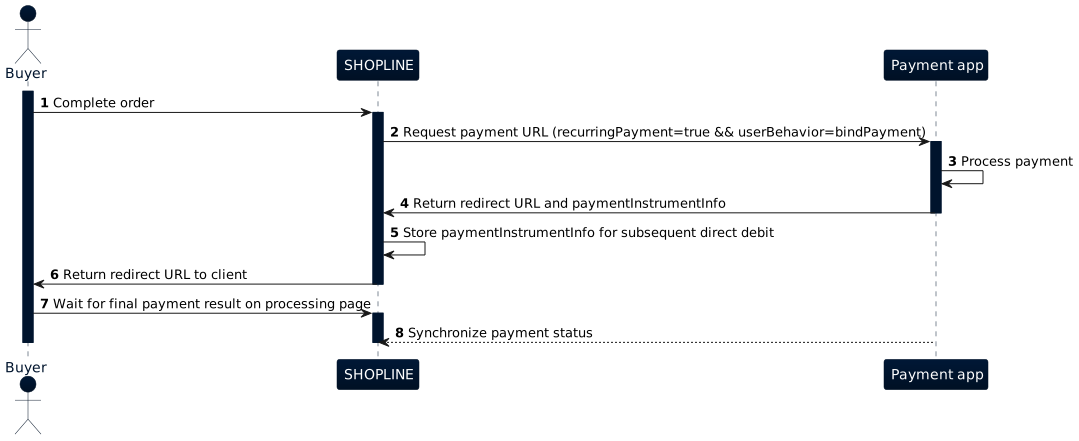
- The buyer enters card information on the checkout page and clicks the order completion button (Step 1).
- SHOPLINE sends a payment request to the payment URL configured in the payment app extension (Step 2).
- The request includes the credit card information entered by the buyer on the checkout page, which the payment app can use to process the payment.
- In the card-on-file payment scenario, the parameters
recurringPayment=trueanduserBehavior=bindPaymentwill be passed. - The request includes a redirect URL back to SHOPLINE. After the buyer completes payment on the payment page, the payment app needs to redirect the buyer to this URL.
- The payment app responds successfully and returns a redirect URL and payment instrument information (Steps 3–4).
- If the transaction requires 3D Secure, the payment app needs to return the 3D Secure page URL in the response. SHOPLINE will redirect the buyer to that page to complete the 3D Secure verification. The payment app needs to ensure that after the buyer completes the 3D Secure verification, the buyer is redirected back to SHOPLINE (this flow is similar to redirect payment).
- If the payment app’s API response does not meet expectations, the payment will be considered failed.
- SHOPLINE will store the payment instrument information for future direct debits (Step 5).
- The buyer is redirected to the SHOPLINE store’s processing page to await the final payment result (Steps 6-7).
- Finally, the payment app must synchronize the payment status to SHOPLINE (Step 8).
Direct debit
This process applies to direct debit following a successful card-on-file setup. During direct debit, the payment instrument is used to process the payment.
The following flow illustrates how SHOPLINE and the payment app interact in the direct debit scenario:
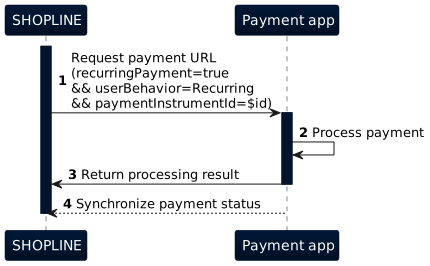
- Based on its business scenario, SHOPLINE sends a payment request to the payment URL configured in the payment app extension (Step 1).
- The request does not contain any card information. Instead, it includes the payment instrument information obtained from the response of the card-on-file payment or retrieved via a query API. The payment app must use this information to process the deduction.
- In the direct debit scenario, the parameters
recurringPayment=trueanduserBehavior=Recurringwill be passed.
- The payment app responds successfully and returns the processing result (Steps 2–3).
- The response does not need to include the
paymentUrlinformation. In the direct debit scenario, SHOPLINE pays on behalf of the buyer, so the buyer is not involved in the interaction. - If the payment app’s API response does not meet expectations, the payment will be considered failed.
- The response does not need to include the
- Finally, the payment app must synchronize the payment status to SHOPLINE (Step 4).
Apple Pay
Select Apple Pay when creating the payment app. Once this mode is selected, it cannot be modified. In this mode, buyers can complete a one-time payment via Apple Pay on SHOPLINE.
The Apple Pay payment mode supports two scenarios: express checkout and standard checkout.
- Express checkout: SHOPLINE renders the express checkout button via the payment_button tag on the product detail page, cart page, and checkout page. After clicking the button, the buyer can complete all checkout information within the Apple Pay payment sheet and finalize the payment via Apple Pay.
- Standard checkout: SHOPLINE displays all supported payment methods in the payment method section of the checkout page. The buyer can select Apple Pay here to perform a standard checkout.
The following flow illustrates how SHOPLINE and the payment app interact in the Apple Pay payment mode:
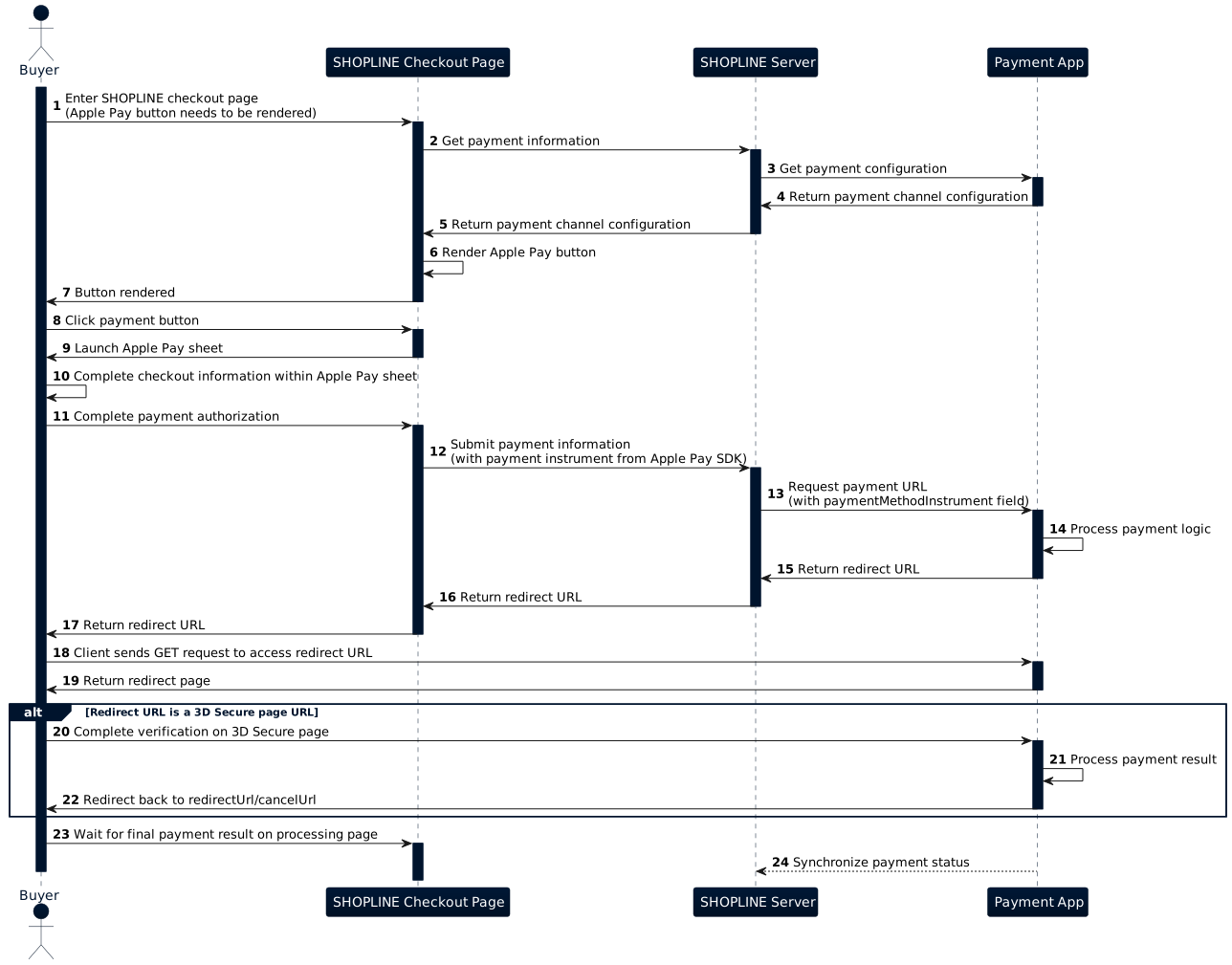
- The buyer enters the SHOPLINE checkout page. The SHOPLINE server sends a payment configuration query request to the payment app to get the Apple Pay configuration for the current store and returns it to the checkout page to render the Apple Pay button (Steps 1–7).
- The buyer clicks the Apple Pay button, and the SHOPLINE checkout page launches the Apple Pay sheet. The buyer completes the checkout information within the sheet (Steps 8–10).
- The buyer confirms the checkout information and completes payment authorization. The SHOPLINE checkout page submits the payment instrument information to the server, which then sends a payment request to the payment URL configured in the payment app extension (Steps 11–13). The request includes the
paymentMethodInstrumentfield and a redirect URL back to SHOPLINE. After the buyer completes payment, the payment app needs to redirect the buyer to this URL. - The payment app responds successfully and returns a redirect URL. SHOPLINE returns this URL to the client for subsequent redirection (Steps 14–17).
- If the transaction requires 3D Secure, the payment app needs to return the 3D Secure page URL in the response.
- If the payment app's API response does not meet expectations, the payment will be considered failed.
- The buyer accesses the returned redirect URL. If it is a 3D Secure page URL, the buyer completes the verification on that page, after which the payment app redirects the buyer back to SHOPLINE (Steps 18–22).
- The buyer waits for the final payment result on the SHOPLINE processing page (Step 23).
- Finally, the payment app must synchronize the payment status to SHOPLINE (Step 24).
Google Pay
Select Google Pay when creating the payment app. Once this mode is selected, it cannot be modified. In this mode, buyers can complete a one-time payment via Google Pay on SHOPLINE.
The Google Pay payment mode supports two scenarios: express checkout and standard checkout.
- Express checkout: SHOPLINE renders the express checkout button via the payment_button tag on the product detail page, cart page, and checkout page. After clicking the button, the buyer can complete all checkout information within the Google Pay payment sheet and finalize the payment via Google Pay.
- Standard checkout: SHOPLINE displays all supported payment methods in the payment method section of the checkout page. The buyer can select Google Pay here to perform a standard checkout.
The following flow illustrates how SHOPLINE and the payment app interact in the Google Pay payment mode:
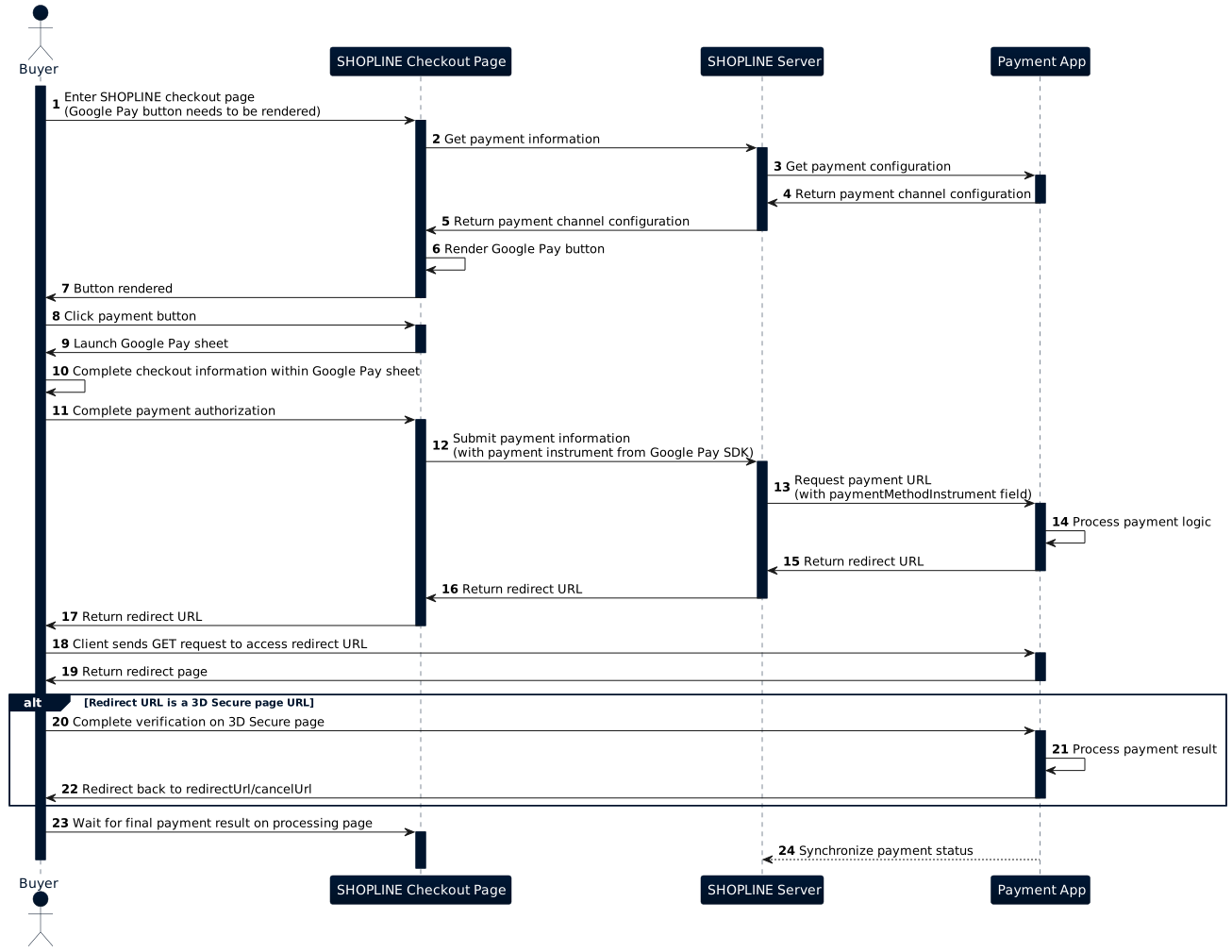
- The buyer enters the SHOPLINE checkout page. The SHOPLINE server sends a payment configuration query request to the payment app to get the Google Pay configuration for the current store and returns it to the checkout page to render the Google Pay button (Steps 1–7).
- The buyer clicks the Google Pay button, and the SHOPLINE checkout page launches the Google Pay sheet. The buyer completes the checkout information within the sheet (Steps 8–10).
- The buyer confirms the checkout information and completes payment authorization. The SHOPLINE checkout page submits the payment instrument information to the server, which then sends a payment request to the payment URL configured in the payment app extension (Steps 11–13). The request includes the
paymentMethodInstrumentfield and a redirect URL back to SHOPLINE. After the buyer completes payment, the payment app needs to redirect the buyer to this URL. - The payment app responds successfully and returns a redirect URL. SHOPLINE returns this URL to the client for subsequent redirection (Steps 14–17).
- If the transaction requires 3D Secure, the payment app needs to return the 3D Secure page URL in the response.
- If the payment app's API response does not meet expectations, the payment will be considered failed.
- The buyer accesses the returned redirect URL. If it is a 3D Secure page URL, the buyer completes the verification on that page, after which the payment app redirects the buyer back to SHOPLINE (Steps 18–22).
- The buyer waits for the final payment result on the SHOPLINE processing page (Step 23).
- Finally, the payment app must synchronize the payment status to SHOPLINE (Step 24).
Manual capture
Manual capture allows merchants to authorize the buyer's funds first and manually capture the payment later based on actual circumstances, such as after the items have been shipped.
1. Prerequisites
Manual capture is enabled only when both conditions are met:
- App configuration: SHOPLINE identifies a payment app as supporting manual capture if the capture URL and void URL are configured in the payment app extension.
- Merchant configuration: The merchant selects Capture payments manually in SHOPLINE Admin > Settings > Payments > Payment capture method. Only then is the mode active.
2. Authorization request
When both prerequisites are met, SHOPLINE sends the payment request with kind=authorization (Refer to the Pay API), indicating an authorization-type payment. Upon successful buyer authorization, the payment app must not capture the funds. It should instead wait for SHOPLINE to call either the Capture API or Void API.
3. Capture or void
After successful authorization, SHOPLINE calls one of the following APIs based on merchant operations:
- Capture API: Executes the actual transfer of funds.
- Based on the capture amount, there are two scenarios:
- Full capture: Charge the total authorized amount.
- Example: Authorized 100 USD, captured 100 USD. This represents capturing the full amount at once.
- Partial capture: Charge only a portion of the authorized amount. Any remaining authorized funds must be automatically released and returned to the buyer.
- Example: Authorized 100 USD, captured 80 USD. In this case, the payment app must release the remaining 20 USD.
- Full capture: Charge the total authorized amount.
- Constraint: Only one successful capture is permitted per payment.
- Based on the capture amount, there are two scenarios:
- Void API: Used to cancel the authorization and release the full hold.
4. Result synchronization
Both capture and void are operations on a specific payment. The payment app must synchronize the payment result to SHOPLINE.
Payment result synchronization
Regardless of the payment method you implement, SHOPLINE obtains the payment result as follows:
- Payment app proactive notification: Once a payment reaches a terminal state, the payment app should call the Notify a payment API provided by SHOPLINE. Upon receiving this, SHOPLINE will call the Get a payment API to verify the final payment status. The notifyUrl parameter, included in the payment request, is the full endpoint for the Notify a payment API for that payment.
- SHOPLINE active querying: Within 24 hours after the payment request is sent, SHOPLINE will periodically send a payment query request to the payment query URL configured in the payment app extension until a terminal state is returned or the maximum attempts are reached.
Payment status
A SHOPLINE payment transitions through the following states. Once a payment reaches a terminal state, SHOPLINE considers the payment process complete and will not synchronize any further status updates. Handle the payment status flow with care to ensure a positive user experience.
If a payment fails to reach one of the following two specific states within 24 hours after the request is initiated, SHOPLINE will deem the order invalid and mark the final payment result as EXPIRED:
- For sale-type payments, the state must transition to
SUCCEEDEDwithin 24 hours. - For authorization-type payments, the state must transition to
AUTHORIZEDwithin 24 hours.
| Status value | Previous state | Terminal state or not | Description |
|---|---|---|---|
| PROCESSING | – | No | The payment app has received the payment request and is processing it. |
| AUTHORIZED | PROCESSING | No | The buyer has authorized the payment. SHOPLINE will record orders in this status for authorization-type payment requests. |
| SUCCEEDED | PROCESSING, AUTHORIZED | Yes | Payment succeeded. |
| FAILED | PROCESSING | Yes | Payment failed. |
| CANCELLED | PROCESSING | Yes | Payment cancelled by the buyer. |
| EXPIRED | PROCESSING | Yes | The payment expired because SHOPLINE did not receive the required states within 24 hours. |
FAQs
Q1: The page remains on the processing page after the payment is completed.
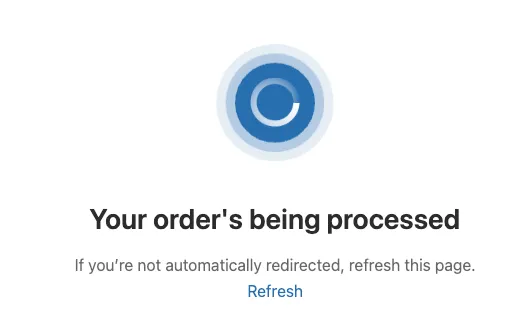 A1: This usually means SHOPLINE failed to receive the required state from the payment app. Check if the payment result synchronization has been triggered.
Q2: The checkout page shows payment failed even though the payment app did not return an explicit failure upon receiving the payment request.
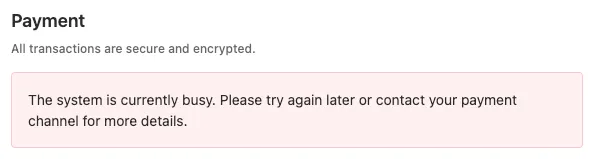 A2: If the payment app’s response to the payment request matches any of the following conditions, the payment is considered failed:
- No response body.
- Signature verification failed.
- The
returnCodein the response body is notSUCCESS.
If the above issue occurs, verify that the request parameters comply with the Pay API documentation.
Refund
Refund flow
The following flow illustrates how SHOPLINE and the payment app interact when a merchant issues a refund:
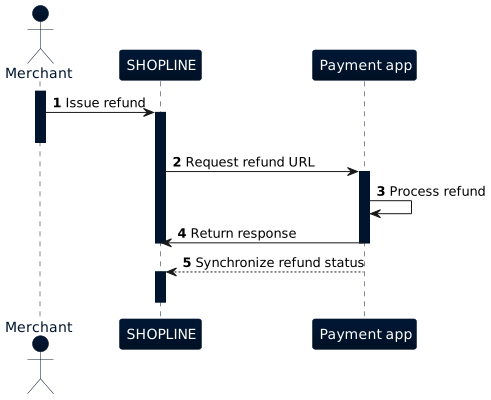
- The merchant issues a refund (Step 1).
- SHOPLINE sends a refund request to the refund URL configured in the payment app extension (Step 2).
- The payment app processes the request and returns a response (Steps 3–4). If SHOPLINE fails to receive the response or signature verification fails, SHOPLINE retries with the same parameters multiple times within 24 hours until a valid response is returned or the maximum retry limit is reached. Ensure the request is handled idempotently.
- Finally, the payment app must synchronize the refund status to SHOPLINE (Step 5).
Refund result synchronization
Regardless of the payment method you implement, SHOPLINE obtains the refund result as follows:
- Payment app proactive notification: Once a refund reaches a terminal state, the payment app should call the Notify a refund API provided by SHOPLINE. Upon receiving this, SHOPLINE will call the Get a refund API to verify the final refund status. The
notifyUrlparameter, included in the refund request, is the full endpoint for the Notify a refund API for that refund. - SHOPLINE active querying: Within 7 days after the refund request is sent, SHOPLINE will periodically send a refund query request to the refund query URL configured in the payment app extension until a terminal state is returned or the maximum attempts are reached.
Refund status
A SHOPLINE refund transitions through the following states. Once a refund reaches a terminal state, SHOPLINE considers the refund process complete and will not synchronize any further status updates. Handle the refund status flow with care to ensure a positive user experience.
| Status value | Previous state | Terminal state or not | Description |
|---|---|---|---|
| PROCESSING | – | No | The payment app has received the refund request and is processing it. |
| SUCCEEDED | PROCESSING | Yes | Refund succeeded. |
| FAILED | PROCESSING | Yes | Refund failed. |
Shipment tracking reporting
If you configure a fulfillment URL in the payment app extension, SHOPLINE will determine that the payment app requires the order’s shipment information.
The following flow illustrates how SHOPLINE and the payment app interact when a merchant ships an order:
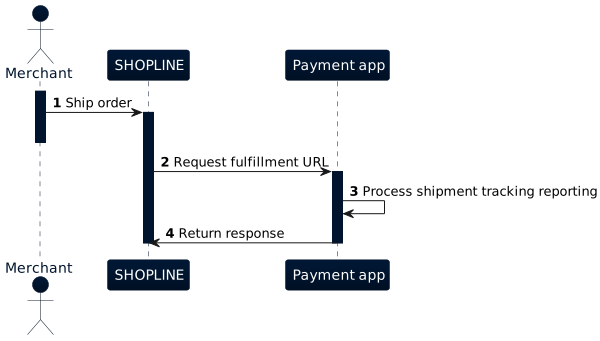
- The merchant ships an order (Step 1).
- SHOPLINE sends a shipment tracking reporting request to the fulfillment URL configured in the payment app extension (Step 2).
- The payment app processes the request and returns a response (Steps 3-4). If SHOPLINE fails to receive the response or signature verification fails, SHOPLINE retries with the same parameters multiple times within 24 hours until a valid response is returned or the maximum retry limit is reached. Ensure the request is handled idempotently.

'%3e%3crect%20x='6'%20y='7.13049'%20width='13'%20height='10'%20rx='1'%20fill='black'/%3e%3cpath%20d='M12.4998%2012.936L-3.65042%200.604835L28.65%200.604838L12.4998%2012.936Z'%20stroke='white'%20stroke-linejoin='round'/%3e%3c/g%3e%3cdefs%3e%3cclipPath%20id='clip0_716_14611'%3e%3crect%20x='6'%20y='7.13049'%20width='13'%20height='10'%20rx='1'%20fill='white'/%3e%3c/clipPath%3e%3c/defs%3e%3c/svg%3e)

'%3e%3crect%20x='5.63086'%20y='7.26086'%20width='13'%20height='10'%20rx='1'%20fill='white'/%3e%3cpath%20d='M12.1306%2013.0664L-4.01956%200.735206L28.2809%200.735209L12.1306%2013.0664Z'%20stroke='%231A2C42'%20stroke-linejoin='round'/%3e%3c/g%3e%3cdefs%3e%3cclipPath%20id='clip0_716_14599'%3e%3crect%20x='5.63086'%20y='7.26086'%20width='13'%20height='10'%20rx='1'%20fill='white'/%3e%3c/clipPath%3e%3c/defs%3e%3c/svg%3e)