theme.config.json
theme.config.json is the global configuration file, which is placed in the root directory of the project. This file is mainly used for:
-
Defining the default style: global styles, such as colors and fonts
-
Storing the merchant configuration: the global configuration data that merchants can edit through the theme editor
-
Presetting multiple styles: multiple theme styles, such as the default style and the dark style
-
Managing the fixed section configuration: the fixed section configuration data that merchants can edit through the theme editor
Data structure
The following example shows a part of the default configuration data of the Bottle theme.
// theme.config.json
{
  "current": "Default",           // The currently used theme style name
  "presets": {                    // Collection of theme styles
    "Default": {                  // Default style configuration data
      "theme": {                  // Theme global configuration data
        "color_schemes": {				// Configuration data for colors
          "scheme-1": {
            "settings": {
              "color_background": "#F3F2E0",
              ...
            }
          }
        }
      },
      "sections": {								// Static section configurations
        ...
      }
    }
  }
}
Field description
Field | Data type | Description |
|---|---|---|
current | String | The currently used theme style name, such as |
presets | Object | The configuration collection of theme styles. Custom styles can be added. |
presets.{name} | Object | The configuration data of a theme style. |
presets.{name}.theme | Object | The theme global configuration data, such as colors and fonts. |
presets.{name}.sections | Object | The fixed section configurations. Refer to JSON templates for specific configuration specifications. |
Custom global configuration
You can set custom data for the Global configuration definitions through the theme editor. The data will be stored in the global configuration file theme.config.json.
The following steps show how to change the global background color of the Bottle theme.
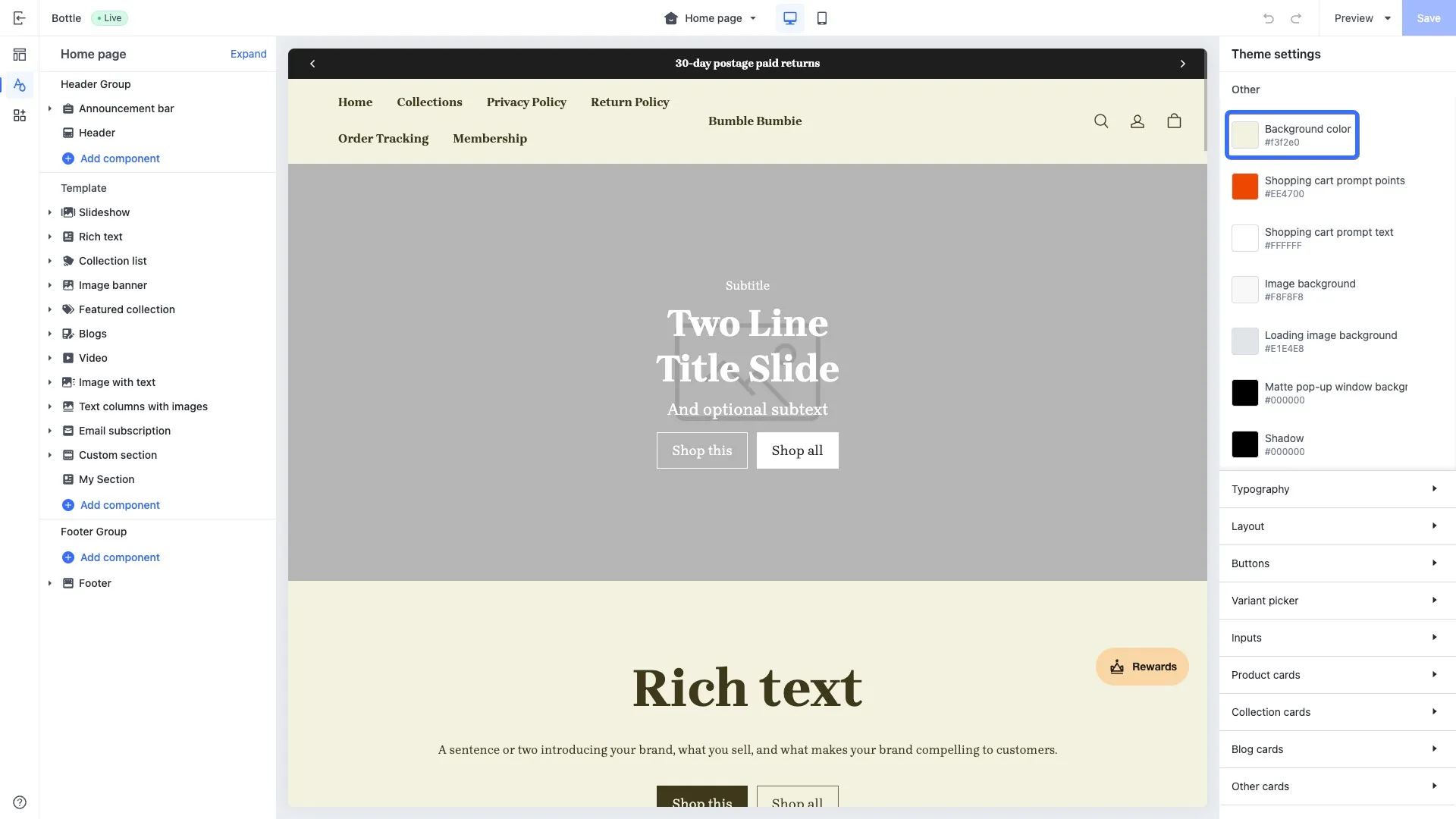
- Open the theme editor. As shown in the following image, the global background color is set to
#F3F2E0by default.
-
Change the global background color to
#E0F1F3.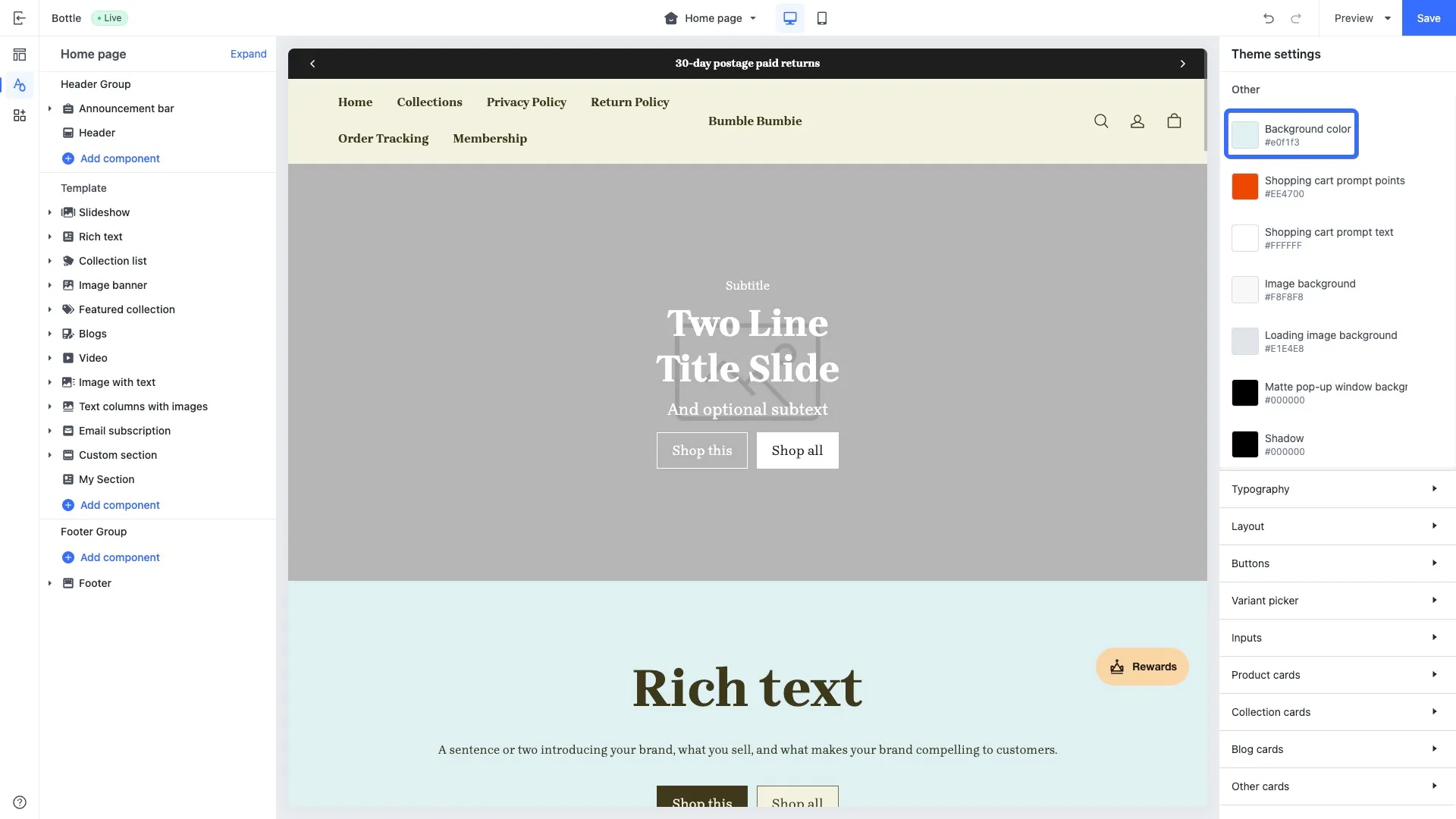
-
Confirm the changes in the
theme.config.jsonconfiguration file via the theme code editor. The updated global page background color is stored in the file'spresets.{name}.theme.color_page_background. The key name ofcolor_page_backgroundis configured in the Global configuration definitions. The following example snippet shows the page color setting in the global configuration.
{
  "current": "Default",
  "presets": {
    "Default": {
      "theme": {
        ...
        "color_page_background": "#e0f1f3",	// The updated global configuration data
        ...
      },
      "sections": {}
    }
  }
}
Multi-style configuration
You can add multiple styles for a theme for merchants to choose from in the theme shop.
Add a new style
To add a new style for a theme, insert a style configuration under presets in the JSON file.
// theme.config.json
{
  "current": "Default",
  "presets": {
    "Default": {															// The default style
      "theme": {
        "color_schemes": {
          "scheme-1": {
            "settings": {
              "color_background": "#F3F2E0",	// Background color:color scheme 1
              ...
            }
          }
        }
      }
    },
    "Dark": {	                                // The dark style
      "theme": {
        "color_schemes": {
          "scheme-1": {
            "settings": {
              "color_background": "#000000",	// Background color:color scheme 2
              ...
            }
          }
        }
      }
    }
  }
}
Switch styles
You can switch to the dart theme style by modifying the value of current to Dark.
// theme.config.json
{
  "current": "Dark",	// Switch to the dark style
  "presets": {
    "Default": {			// Default style
      ...
    },
    "Dark": {					// Dark style
      ...
    }
  }
}
Fixed section configuration
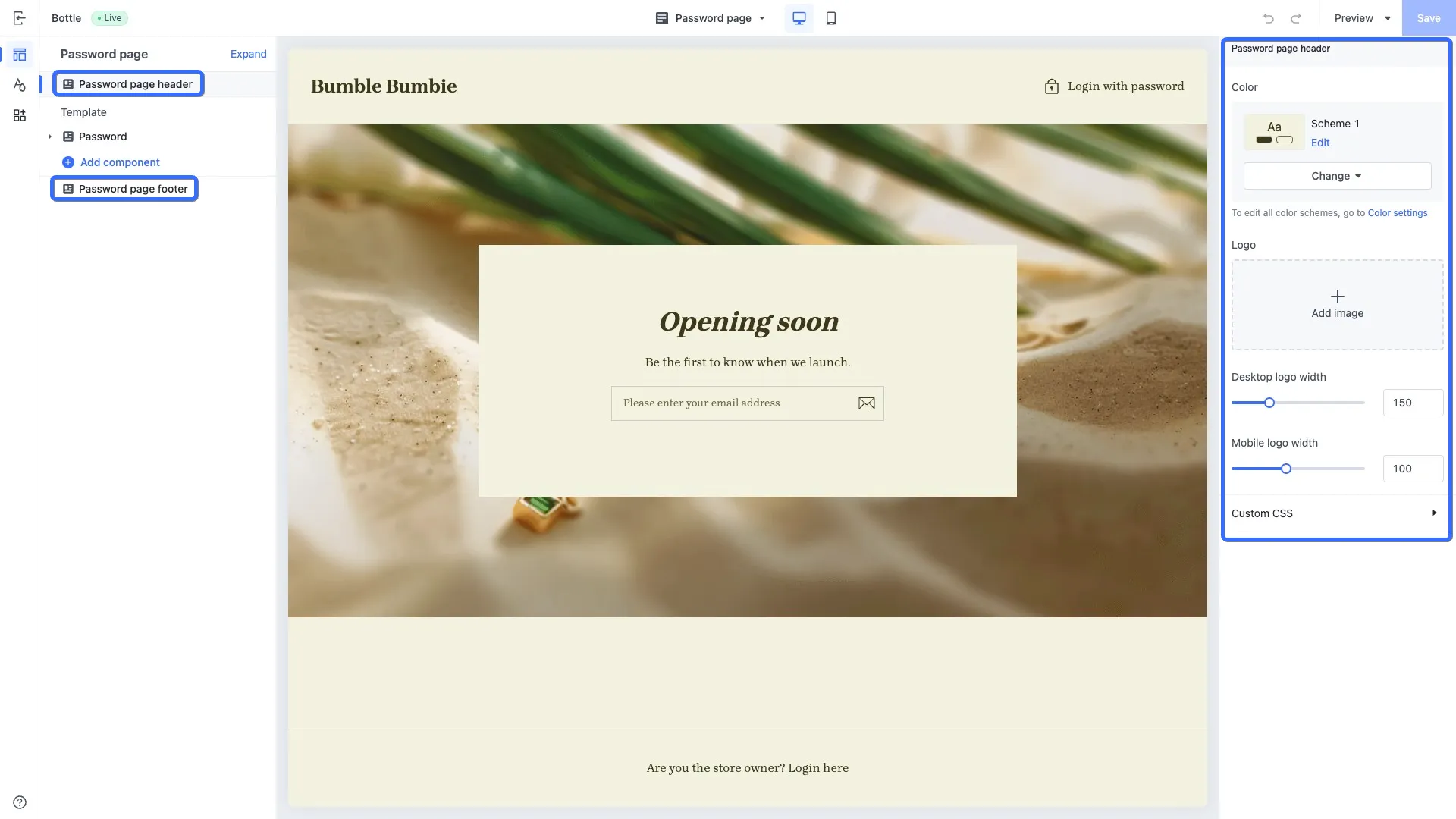
You can set data for fixed sections through the theme editor. The configured data is saved in the presets.{name}.sections field within the theme.config.json file.
The following image shows the password protection page, which includes fixed sections Password page header and Password page footer. You can edit the configurations of these sections in the theme editor.

'%3e%3crect%20x='6'%20y='7.13049'%20width='13'%20height='10'%20rx='1'%20fill='black'/%3e%3cpath%20d='M12.4998%2012.936L-3.65042%200.604835L28.65%200.604838L12.4998%2012.936Z'%20stroke='white'%20stroke-linejoin='round'/%3e%3c/g%3e%3cdefs%3e%3cclipPath%20id='clip0_716_14611'%3e%3crect%20x='6'%20y='7.13049'%20width='13'%20height='10'%20rx='1'%20fill='white'/%3e%3c/clipPath%3e%3c/defs%3e%3c/svg%3e)

'%3e%3crect%20x='5.63086'%20y='7.26086'%20width='13'%20height='10'%20rx='1'%20fill='white'/%3e%3cpath%20d='M12.1306%2013.0664L-4.01956%200.735206L28.2809%200.735209L12.1306%2013.0664Z'%20stroke='%231A2C42'%20stroke-linejoin='round'/%3e%3c/g%3e%3cdefs%3e%3cclipPath%20id='clip0_716_14599'%3e%3crect%20x='5.63086'%20y='7.26086'%20width='13'%20height='10'%20rx='1'%20fill='white'/%3e%3c/clipPath%3e%3c/defs%3e%3c/svg%3e)