customers/login
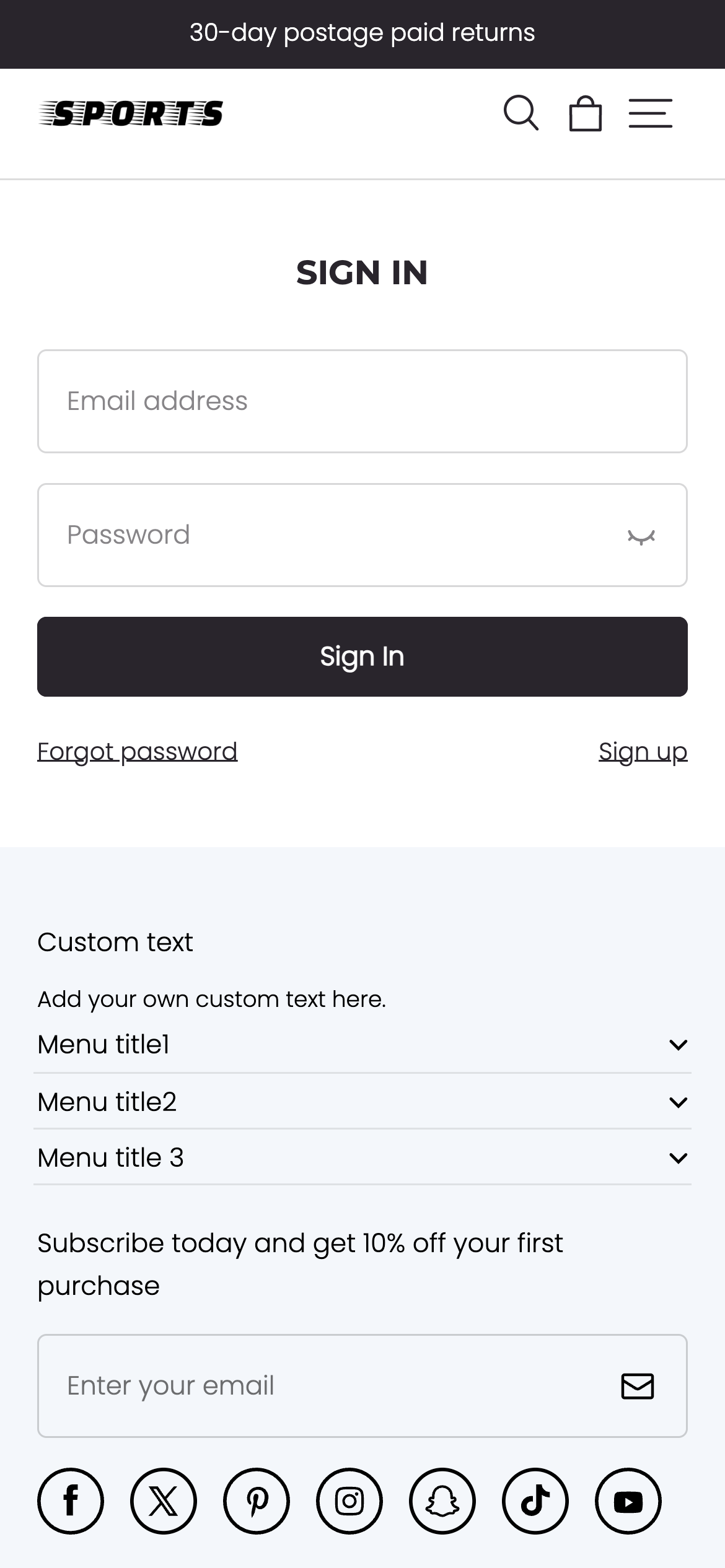
The customers/login template renders the customer login page, which is used to log in to a customer account.
Location
The customers/login template is located in the theme's template directory templates > customers:
└── theme
    ├── templates
    |   └── customers
    |     ├── login.json
    |     ...
    ├── layout
    ...
Content
You can include the Customer Login Form in the customers/login template or a section within the template.
(Optional) You can add the "Third-Party Login" option.
Customer Login Form
The Customer Login Form can be added using the Handlebars form helper with the 'customer_login' parameter. Within the form helper block, you need to include the following:
| Field | Type | Form Name |
|---|---|---|
| customer[email] | ||
| Phone | text | customer[phone] |
| Password | password | customer[password] |
| Dialing Code | text | customer[code] |
You should support both phone and email login methods. However, the dialing code field is only required when logging in with a phone number.
Example code:
{{#form "customer_login"}}
<div class="email">
  <label for="email">Email</label>
  <input type="email" name="customer[email]">
</div>
<div class="password">
  <label for="password">Password</label>
  <input type="password" name="customer[password]">
</div>
<div class="submit">
  <input type="submit" value="Sign in">
</div>
{{/form}}
Usage
When using the customers/login template, you should be familiar with the following:
- Linking to the Login Page
- Providing "Forgot Password" Option
- Providing "Phone Login" Option
- Providing "Third-Party Login" Option
- Redirecting After Login
If you are using a JSON template, any HTML or Handlebars code needs to be included in the template's referenced section.
Linking to the Login Page
When linking to the login page, you need to consider the theme settings and the current login status.
For example, if displaying the login button is disabled, no link should be shown. If the customer is already logged in, you can instead link to the Account Page.
{{#if show_user_entry}}
  <a class="icon-button header__icon-button" href="{{#if customer }}{{ routes.account_url }}{{else}}{{ routes.account_login_url }}{{/if}}">
    {{snippet 'icon-user'}}
  </a>
{{/if}}
Providing "Forgot Password" Option
You can provide customers with a link to the forgot password page to help them reset their password:
<a href="{{routes.account_recover_url}}">Forget password</a>
Providing "Phone Login" Option
For phone login, it is necessary to provide a dialing code selection. The dialing code data is delivered through the all_country_dialing_code object:
{{#form "customer_login"}}
<div class="field">
<input
  class="field__input"
  type="tel"
  id="RegisterPhone"
  name="customer[phone]"
  required
  placeholder="{{t 'customer.general.phone'}}"
/>
<label for="RegisterPhone" class="field__label body3">
  {{t "customer.general.phone"}}
</label>
</div>
<div class="field__suffix">
<select name="customer[code]" id="country-select">
  {{#for ../all_country_dialing_code as |dialing|}}
     <option value="{{dialing.dialing_code}}" data-iso-code="{{dialing.iso_code}}">{{dialing.name}}</option>
  {{/for}}
</select>
</div>
{{/form}}
Providing "Third-Party Login" Option
You can offer customers third-party login options by using the Handlebars form helper with the customer_login parameter and thirdLogin = true. Additionally, use loadFeatured to include the customer-account-api SDK to handle third-party login logic.
{{#form "customer_login" id="login-customer-form" thirdLogin="true"}}
  ...
  <div class="customer-third-login">
      <div class="customer-third-login__desc">
        <span class="body4">{{t "customer.general.login_method"}}</span>
      </div>
      <div class="customer-third-login__btns">
        <div id="third-login-container"></div>
      </div>
    </div>
{{/form}}
For an example implementation, refer to the assets/section-main-login.js and sections/main-login.html files in Seed.
Redirecting After Login
By default, after a user successfully logs in, they are redirected to the Account Page. You can change this setting using the return_to parameter of the Handlebars form helper.
The following example demonstrates how to direct users to the All Product Collections Page URL:
{{#form "customer_login" return_to=routes.all_products_collection_url}}
   <!-- form content -->
{{/form}}

'%3e%3crect%20x='6'%20y='7.13049'%20width='13'%20height='10'%20rx='1'%20fill='black'/%3e%3cpath%20d='M12.4998%2012.936L-3.65042%200.604835L28.65%200.604838L12.4998%2012.936Z'%20stroke='white'%20stroke-linejoin='round'/%3e%3c/g%3e%3cdefs%3e%3cclipPath%20id='clip0_716_14611'%3e%3crect%20x='6'%20y='7.13049'%20width='13'%20height='10'%20rx='1'%20fill='white'/%3e%3c/clipPath%3e%3c/defs%3e%3c/svg%3e)

'%3e%3crect%20x='5.63086'%20y='7.26086'%20width='13'%20height='10'%20rx='1'%20fill='white'/%3e%3cpath%20d='M12.1306%2013.0664L-4.01956%200.735206L28.2809%200.735209L12.1306%2013.0664Z'%20stroke='%231A2C42'%20stroke-linejoin='round'/%3e%3c/g%3e%3cdefs%3e%3cclipPath%20id='clip0_716_14599'%3e%3crect%20x='5.63086'%20y='7.26086'%20width='13'%20height='10'%20rx='1'%20fill='white'/%3e%3c/clipPath%3e%3c/defs%3e%3c/svg%3e)